If your organization has multiple salespeople but only one person responsible for sending out final contracts, you can now streamline the process using the Send Documents & Contracts action in Workflows.
Dynamic assignment ensures the correct internal user signs templates that include Sender fields, eliminating manual edits per run. This is ideal for teams where the workflow sender or template owner varies by record or pipeline.
By choosing to create contracts as drafts rather than sending them directly, you can ensure that only the designated contract sender reviews and sends contracts.
TABLE OF CONTENTS
- Why Use the “Create as Draft” Feature?
- Step-by-Step Guide
- Sending Out Draft Contracts
- Frequently Asked Questions
Why Use the “Create as Draft” Feature?
Centralized Review: Only one person (or team) is responsible for reviewing and sending contracts, so you avoid confusion or accidental sends even after automated creation using templates.
Quality Control: Based on a Sales staff action or end user's action such as completing a form or any other action, it would still trigger the workflow to prepare the document, but the final send occurs after a designated check from the Documents & Contracts section.
Step-by-Step Guide
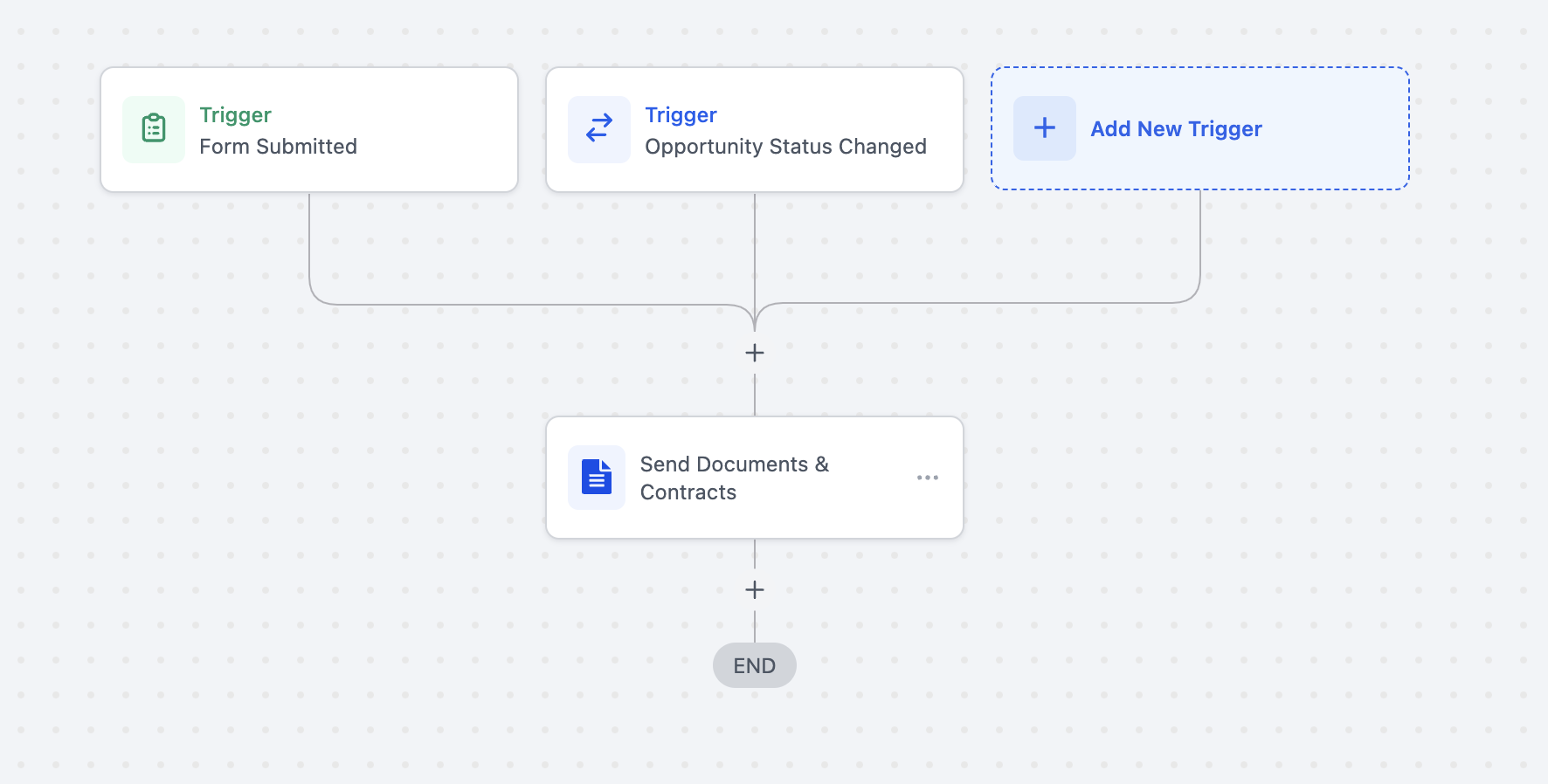
1. Create or Edit Your Workflow
In your account, go to Workflows and select New Workflow or edit an existing one.
In the workflow builder, add a Trigger. Common triggers might include:
A new deal stage being reached.
A specific form being completed.
Opportunity status being updated.
2. Add the “Send Documents & Contracts” Action
Click on Add New Action.
Select Send Documents & Contracts from the list of available actions.
3. Configure the Action
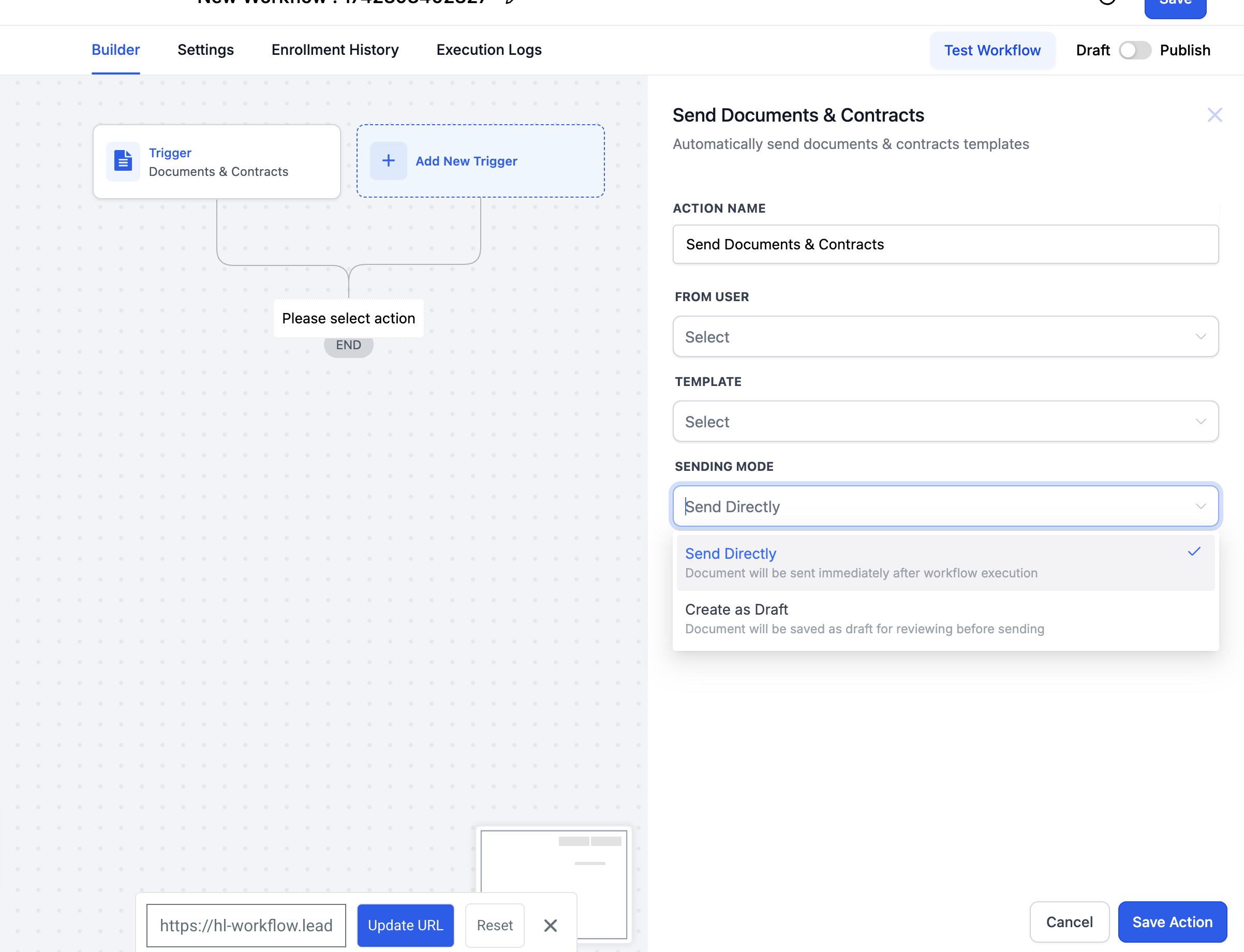
Action Name: Give the action a meaningful name (e.g., “Draft Contract Creation”).
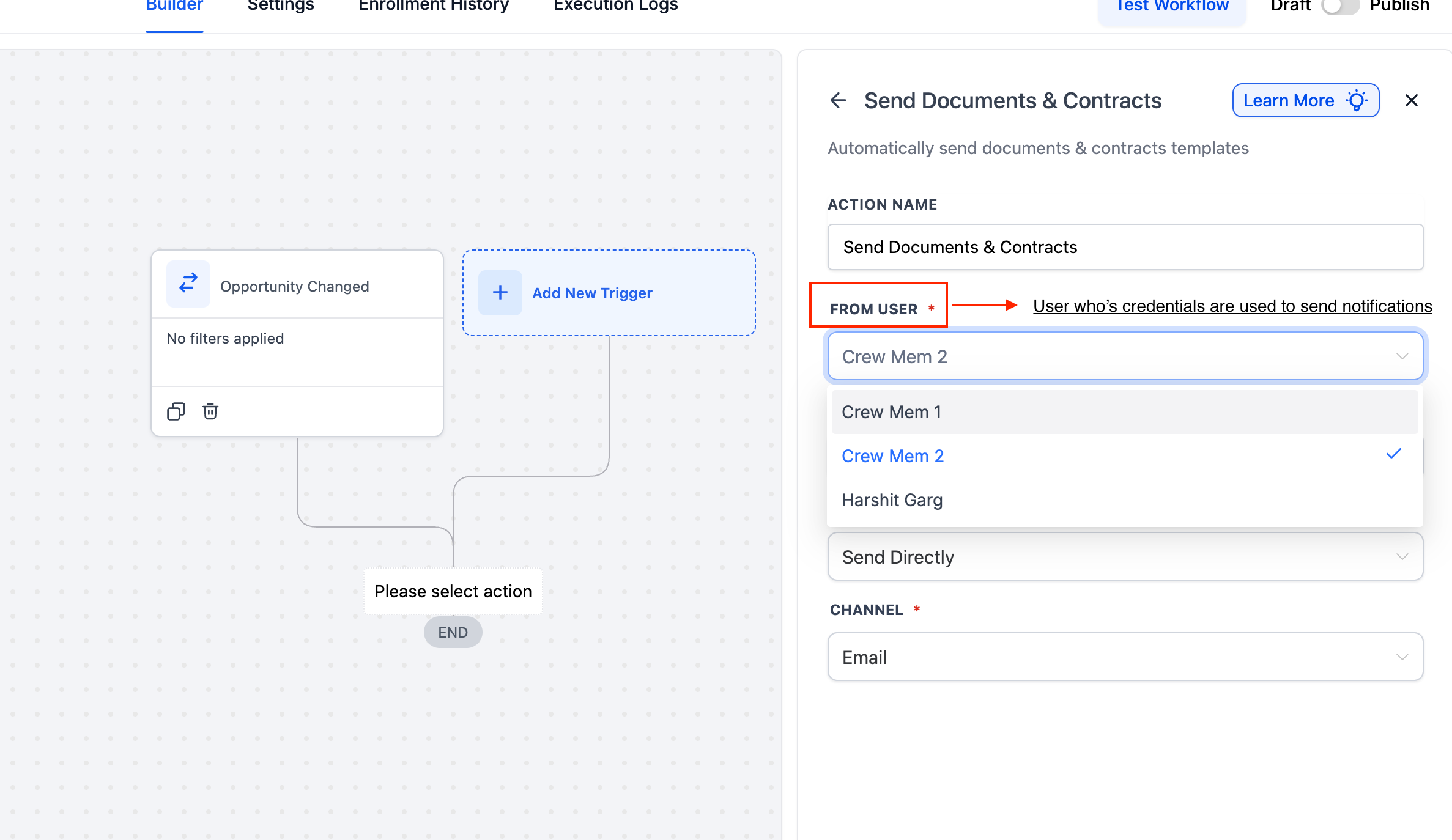
From User: Choose the user who will appear as the sender on the draft contract.
Template: Select the contract template you want to send to your contacts.
Sending Mode: Select Create as Draft. This ensures the document is generated but not immediately sent.
Tip: If you have multiple salespeople creating deals, you can build your workflow to auto-generate draft contracts for each relevant contact or opportunity.
4. Save and Publish Your Workflow
After configuring the details, click Save Action.
Once you’re satisfied with the entire workflow, click Publish. Any contacts who enter this workflow will now trigger a draft contract to be created automatically.
Limitations & Workarounds

Workflows only evaluate the document/contract status at the moment the contact enters the workflow. If a contact enters on a trigger like “Document Sent”, and you later add a condition for “Status is Completed”, that branch logic will not update even if the document gets completed afterward.

This behavior is not dynamic — status updates outside the workflow are not tracked or re-evaluated.

If you need real-time responses based on document status, Create a second workflow triggered by events like Document Signed or Document Completed. Also, Route contacts in that second workflow using updated statuses.
Assign Sender Fields Dynamically (From User vs Template Owner)
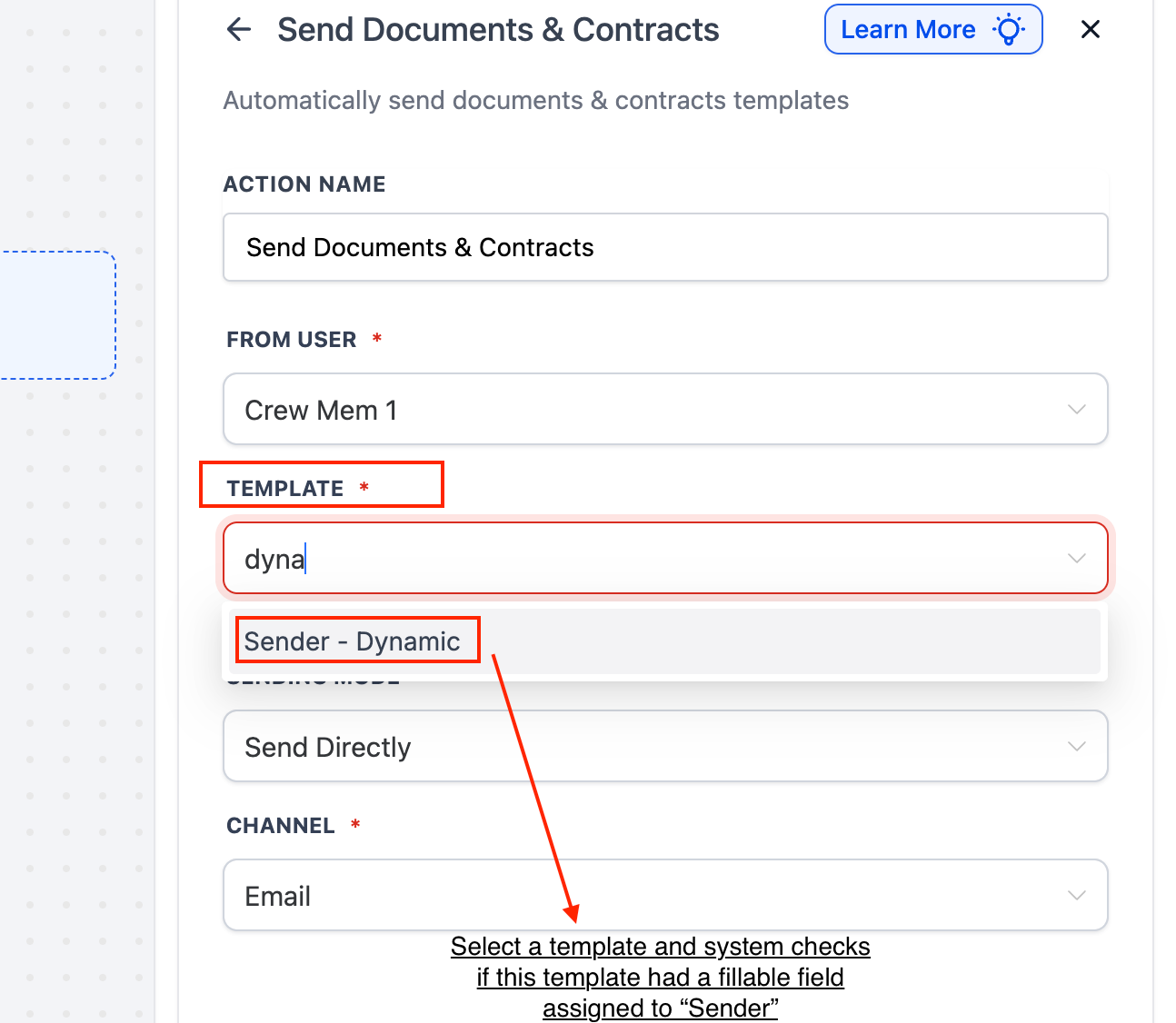
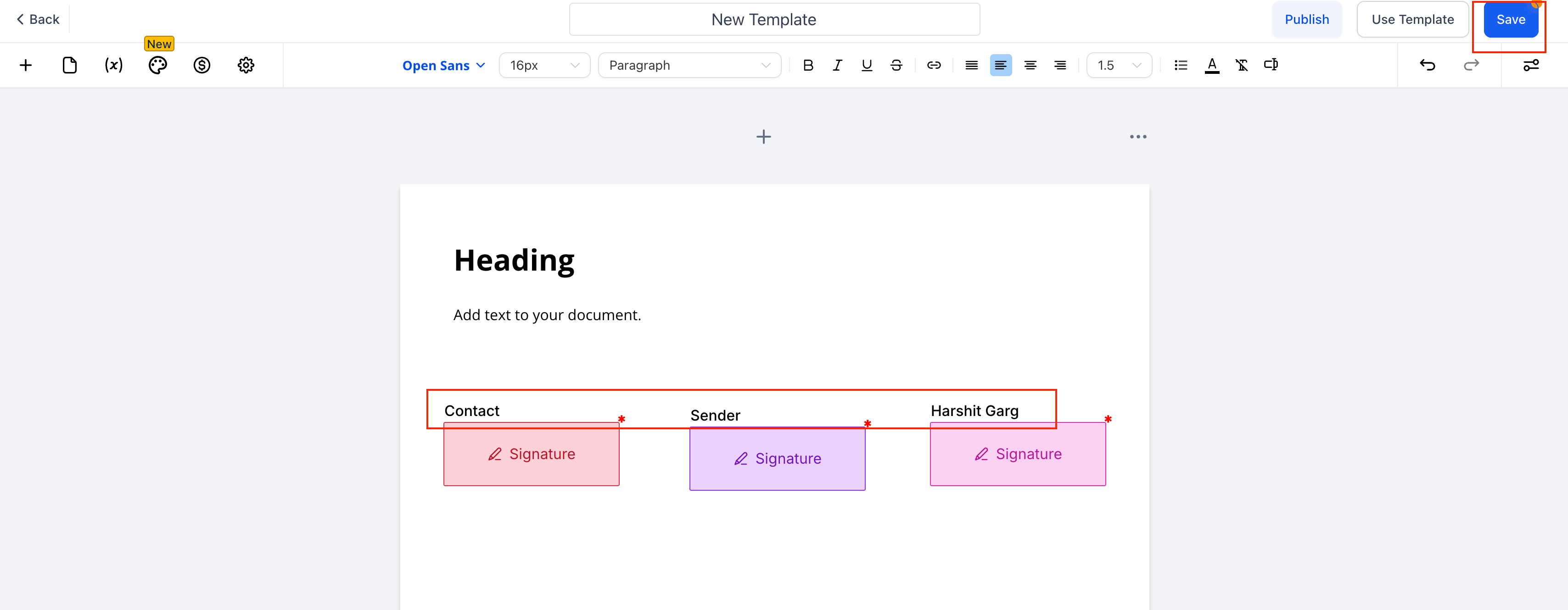
Use this setting to auto-assign template fields marked To be signed by → Sender at send time—no manual edits per run.
How it works
If the selected template contains Sender fields, the action detects them and assigns those fields to your choice below.
This applies to all Sender fields in the template for that send.
Options
From User: assigns Sender fields to the workflow’s From user (the user sending the document).
Template Owner: assigns Sender fields to the user who last updated the template.
Steps
1. Select the From user at the top of the action.
2. Choose a Template that uses To be signed by → Sender on its fillable field(s).
3. Set Assign Sender Fields To to From User or Template Owner.
4. Choose Sending Mode and Channel (Email or Direct), then Save.
Sending Out Draft Contracts
After your workflow has created contracts in a draft state, the final sending responsibility lies with the designated person or team. Here’s how to send them:
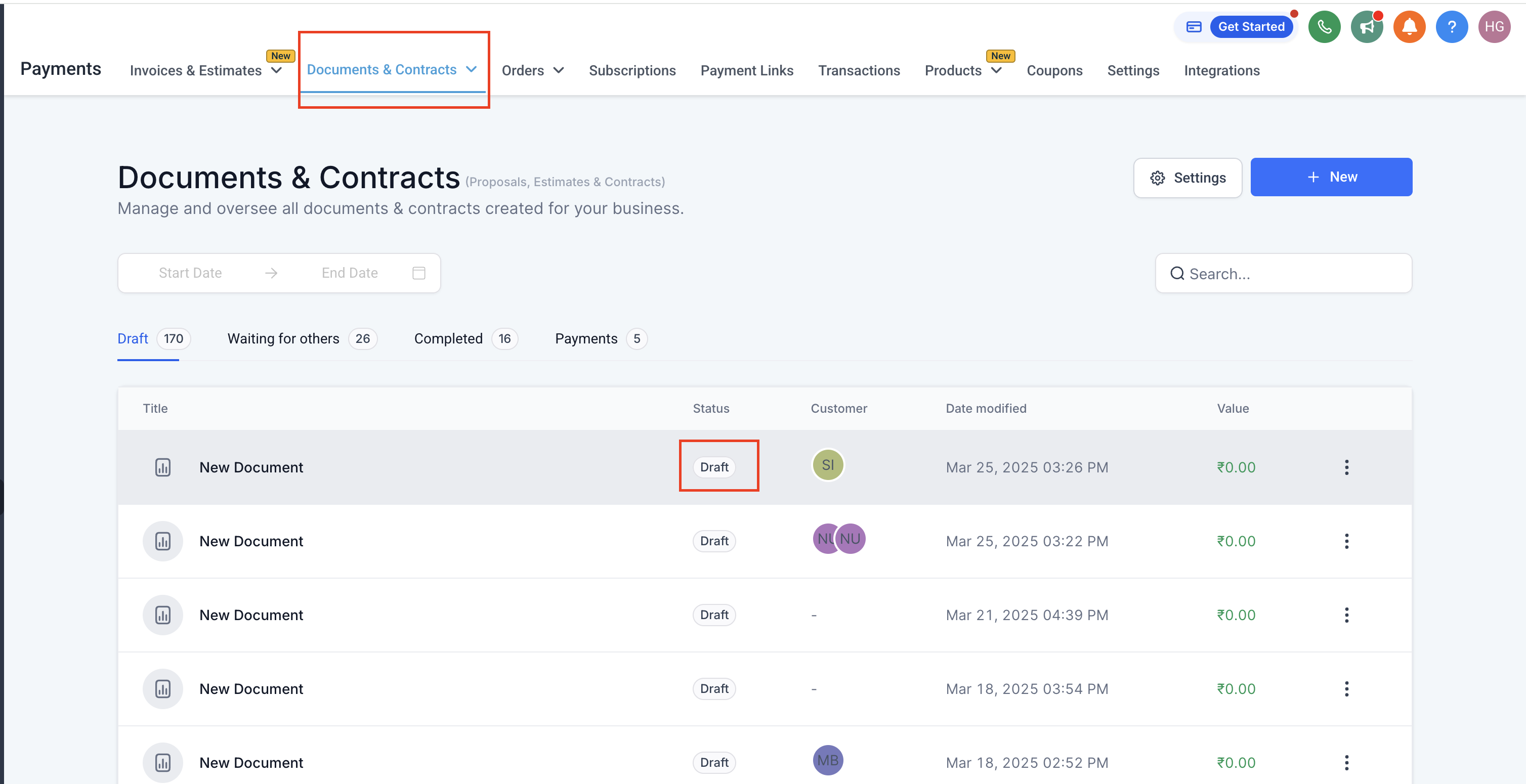
Navigate to Documents & Contracts: In your account, go to the Documents or Contracts section.
Locate Drafts: You will see all drafted contracts.
Review and Edit (If Needed): Make any final edits or personalizations to the document.
Send the Contract: When you are ready, click Send. The contract will then be delivered to the contact, and you can track its status from there.
Frequently Asked Questions
Can multiple people review draft contracts before sending?
Yes. If you have a team approach to reviewing, any users with the necessary permissions can open and review the draft before it’s sent.Can I automate sending directly if I don’t need a review step?
Absolutely. Under Sending Mode, choose “Send Directly” if you want the contract automatically sent without needing to go through the draft stage.Where can I see the status of my contracts?
Go to Payments > Documents & Contracts . Each contract will show whether it is in Draft, Sent, or Completed status.
Was this article helpful?
That’s Great!
Thank you for your feedback
Sorry! We couldn't be helpful
Thank you for your feedback
Feedback sent
We appreciate your effort and will try to fix the article