Custom Values are reusable placeholders for information that stays consistent across communications, pages, workflows, and other supported features. Create a value once, then insert its merge field wherever you need that information.
For example, you can create Custom Values for a support email address, company phone number, website URL, disclaimer, standard sign-off, or frequently used message.
When you update a Custom Value, the updated information appears wherever that value is used.
Important: Custom Values are designed for reusable information. To store information that is unique to an individual contact or opportunity, use Custom Fields instead.
TABLE OF CONTENTS
- What Are Custom Values?
- Key Benefits of Custom Values
- Custom Values vs. Custom Fields
- How to Create, Edit, and Delete Custom Values
- Example Use Cases
- Where You Can Use Custom Values
- 1. Conversations
- 2. Automations and Workflows
- 3. Websites and Funnels
- 4. Email Campaigns and Templates
- 5. Social Planner
- How to Organize Custom Values Into Folders
- Custom Values and Merge Fields
- Contact Merge Fields
- User Merge Fields
- Appointment Merge Fields
- Calendar and Campaign Merge Fields
- Message Merge Fields
- Account Merge Fields
- Right Now Merge Fields
- Attribution Merge Fields
- Raw Phone Number Format
- Frequently Asked Questions
What Are Custom Values?
Custom Values are reusable key-value pairs that you create under Settings > Custom Values.
Each Custom Value contains:
A name that helps you identify the value.
A stored value that appears when the Custom Value is used.
A merge field that you can insert into supported areas.
For example, you could create:
Name: Support Email
Value: support@example.com
You can then insert the corresponding Custom Value merge field into emails, workflows, websites, funnels, and other supported content.
If the support email changes later, update the Custom Value once instead of editing every place where the email address appears.
Key Benefits of Custom Values
- Centralized Management: Store frequently used information in one place and reuse it throughout supported features.
- Consistency: Use the same information across emails, messages, workflows, pages, and other content without entering it manually each time.
- Easier Updates: Update the source Custom Value to change the information wherever that value is used.
- Automation: Insert Custom Values into supported workflow actions, messages, notifications, and other automated content.
- Personalization: Combine Custom Values with other merge fields to create dynamic communications and experiences.
- Flexible Organization: Create Custom Values for information that fits your business needs and organize them into folders for easier management.
Custom Values vs. Custom Fields
Custom Values and Custom Fields serve different purposes.
Custom Values store reusable information that remains consistent wherever the value is used.
Examples include:
Support email addresses
Business phone numbers
Website URLs
Standard disclaimers
Brand taglines
Office hours
Frequently used links
Custom Fields store information associated with individual records, such as contacts or opportunities.
Examples include:
A contact's preferred service
Membership level
Product interest
Contract renewal date
Customer preferences
Use a Custom Value when you want to reuse the same information. Use a Custom Field when the information can differ from one record to another.
How to Create, Edit, and Delete Custom Values
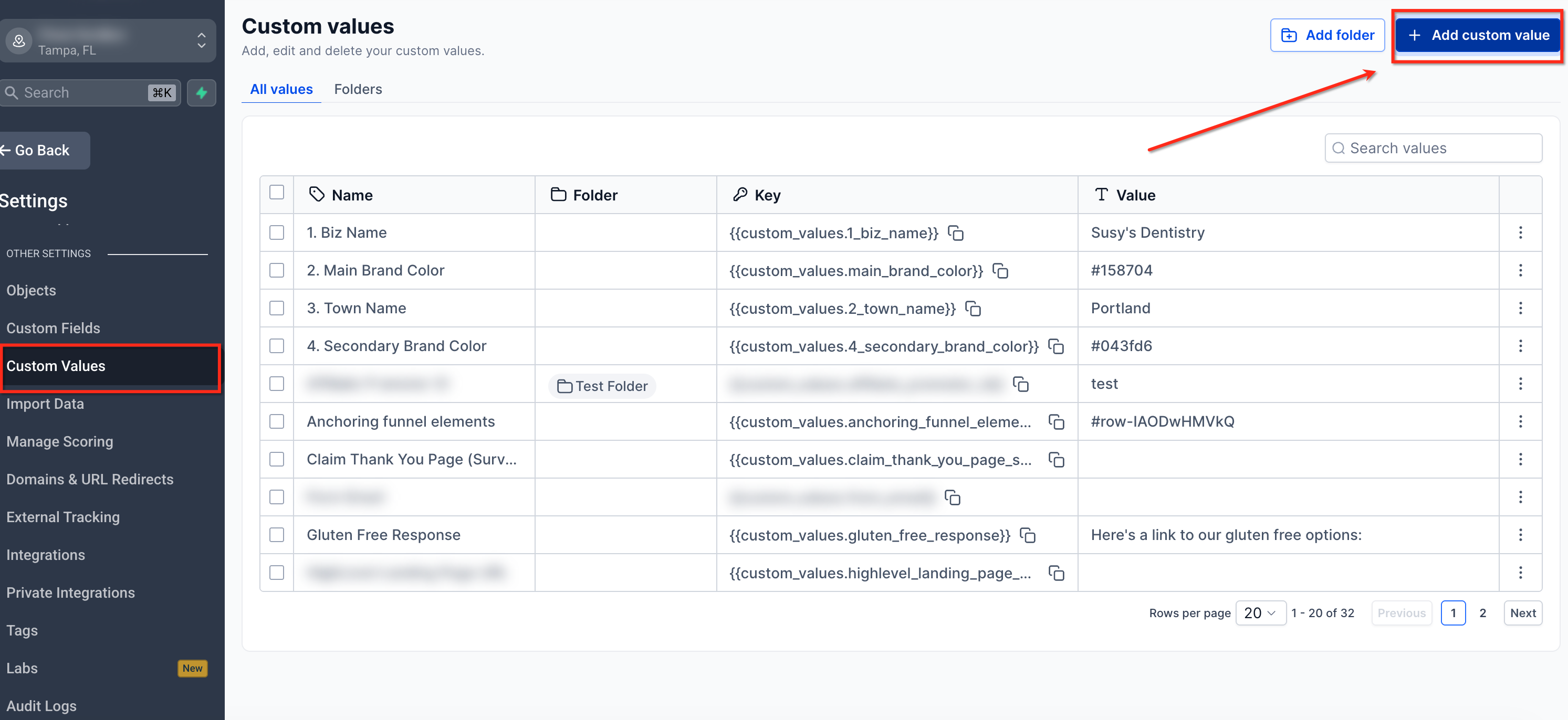
Navigate to Custom Values
- Go to Settings.
- Select Custom Values.
Create a Custom Value
- Click + Add Custom Value.
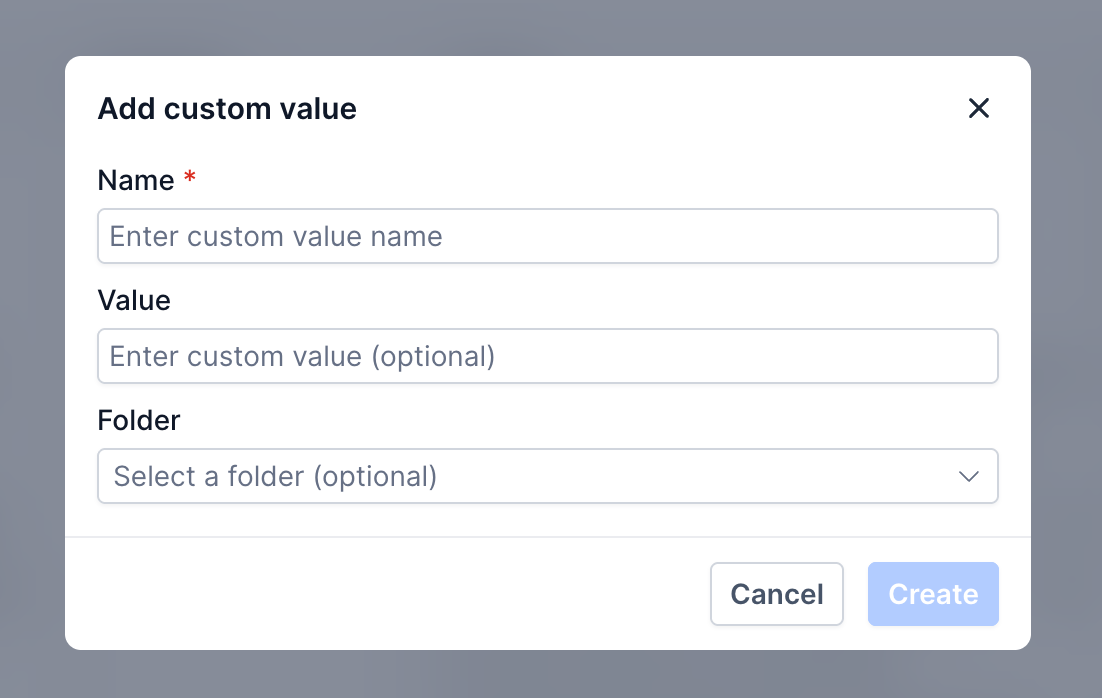
- Enter a name for the Custom Value.
- Enter the value you want it to display.
- Select a folder if you want to organize the value.
- Click Save.
Edit a Custom Value
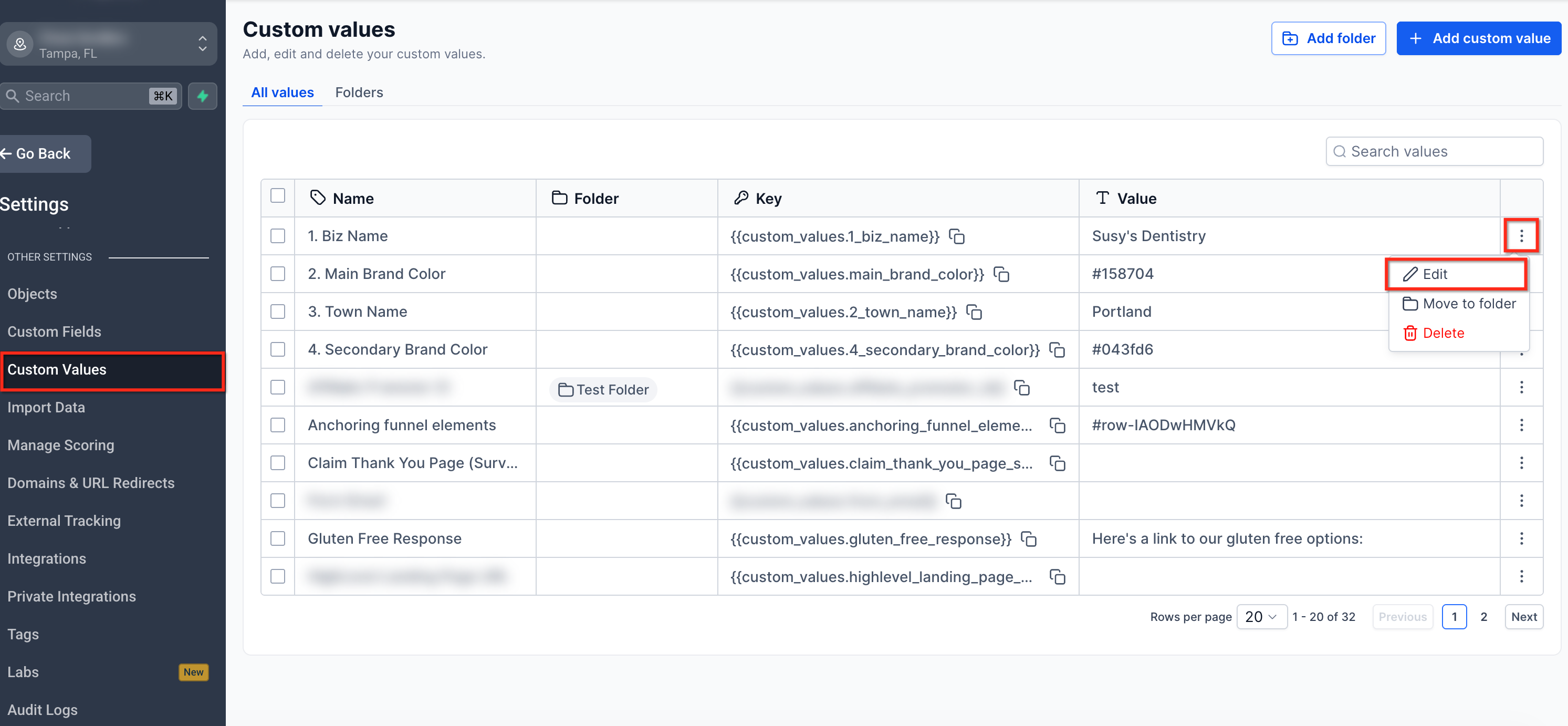
- Go to Settings > Custom Values.
- Locate the Custom Value you want to update.
- Click the three-dot menu (⋮) beside the value.
- Select Edit Custom Value.
- Make your changes.
- Save the Custom Value.
Updating the source Custom Value updates the information wherever that value is used.
Delete a Custom Value
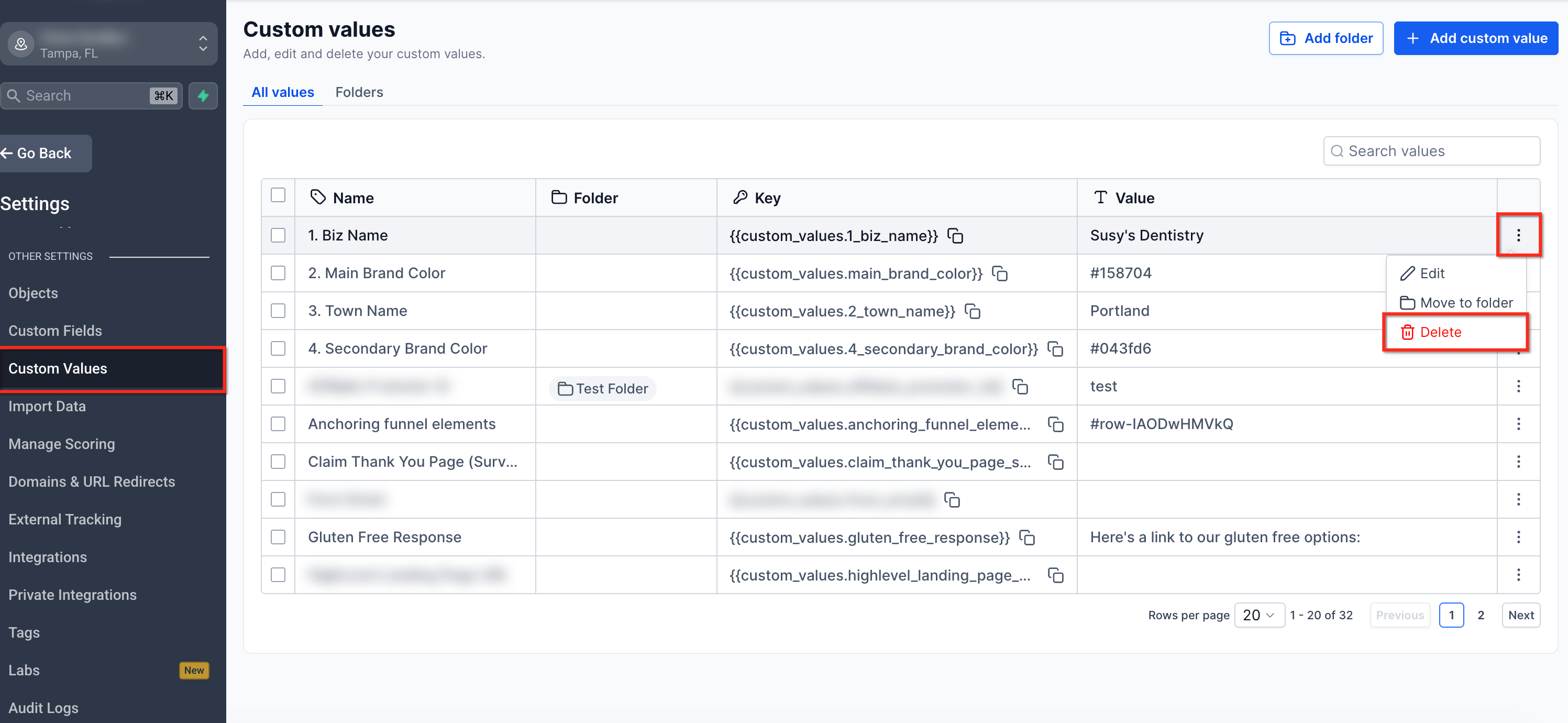
- Go to Settings > Custom Values.
- Locate the Custom Value you want to remove.
- Click the three-dot menu (⋮) beside the value.
- Select Delete Custom Value.
- Confirm the deletion.
Before deleting a Custom Value, confirm that it is no longer needed in templates, workflows, pages, or other content.
Example Use Cases
Custom Values work well for information that you need to reuse in multiple places.
Example 1: Business Contact Information
Suppose you regularly include the same support information in your communications.
You could create Custom Values for:
- Support phone number
- Support email address
- Business address
- Website URL
- Office hours
You can then insert those values into email templates, workflows, pages, and other supported content.
If a phone number or email address changes, update the Custom Value instead of editing each item separately.
Example 2: Standard Messaging
You can create Custom Values for frequently reused content such as:
- Email sign-offs
- Compliance statements
- Disclaimers
- Promotional messages
- Frequently used URLs
- Seasonal greetings
This helps keep repeated content consistent.
Where You Can Use Custom Values
Custom Values are available across multiple supported features.
Availability can vary depending on the field or feature you are editing. Use the merge-field or Custom Value picker when available.
1. Conversations
Custom Values can be inserted into supported conversation messages to reuse information without entering it manually.
Depending on the communication channel and editor, you can combine Custom Values with contact, user, and other merge fields.
2. Automations and Workflows
Custom Values can be inserted into supported workflow fields, actions, messages, and notifications.
Add and Edit Dynamic Values in Workflow Text Fields
Supported workflow text fields display recognized dynamic values as chips.
You can:
- Insert a value: Type / in a supported workflow text field to search for and insert a value.
- Replace a value: Click an existing value chip and select another available value.
- Identify invalid values: Unrecognized or outdated values can appear highlighted in red. Replace them with a supported value from the picker.
You can also use the Update Custom Value workflow action when you need a workflow to change a Custom Value automatically.
3. Websites and Funnels
Custom Values can be inserted into supported website and funnel content.
This is useful for reusable information such as:
Business contact details
Support information
Links
Standard text
Promotional information
Some dynamic merge fields require corresponding record data before they can display a value.
4. Email Campaigns and Templates
Custom Values can be used in supported areas of the email builder to create reusable and dynamic email content.
Depending on the field, you can use values in areas such as:
Email body content
Subject lines
Sender information
Supported design settings
Custom Values are also supported in color inputs such as Background Color, Body Color, and Button Color.
When a supported Custom Value containing a color is entered, the builder applies the color directly on the canvas.
5. Social Planner
Custom Values can be inserted into supported Social Planner content.
This can help you reuse common information, messaging, links, or other content when creating social posts.
How to Organize Custom Values Into Folders
Folders help keep Custom Values organized as your list grows.
You can group related values together, such as:
Contact information
Business details
Links
Legal or compliance text
Promotional content
Internal information
When creating or editing a Custom Value, assign it to the appropriate folder.
Using clear names and logical folders makes values easier to find when using the Custom Value picker.
Custom Values and Merge Fields
Custom Values use merge fields to insert stored information dynamically.
Merge fields use double curly braces, for example: {{contact.first_name}}
When supported content is displayed or sent, the merge field is replaced with the corresponding information.
Different merge-field categories are available depending on the feature and context.
Common categories include:
Contact
User
Appointment
Calendar
Campaign
Message
Account
Right Now
Attribution
Invoice
Course
Service Booking
Custom Values
Note: The merge-field picker is the recommended way to insert a field when it is available. This helps ensure you use the correct field for the feature you are configuring.
Contact Merge Fields
Contact merge fields pull information from the contact record.
Common examples include:
| Name | Merge Field |
|---|---|
| Full name | {{contact.name}} |
| First name | {{contact.first_name}} |
| Last name | {{contact.last_name}} |
{{contact.email}} | |
| Phone | {{contact.phone}} |
| Phone — raw format | {{contact.phone_raw}} |
| Company name | {{contact.company_name}} |
| Full address | {{contact.full_address}} |
| City | {{contact.city}} |
| State/Region | {{contact.state}} |
| Postal code | {{contact.postal_code}} |
| Time zone | {{contact.timezone}} |
| Date of birth | {{contact.date_of_birth}} |
| Source | {{contact.source}} |
| Website | {{contact.website}} |
| Contact ID | {{contact.id}} |
User Merge Fields
User merge fields pull information about the applicable user associated with the activity, conversation, or appointment.
Common examples include:
| Name | Merge Field |
|---|---|
| Full name | {{user.name}} |
| First name | {{user.first_name}} |
| Last name | {{user.last_name}} |
{{user.email}} | |
| Phone | {{user.phone}} |
| Phone — raw format | {{user.phone_raw}} |
| Email signature | {{user.email_signature}} |
| Booking link | {{user.calendar_link}} |
The exact values available can vary by context. Use the merge-field picker to select the supported value.
Appointment Merge Fields
Appointment merge fields pull information from an appointment record.
Common examples include:
| Name | Merge Field |
|---|---|
| Title | {{appointment.title}} |
| Start date and time | {{appointment.start_time}} |
| Start date | {{appointment.only_start_date}} |
| Start time | {{appointment.only_start_time}} |
| End date and time | {{appointment.end_time}} |
| End date | {{appointment.only_end_date}} |
| End time | {{appointment.only_end_time}} |
| Day of week | {{appointment.day_of_week}} |
| Time zone | {{appointment.timezone}} |
| Cancellation link | {{appointment.cancellation_link}} |
| Reschedule link | {{appointment.reschedule_link}} |
| Meeting location | {{appointment.meeting_location}} |
| Notes | {{appointment.notes}} |
Appointment fields can also include assigned-user information and calendar links.
Calendar and Campaign Merge Fields
Supported calendar and campaign merge fields can provide information related to calendar events and campaign scheduling.
Examples include:
{{calendar.name}}
{{campaign.event_date_time}}
{{campaign.event_date}}
{{campaign.event_time}}
Message Merge Fields
Message merge fields can provide information from the current message context.
Examples include:
{{message.body}}
{{message.subject}}
Account Merge Fields
Account merge fields provide saved business information.
Examples include:
| Name | Merge Field |
|---|---|
| Name | {{location.name}} |
| Full address | {{location.full_address}} |
| Address | {{location.address}} |
| City | {{location.city}} |
| State/Region | {{location.state}} |
| Country | {{location.country}} |
| Postal code | {{location.postal_code}} |
{{location.email}} | |
| Phone | {{location.phone}} |
| Website | {{location.website}} |
| Logo URL | {{location.logo_url}} |
| ID | {{location.id}} |
These are system merge-field names. Insert them through the available picker whenever possible.
Right Now Merge Fields
Right Now merge fields insert current date and time information.
Examples include:
{{right_now.second}}
{{right_now.minute}}
{{right_now.hour}}
{{right_now.hour_ampm}}
{{right_now.ampm}}
{{right_now.day_of_week}}
{{right_now.month_name}}
{{right_now.day}}
{{right_now.month}}
{{right_now.year}}
{{right_now.middle_endian_date}}
{{right_now.little_endian_date}}
These values are useful when content needs to reference the current date or time dynamically.
Attribution Merge Fields
Attribution merge fields provide available information about how a contact entered or most recently interacted with your marketing.
Available fields can include:
Session source
URL
Campaign
UTM source
UTM medium
UTM content
Referrer
Campaign ID
Facebook Click ID
Google Click ID
UTM keyword
UTM match type
Ad group ID
Ad ID
First-attribution fields use the contact's initial attribution data, while latest-attribution fields use the most recent available attribution data.
Use the merge-field picker to select the exact attribution value supported in the feature you are configuring.
Raw Phone Number Format
Some phone merge fields are available in a raw format.
For example: {{contact.phone_raw}}
Raw phone values remove formatting such as spaces, parentheses, and dashes.
This format can be useful for:
International phone numbers
Links
Tracking parameters
Other fields that require an unformatted number
Frequently Asked Questions
Q. What is the difference between a Custom Value and a Custom Field?
A Custom Value stores reusable information that remains the same wherever it is inserted.
A Custom Field stores information associated with an individual record, such as a contact or opportunity.
Q. What happens when I update a Custom Value?
The new value is used wherever that Custom Value is referenced.
Q. Can I organize Custom Values?
Yes. You can organize Custom Values into folders to make them easier to manage and locate.
Q. Can I use Custom Values in websites and funnels?
Yes. Custom Values are supported in applicable website and funnel fields.
Q. Can I use Custom Values in workflows?
Yes. Custom Values can be inserted into supported workflow fields. Workflows can also update Custom Values through the Update Custom Value action where supported.
Q. What happens if a merge field has no value?
Behavior can vary by feature. In many contexts, a merge field without corresponding data resolves as blank.
Verify that the required source information exists before using the content in a live communication or automation.
Q. Are merge fields case-sensitive?
Yes. Use the merge field exactly as it appears in the picker.
Q. How should I insert merge fields?
Use the merge-field or Custom Value picker whenever it is available. This helps ensure that you select a value supported by that feature.
Q. Where can I find the complete current list of merge fields?
See the List of Merge Fields article in the LeadConnector Help Center for the current supported merge-field reference.
Was this article helpful?
That’s Great!
Thank you for your feedback
Sorry! We couldn't be helpful
Thank you for your feedback
Feedback sent
We appreciate your effort and will try to fix the article