Load Imported Snapshots into Existing Sub-Accounts
HighLevel has enhanced the Imported Snapshots experience to give you centralized control over loading snapshots into your existing sub-accounts. You can load snapshots directly from the Imported Snapshots tab without navigating into individual sub-accounts first.
This article explains how to use the new Load modal, view complete snapshot deployment history, and understand snapshot restrictions when working with shared snapshots.
What is the Imported Snapshots Load Feature?
The Imported Snapshots Load feature is an enhanced snapshot management capability that allows you to load shared snapshots directly into your existing sub-accounts from a centralized location. When another agency shares a snapshot with you, you can deploy that snapshot's assets and configurations into any of your sub-accounts without needing to navigate into each sub-account individually.
This feature introduces a new Load modal that appears in the Imported Snapshots tab, giving you a streamlined workflow for snapshot deployment across your agency. Each snapshot also includes a View History tab that tracks every load operation, showing which sub-accounts received the snapshot and which specific assets were deployed.
For agencies that share snapshots with restrictions, the Load feature respects those limitations by only allowing loads into the sub-accounts specified by the sharing agency.
Key Benefits
The enhanced Imported Snapshots experience delivers significant time savings and operational visibility for agencies managing multiple sub-accounts.
What's Included in This Update
This enhancement introduces three major components that transform how you work with imported snapshots.
A new Load modal appears on every snapshot in your Imported Snapshots tab. This modal allows you to select any existing sub-account in your agency and load the snapshot directly into it. You no longer need to open the sub-account separately before deploying the snapshot.
Every imported snapshot includes a View History tab that displays the complete load trail. You can see every past load operation, which sub-accounts were included in each load, and the specific assets that were deployed to each sub-account. This provides full transparency and makes it easy to audit snapshot deployments across your agency.
When an agency shares a snapshot with you and restricts it to specific sub-accounts, the Load modal respects those restrictions. You can only load the snapshot into the sub-accounts approved by the sharing agency. This ensures proper usage and prevents unauthorized deployment of restricted snapshot configurations.
How to Load an Imported Snapshot
Follow these steps to load an imported snapshot into any existing sub-account from the Imported Snapshots tab.
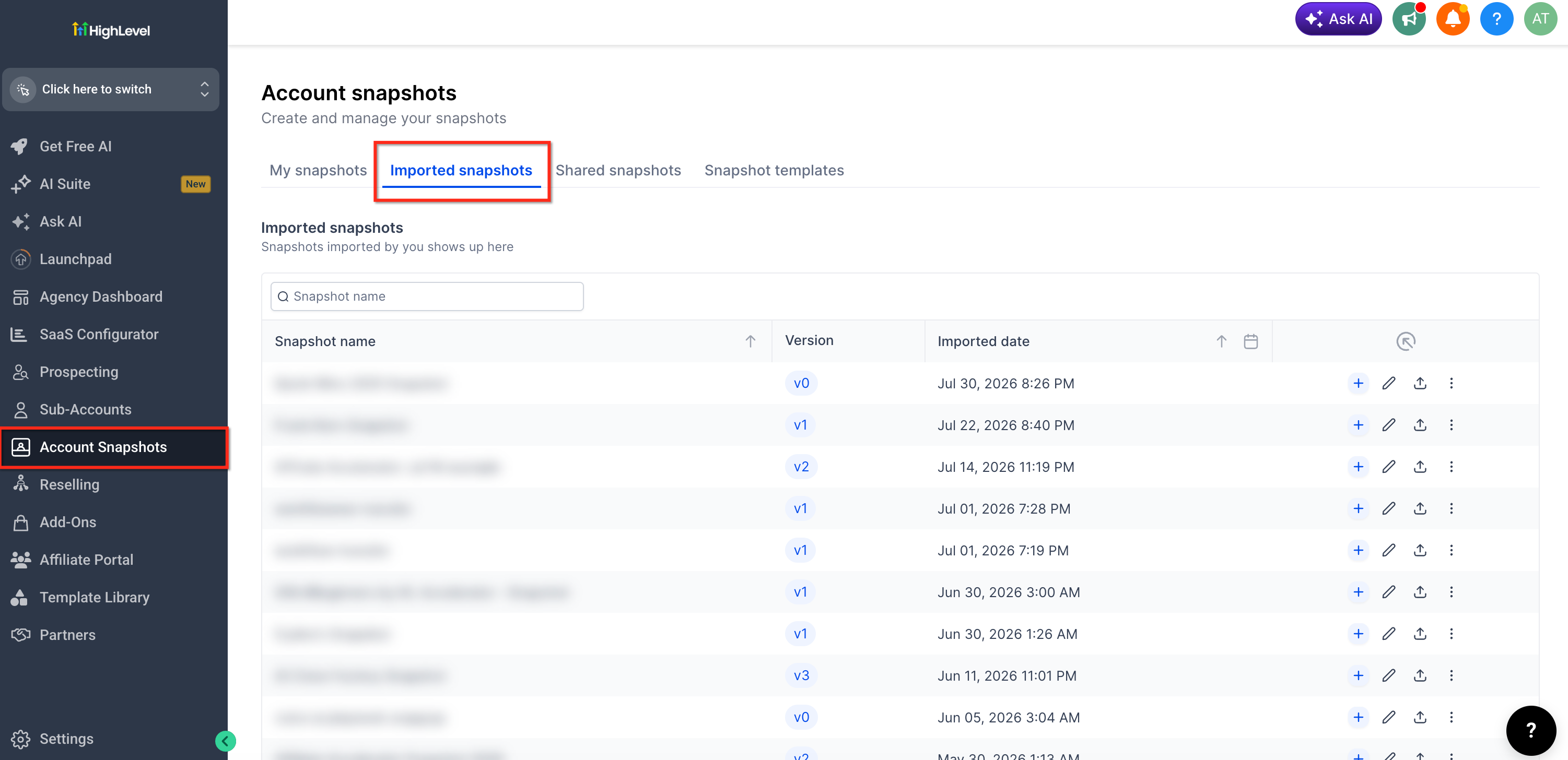
Go to your agency settings and open the Imported Snapshots tab. You will see a list of all snapshots that have been shared with your agency.
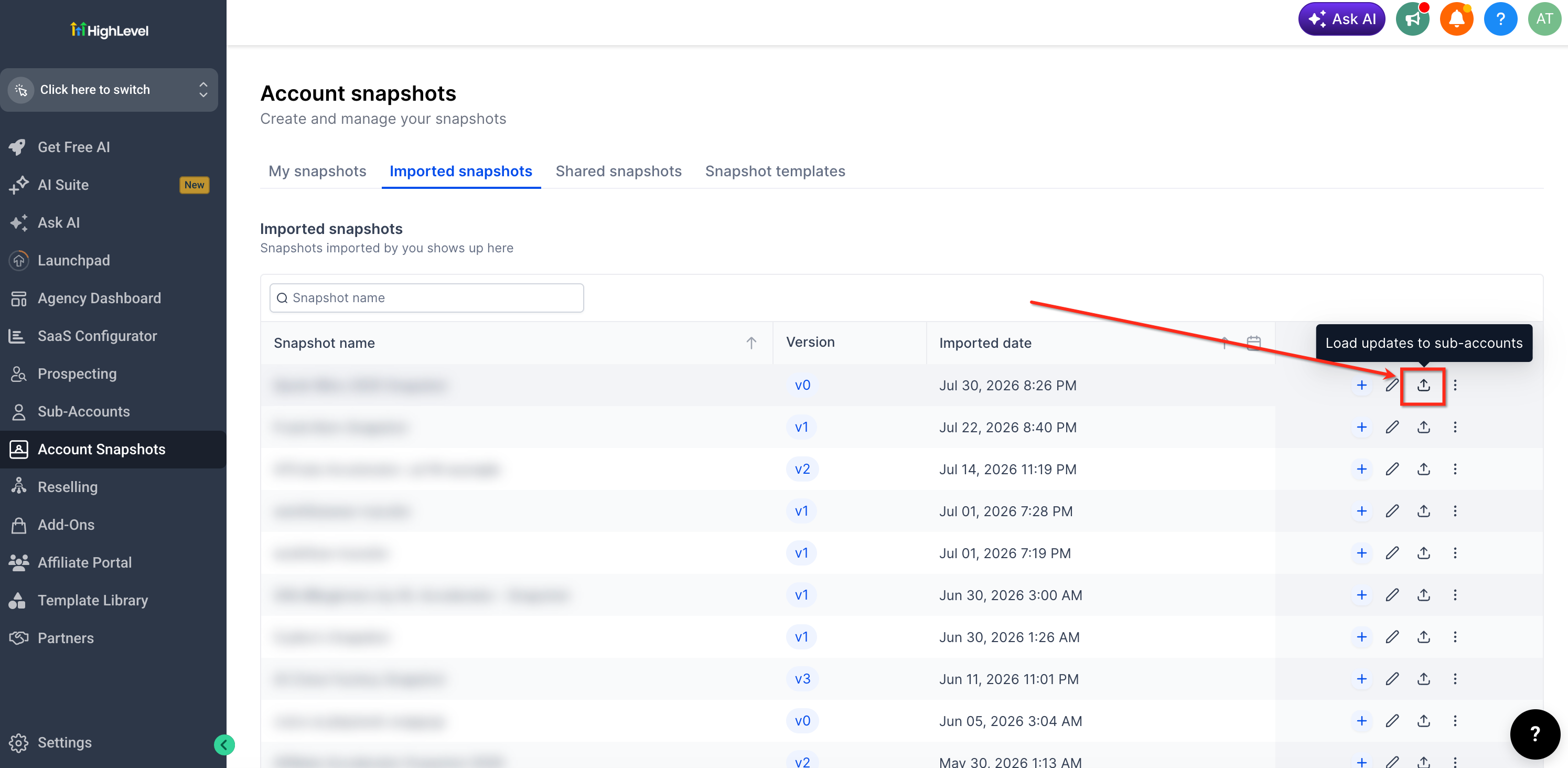
Locate the imported snapshot you want to deploy and click the Load option.
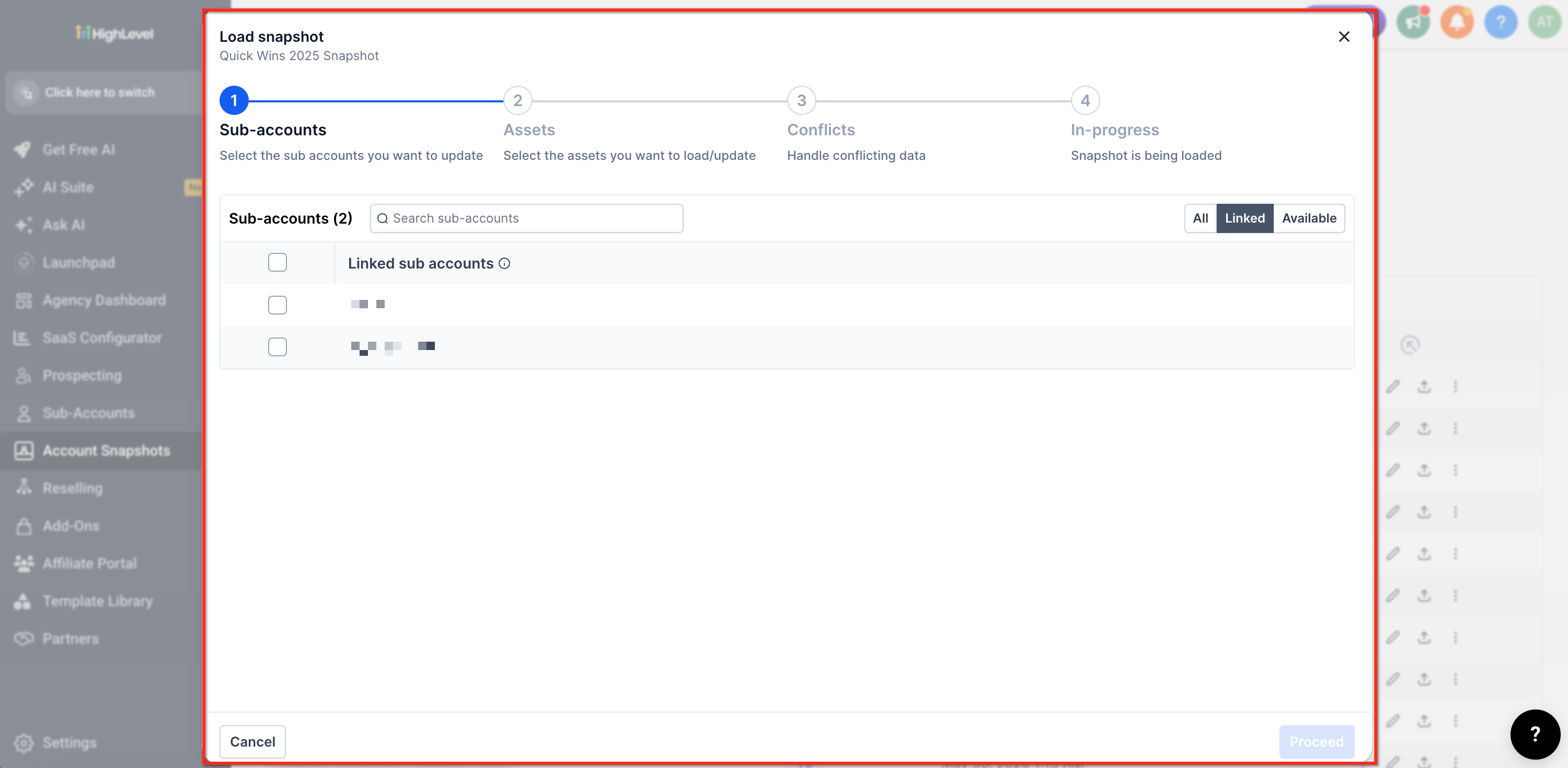
The Load modal will appear with a list of your existing sub-accounts. Select the sub-account(s) where you want to load the snapshot.
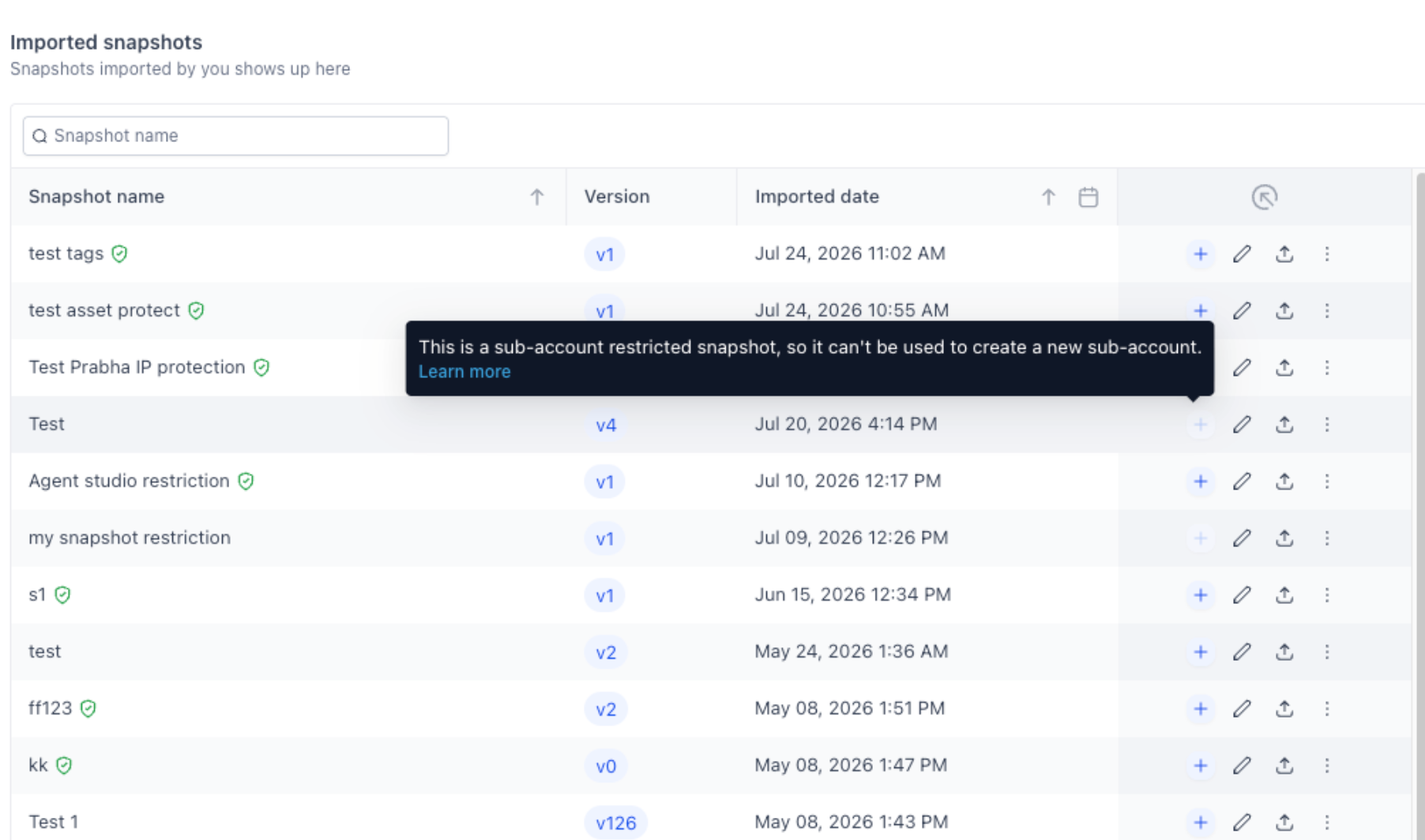
If the snapshot has restrictions, only approved sub-accounts will be available for selection.
After selecting your destination sub-accounts, confirm your selection and proceed with the load. The snapshot will be deployed to the selected sub-accounts. You can track the progress through the modal's status indicator.
You can load the same snapshot into multiple sub-accounts in a single operation by selecting multiple destinations in the Load modal.
How to View Snapshot Load History
The View History tab provides complete visibility into every load operation for an imported snapshot.
From the Imported Snapshots tab, locate the snapshot you want to review. Click the View History option or menu item associated with that snapshot.
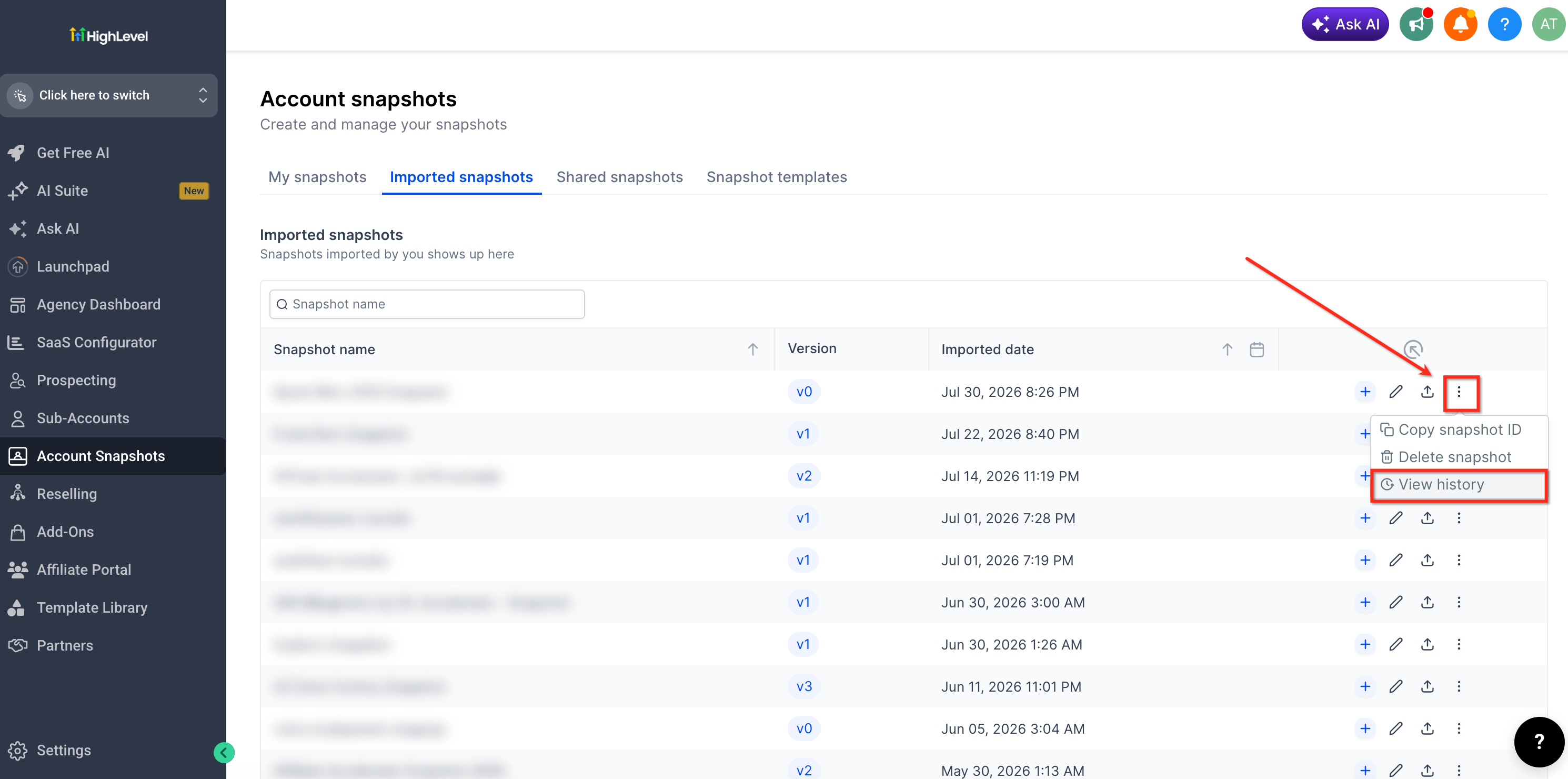
The View History tab displays a chronological list of every load operation performed with that snapshot, including timestamps and version information.
For each load operation, you can see the complete list of sub-accounts that received the snapshot during that load.
Expand any load operation to see the specific assets that were deployed to each sub-account, giving you full transparency into what was included in each snapshot deployment.
Understanding Shared Snapshot Restrictions
When an agency shares a snapshot with your agency, they can choose to restrict that snapshot to specific sub-accounts. This means you can only load the snapshot into the sub-accounts that the sharing agency has approved.
When you attempt to load a restricted snapshot, the Load modal will only display sub-accounts that are authorized for that snapshot. Other sub-accounts in your agency will be unavailable for selection.
This restriction mechanism ensures that snapshot configurations are deployed only to appropriate sub-accounts, maintaining control and compliance with the sharing agency's intended usage.
If you need to load a restricted snapshot into a sub-account that is not currently authorized, you must contact the agency that shared the snapshot with you to request access for additional sub-accounts.
Frequently Asked Questions
Was this article helpful?
That’s Great!
Thank you for your feedback
Sorry! We couldn't be helpful
Thank you for your feedback
Feedback sent
We appreciate your effort and will try to fix the article