HighLevel’s In-App Cancellation for Reselling Subscriptions allows subaccount users to view and cancel eligible resold add-on subscriptions directly from Settings > Billing > Subscriptions. This gives users a clearer way to manage active plans, review subscription details, and complete cancellations without relying only on agency-level billing controls.
TABLE OF CONTENTS
- What is In-App Cancellation for Reselling Subscriptions?
- Key Benefits of In-App Cancellation for Reselling Subscriptions
- Subscription Details Available Before Cancellation
- Unified Unsubscribe Modal
- Reselling Subscriptions vs. Other Subscription Types
- How To Set Up In-App Cancellation for Reselling Subscriptions
- Frequently Asked Questions
- Related Articles
What is In-App Cancellation for Reselling Subscriptions?
In-app cancellation makes subscription management more transparent for sub account users. Instead of needing an agency user to cancel every resold product subscription, users with access to the sub account Billing area can review active subscriptions, confirm important billing details, and follow a guided unsubscribe flow from one place. This helps agencies reduce manual cancellation requests while giving clients more control over the subscriptions connected to their subaccount.
Key Benefits of In-App Cancellation for Reselling Subscriptions
A self-service cancellation flow helps users manage billing decisions more efficiently while keeping the experience consistent across supported resold products. These benefits are especially useful for agencies that resell HighLevel services and want clients to handle eligible subscription changes directly inside their sub account.
- Cancel Subscriptions In-App: Sub account users can cancel eligible active reselling subscriptions from Settings > Billing > Subscriptions without needing to access Agency Billing.
- View Subscription Details: Users can review key plan information before taking action, including plan, purchase type, status, purchase date, and billing cycle.
- Use a Unified Cancellation Flow: A consistent unsubscribe modal helps users follow the same guided cancellation experience across supported products in the sub account.
- Reduce Agency-Only Dependency: Agencies can lower manual billing requests by allowing subaccount users to manage eligible resold subscriptions from the Billing area.
- Improve Billing Transparency: Users can see subscription information and cancellation options before confirming a billing change.
Subscription Details Available Before Cancellation
Subscription details help users verify that they are managing the correct plan before making changes. Reviewing these fields before cancellation reduces mistakes and gives users more confidence when deciding whether to continue, cancel immediately, or cancel at the end of the billing cycle.
When a user selects View Subscription, they can review details such as:
- Plan
- Purchase Type
- Status
- Purchase Date
- Billing Cycle
These details help users confirm which product or add-on subscription they are managing before starting the unsubscribe flow.
Unified Unsubscribe Modal
The unified unsubscribe modal gives users a consistent cancellation experience across supported resold products. A guided modal helps reduce confusion by keeping the cancellation process familiar, even when users manage different types of add-on subscriptions inside the same sub account.
After opening a subscription, users can start the cancellation process from the subscription details view. The unsubscribe modal guides the user through the cancellation flow and may provide timing options, such as canceling at the end of the billing cycle or canceling immediately.
Depending on the subscription and cancellation status, users may also be able to reactivate a subscription before the effective cancellation date.
Reselling Subscriptions vs. Other Subscription Types
Understanding the type of subscription being managed helps users choose the correct cancellation path. Reselling subscriptions are different from SaaS plan cancellation, full sub account cancellation, or general agency billing management.
This feature applies to eligible reselling subscriptions managed from the sub account Billing area. Reselling allows agencies to charge sub accounts for HighLevel services and add-ons, such as communication, AI, Listings, or other supported products, depending on the agency’s configuration.
The sub account Billing Dashboard is the central area where users can manage billing-related items, including SaaS subscriptions, reselling subscriptions, Marketplace app subscriptions, payment methods, transaction history, and wallet balances.
Important Distinction:

Use Sub Account Billing > Subscriptions to manage eligible reselling subscriptions.

Use the applicable agency-side or SaaS cancellation flow when canceling a SaaS plan, a location-level subscription from Agency Billing, or a full SaaS-enabled sub account.
How To Set Up In-App Cancellation for Reselling Subscriptions
Proper access to the sub account Billing area ensures users can find the correct subscription, review plan details, and complete the cancellation flow accurately. Before canceling, users should confirm they are in the correct subaccount and are viewing the correct active subscription.
- Go to the correct sub account in HighLevel.
- Navigate to Settings > Billing > Subscriptions.
- Locate the subscription you want to review or cancel.
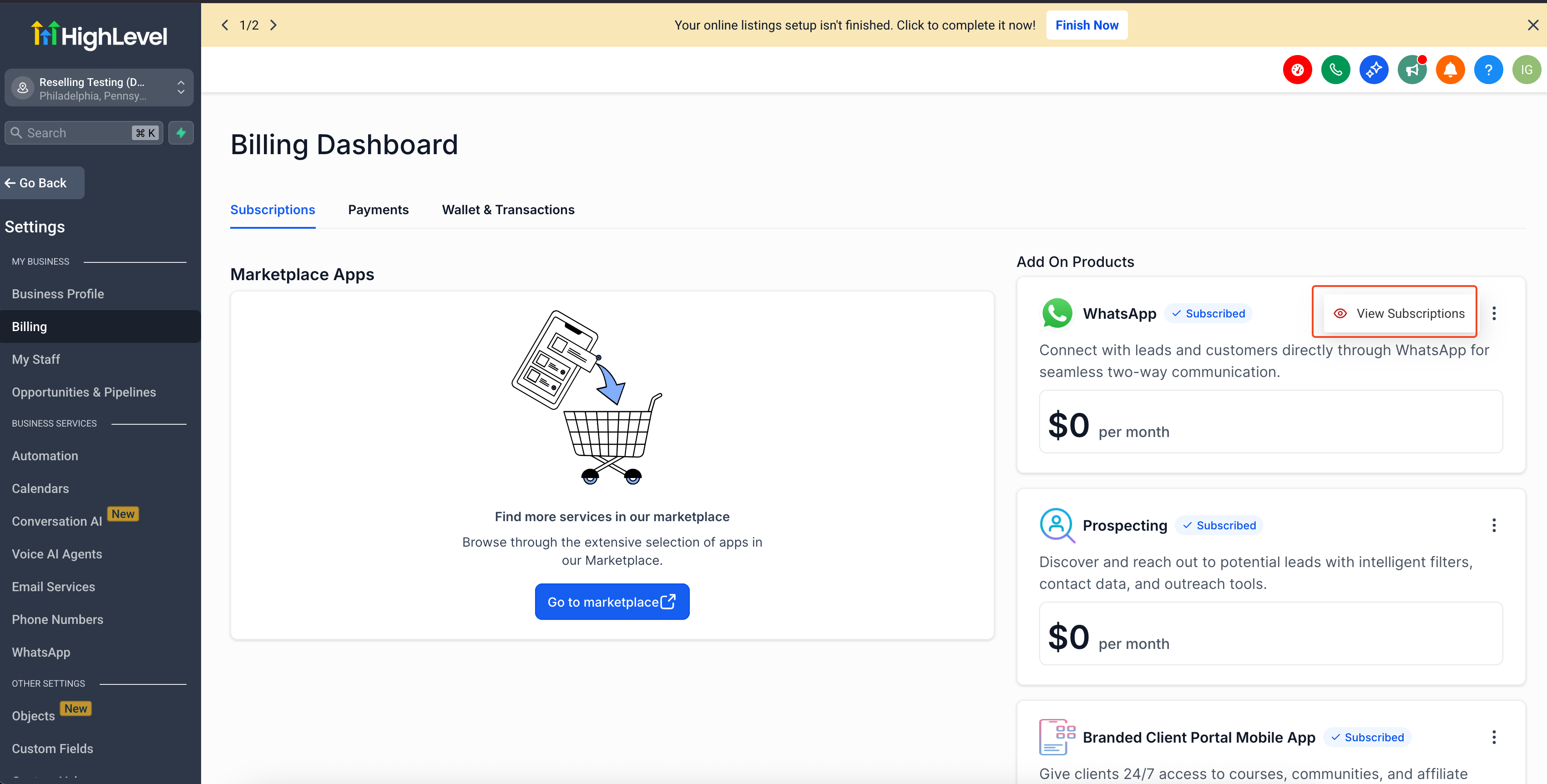
- Click the three-dot menu next to the subscription.
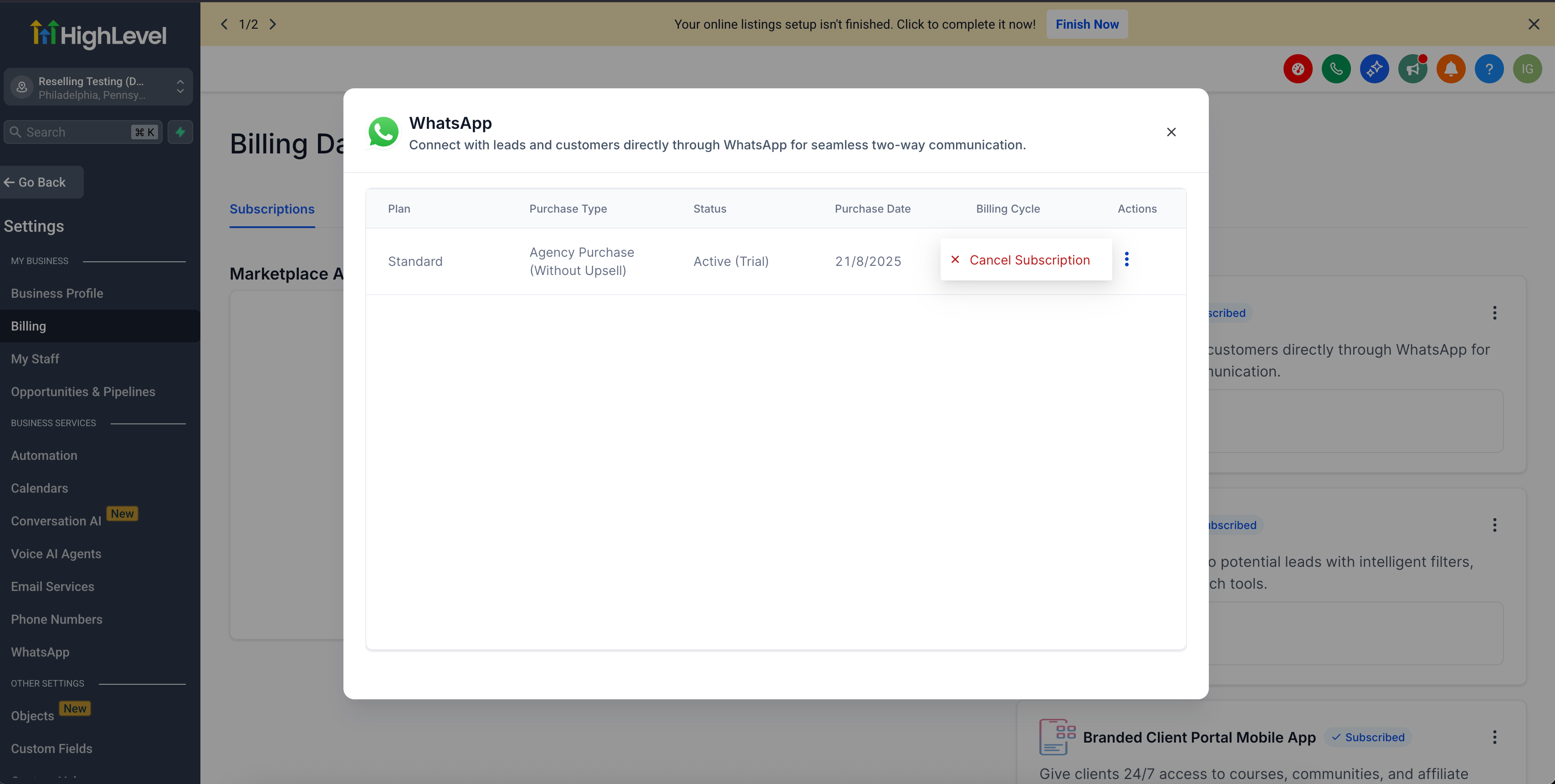
- Select View Subscription.
- Review the subscription details, including plan, purchase type, status, purchase date, and billing cycle.
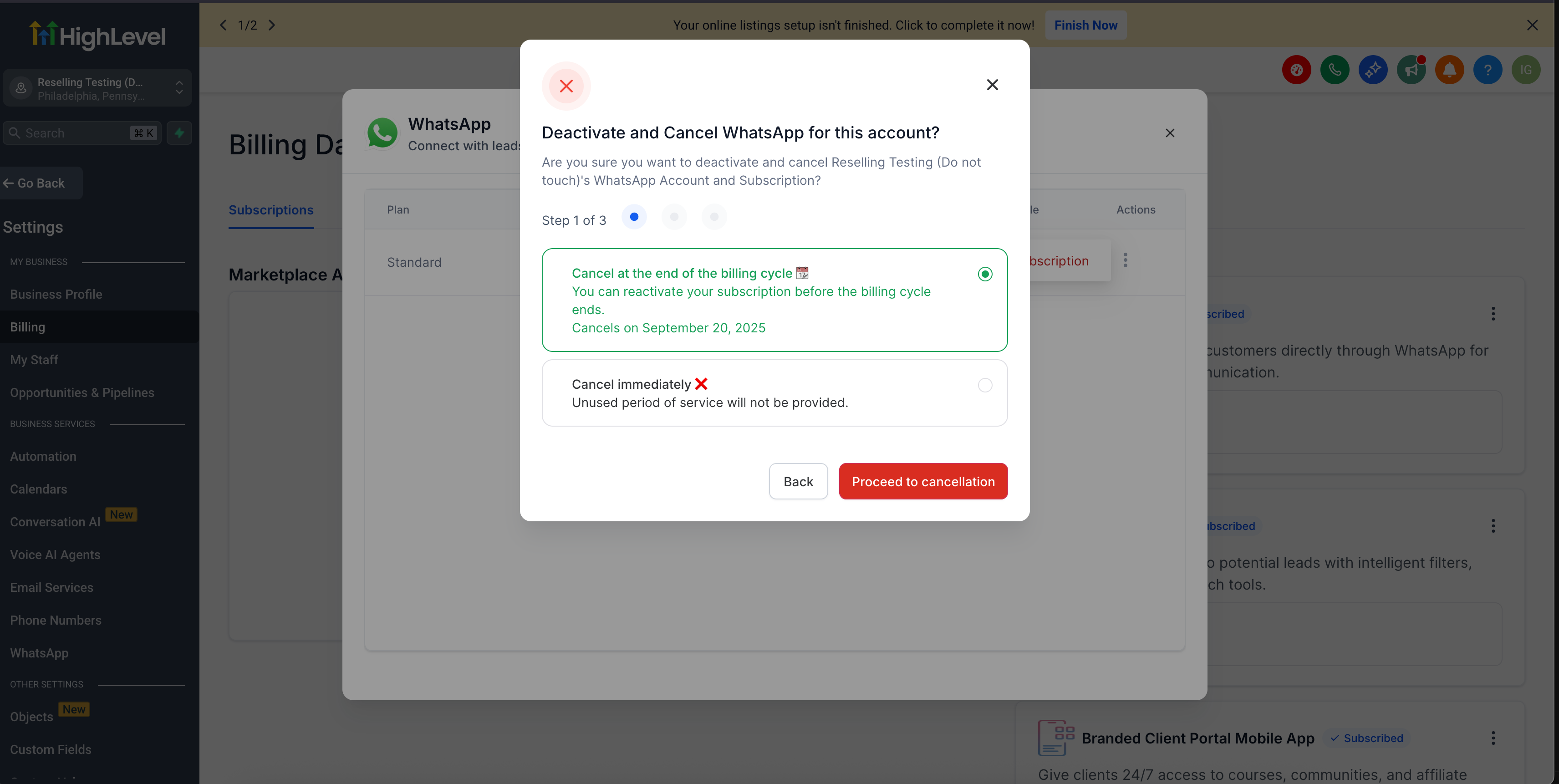
- Start the cancellation flow from the subscription details screen.
- Follow the prompts in the unsubscribe modal.
- Choose the available cancellation timing option, if prompted.
- Confirm the cancellation.
After cancellation is scheduled, review the subscription status and effective cancellation date if shown. If the subscription supports reactivation before the cancellation takes effect, use the available reactivation option before the effective cancellation date.
Frequently Asked Questions
Q: Can sub account users cancel reselling subscriptions without contacting the agency?
A: Yes. Eligible reselling subscriptions can be reviewed and canceled from Settings > Billing > Subscriptions inside the sub account.
Q: What details can I review before canceling?
A: Users can review details such as plan, purchase type, status, purchase date, and billing cycle before proceeding with cancellation.
Q: Can I cancel immediately or at the end of the billing cycle?
A: The cancellation flow may provide timing options, including canceling immediately or canceling at the end of the billing cycle, depending on the subscription and available cancellation settings.
Q: Can I reactivate a subscription after scheduling cancellation?
A: If supported by the subscription flow, users may be able to reactivate before the effective cancellation date.
Q: Is this the same as canceling a SaaS sub account?
A: No. This article covers eligible reselling subscription cancellation from sub account Billing. Canceling a SaaS sub account or SaaS plan may follow a different agency-side or SaaS-specific process.
Q: Why don’t I see the cancellation option?
A: The option may not appear if the subscription is not eligible, is not active, or the user does not have access to the Billing area. Confirm that you are in the correct sub account and viewing the correct subscription.
Q: Can agency users still manage billing from the agency side?
A: Yes. This update adds sub account-level cancellation access for eligible reselling subscriptions. It does not remove agency billing management options.
Related Articles
Was this article helpful?
That’s Great!
Thank you for your feedback
Sorry! We couldn't be helpful
Thank you for your feedback
Feedback sent
We appreciate your effort and will try to fix the article