Managing payment activity from the HighLevel mobile app is now faster and more connected to the customer or deal you are already working on. The Payments tab inside Contacts and Opportunities lets you create invoices and estimates, charge customers, manage cards on file, and review payment activity without leaving the record. This helps teams save time, reduce navigation, and keep payment actions tied to the right customer or opportunity.
TABLE OF CONTENTS
- What is the Payments Tab in Contacts and Opportunities on Mobile?
- Key Benefits of the Payments Tab in Contacts and Opportunities
- Payments Tab Inside Contacts
- Payments Tab Inside Opportunities
- Payment Activity Filters
- How To Setup the Payments Tab in Contacts and Opportunities on Mobile
- Frequently Asked Questions
- Related Articles
What is the Payments Tab in Contacts and Opportunities on Mobile?
The Payments tab gives mobile users a dedicated payment workspace inside individual Contact and Opportunity records. Instead of switching between different areas of the app, users can access payment actions and payment history from the same place where customer or deal details are managed.
From a Contact, users can charge the customer, create an invoice or estimate, manage cards on file, and review related payment activity. From an Opportunity, users can create invoices or estimates that are linked to the opportunity and track related payment activity from the same tab.
Available actions may depend on your connected payment provider, payment configuration, app version, and user permissions. Related payment setup and card-on-file workflows are covered in existing HighLevel payment articles.
Key Benefits of the Payments Tab in Contacts and Opportunities
The Payments tab helps teams complete payment tasks while staying in the customer or sales context. This is especially useful for sales, support, and field teams that need to send invoices, prepare estimates, or review payment activity from the mobile app.
- Faster Payment Actions: Create invoices, estimates, and charges without leaving the Contact or Opportunity record.
- Better Customer Context: View customer payment activity alongside the contact details your team already uses.
- Connected Opportunity Billing: Create invoices and estimates from an Opportunity so payment activity stays connected to the deal.
- Improved Mobile Workflow: Reduce app navigation by accessing relevant payment tools directly from the record.
- Easier Payment Review: Use filter chips to review transactions, invoices, estimates, and subscriptions where applicable.
- Simplified Card Management: Access card-on-file management directly from the Contact Payments tab.
Payments Tab Inside Contacts
The Contact Payments tab centralizes payment actions and payment activity for an individual customer. This helps users quickly collect payments, send billing documents, or review customer activity while viewing the contact profile.
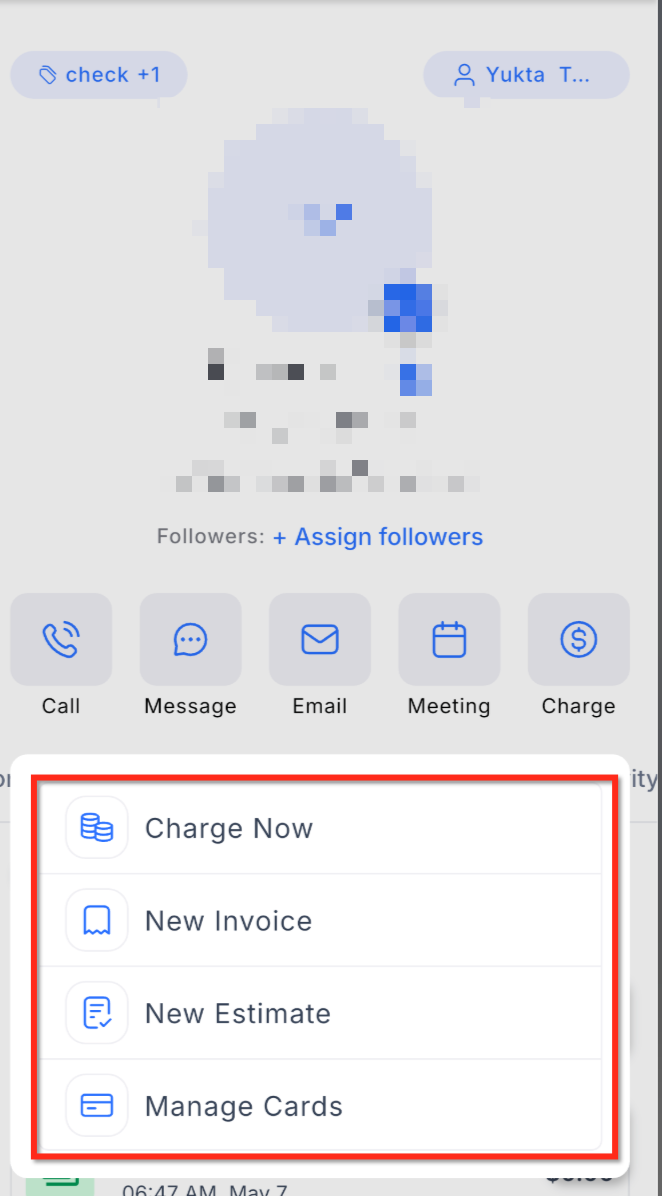
From the Contact Payments tab, users can access actions such as:
- Charge Now: Start a POS payment from the contact.
- New Invoice: Create a new invoice for the contact.
- New Estimate: Create a new estimate for the contact.
- Manage Cards on File: Save, view, or remove customer cards on file.
- Customer Lifetime Value: View the customer value information displayed in the contact payment area.
- Customer Start Date: View the customer start date displayed in the contact payment area.
- Filter chips: Browse payment activity by type, such as Transactions, Invoices, Estimates, and Subscriptions where applicable.
For detailed card-on-file steps, use the How to add and manage your customer's cards on file. HighLevel’s related card article explains saving, viewing, and removing cards from a contact’s payment area in the mobile app.
Payments Tab Inside Opportunities
The Opportunity Payments tab helps users manage payment activity connected to a specific deal. This keeps invoices, estimates, and payment statuses close to the sales record so teams can understand billing progress without leaving the opportunity.
From the Opportunity Payments tab, users can:
- Create a New Invoice
- Create a New Estimate
- Review payment activity linked to the Opportunity
- Check payment statuses from inside the Opportunity
- Use filters to view relevant payment records
Invoices and estimates created from an Opportunity are linked to that Opportunity. For more details about linking invoices and estimates to Opportunities, use the How To Link Opportunities with Invoices and Estimates.
Payment Activity Filters
Payment activity filters make it easier to focus on the type of record you need to review. Instead of scrolling through all payment activity, users can switch between available payment types using filter chips.
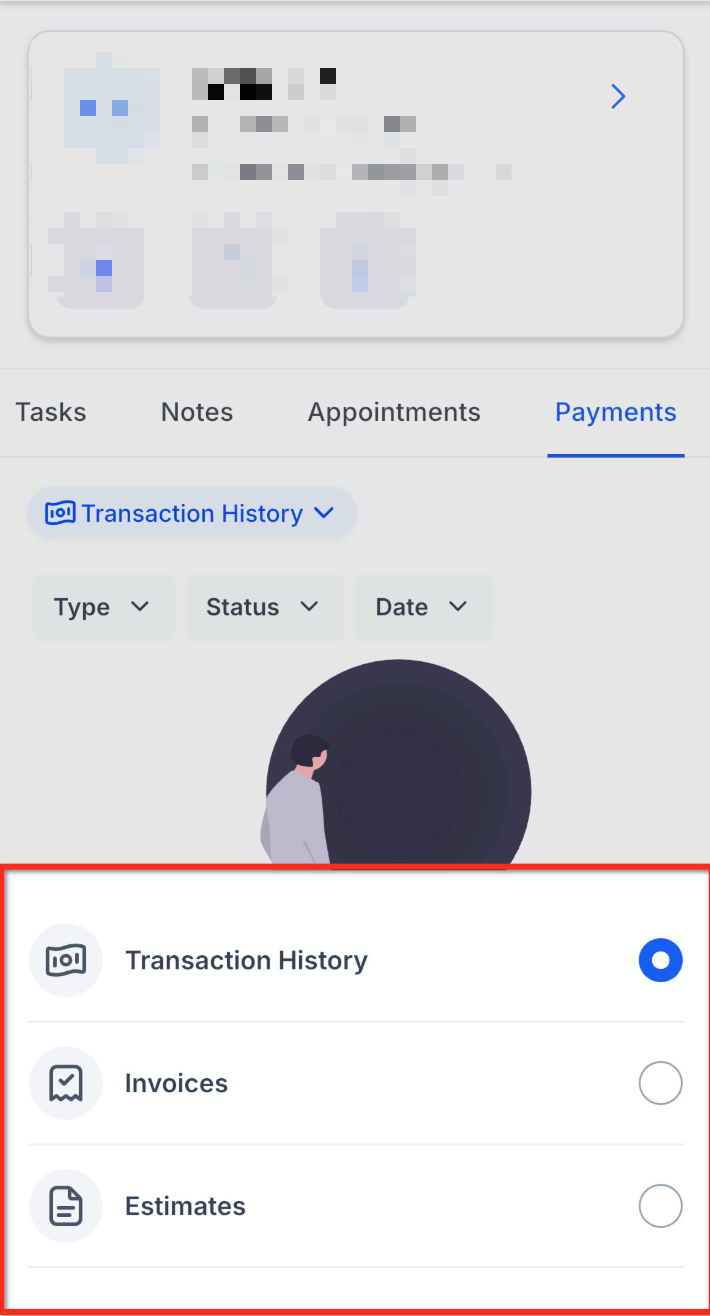
Depending on the record and available activity, filters may include:
- Transactions
- Invoices
- Estimates
- Subscriptions
How To Setup the Payments Tab in Contacts and Opportunities on Mobile
Proper setup helps ensure the right payment actions are available when users open a Contact or Opportunity. Some actions may depend on account configuration, connected payment providers, saved customer payment methods, and user permissions.
From a Contact
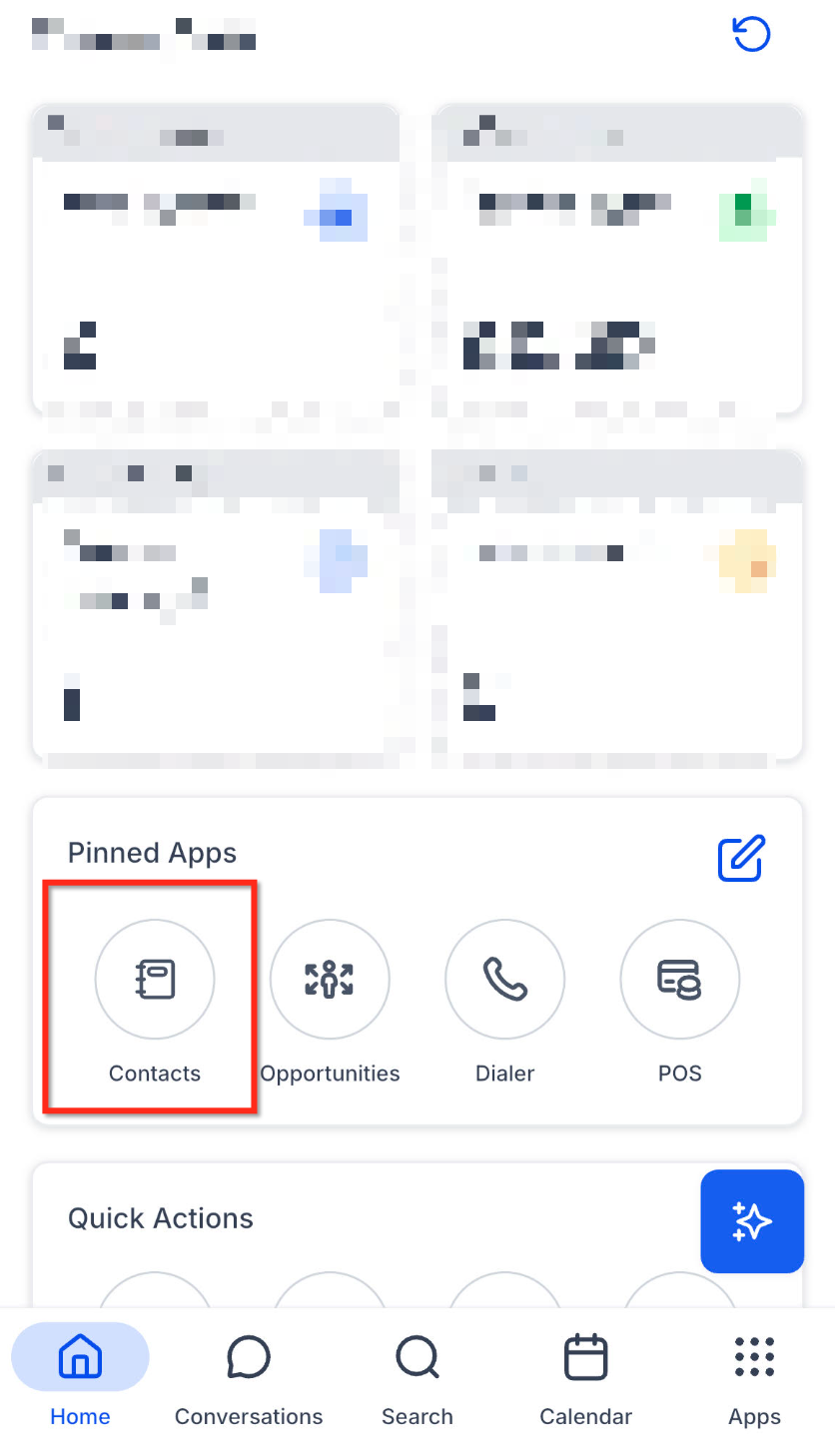
- Open the HighLevel mobile app.
- Navigate to Contacts.
- Open the contact you want to manage.
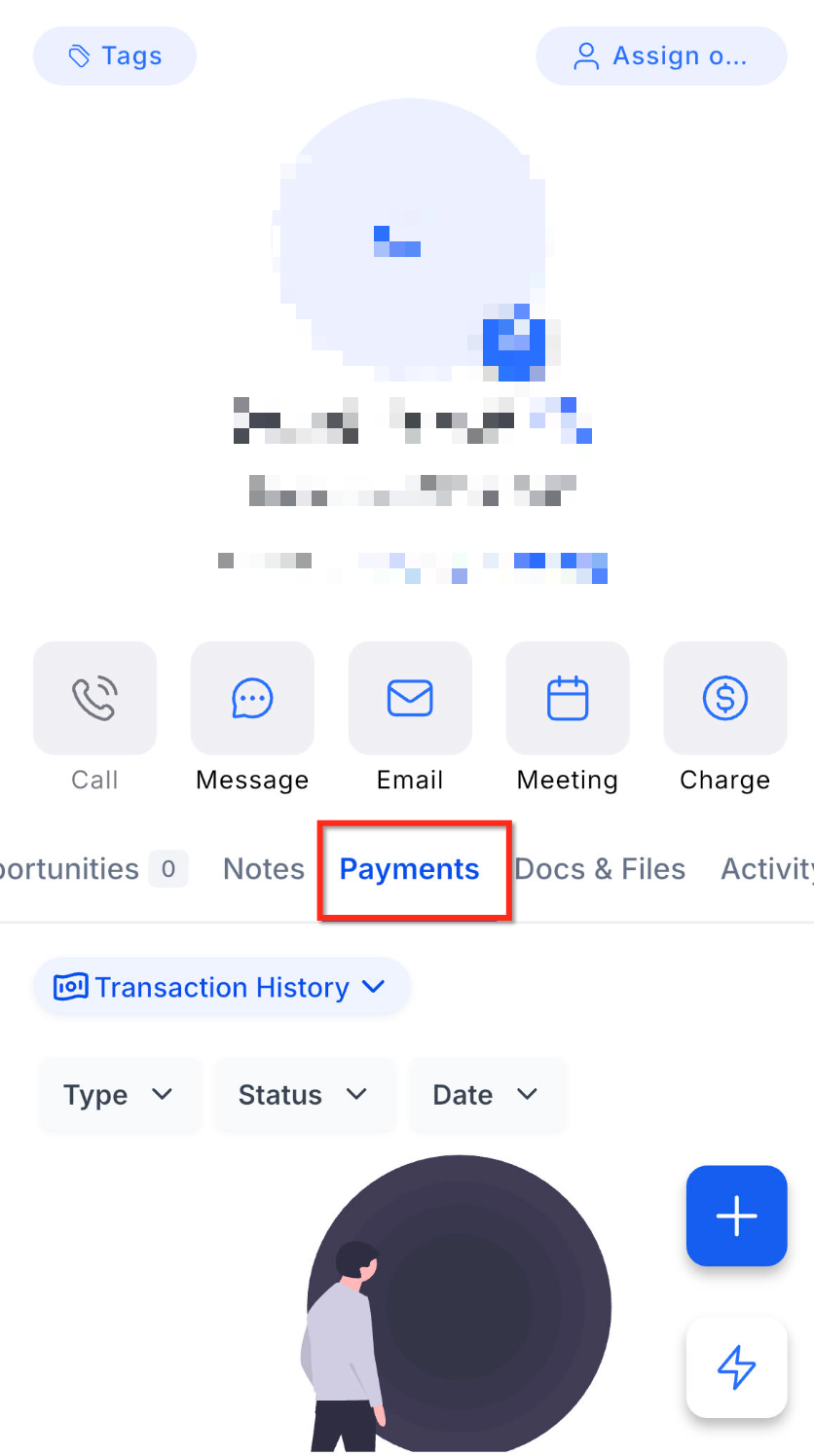
- Tap the Payments tab.
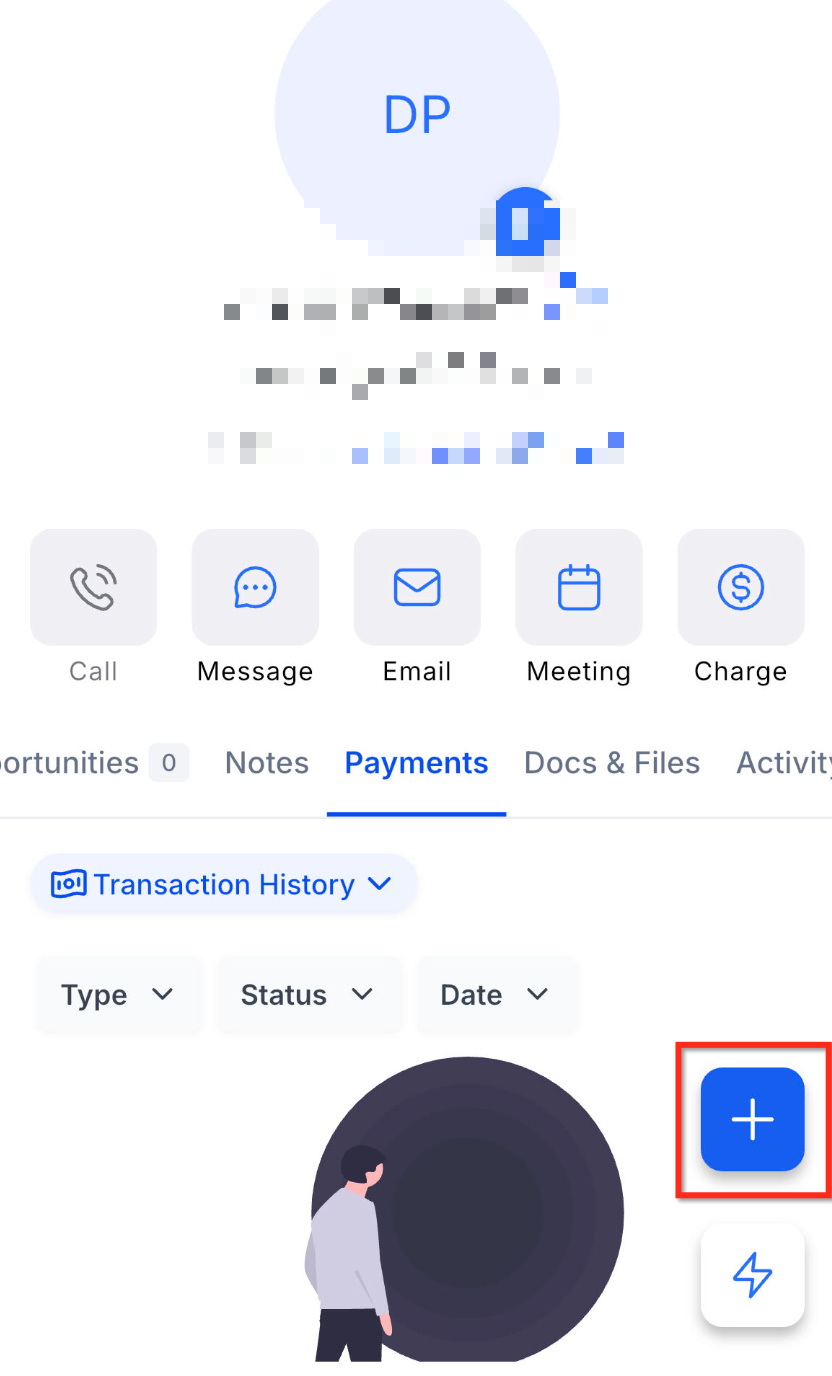
- Tap Add Icon available at the bottom.
- Choose one of the available actions.
- Use the filter chips to browse payment activity by type, such as:
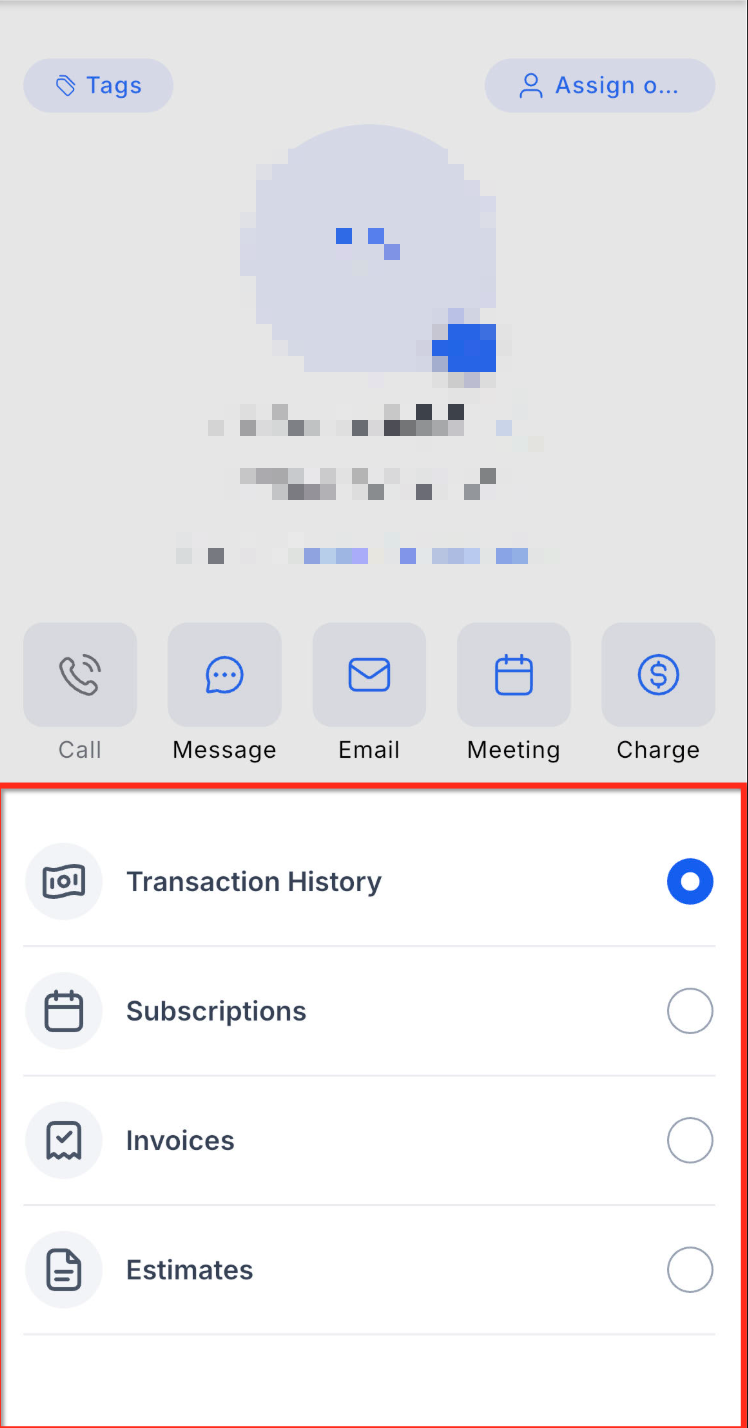
- Transactions
- Invoices
- Estimates
- Subscriptions, where applicable
- Transactions
From an Opportunity
- Open the HighLevel mobile app.
- Navigate to Opportunities.
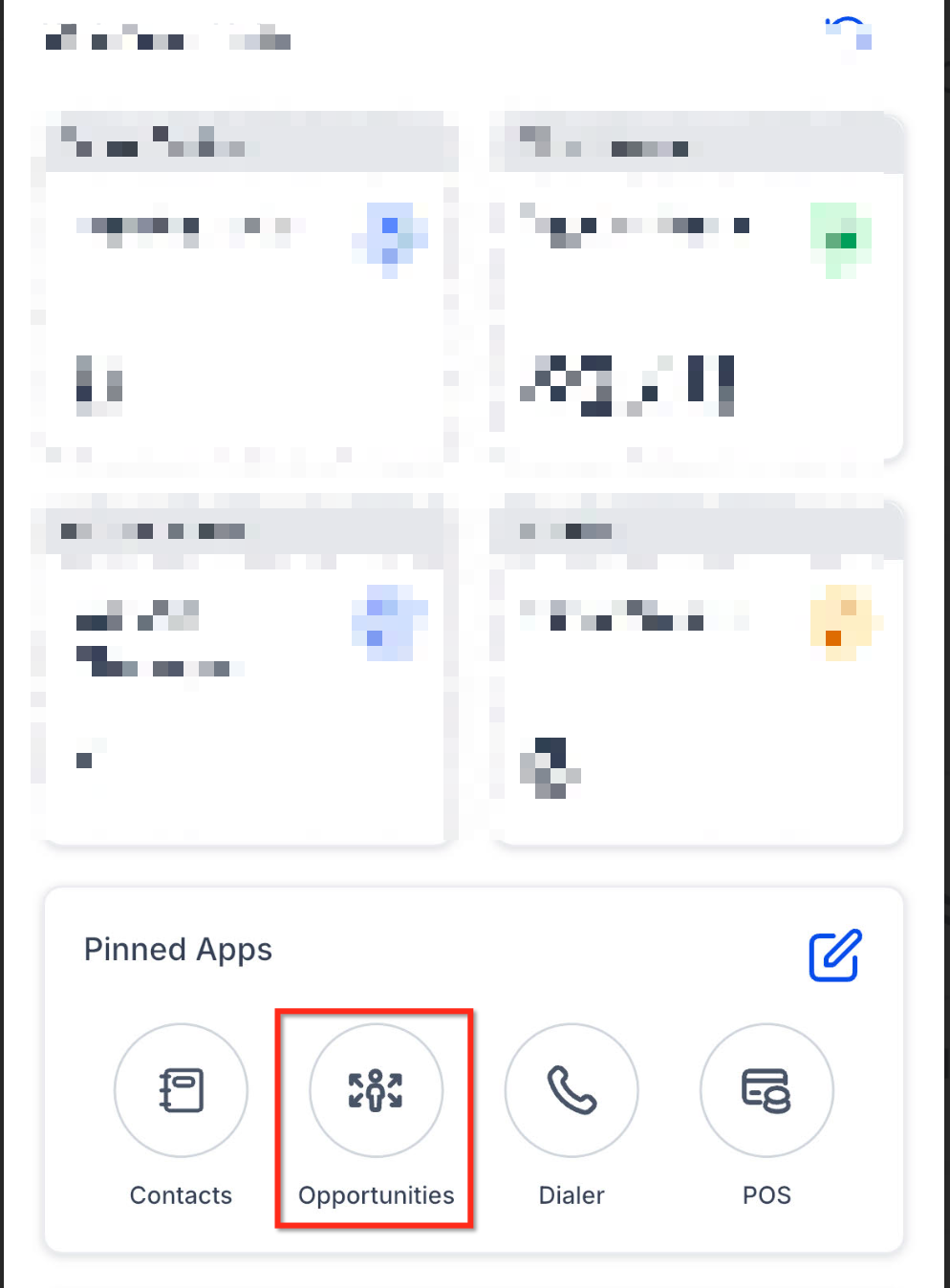
- Open the opportunity you want to manage.
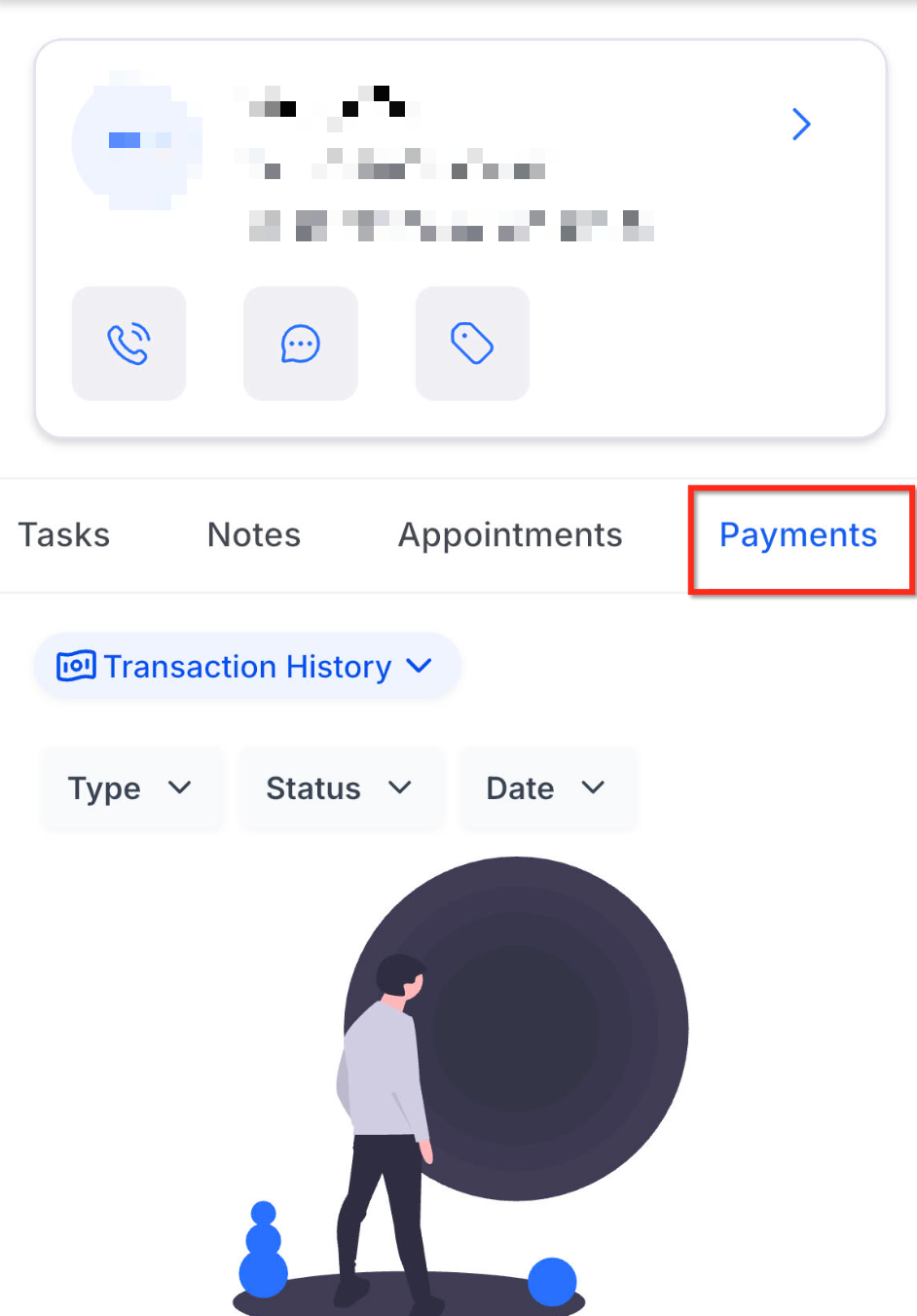
- Tap the Payments tab.
- Click on Add icon available at the bottom to create a New Invoice or New Estimate.
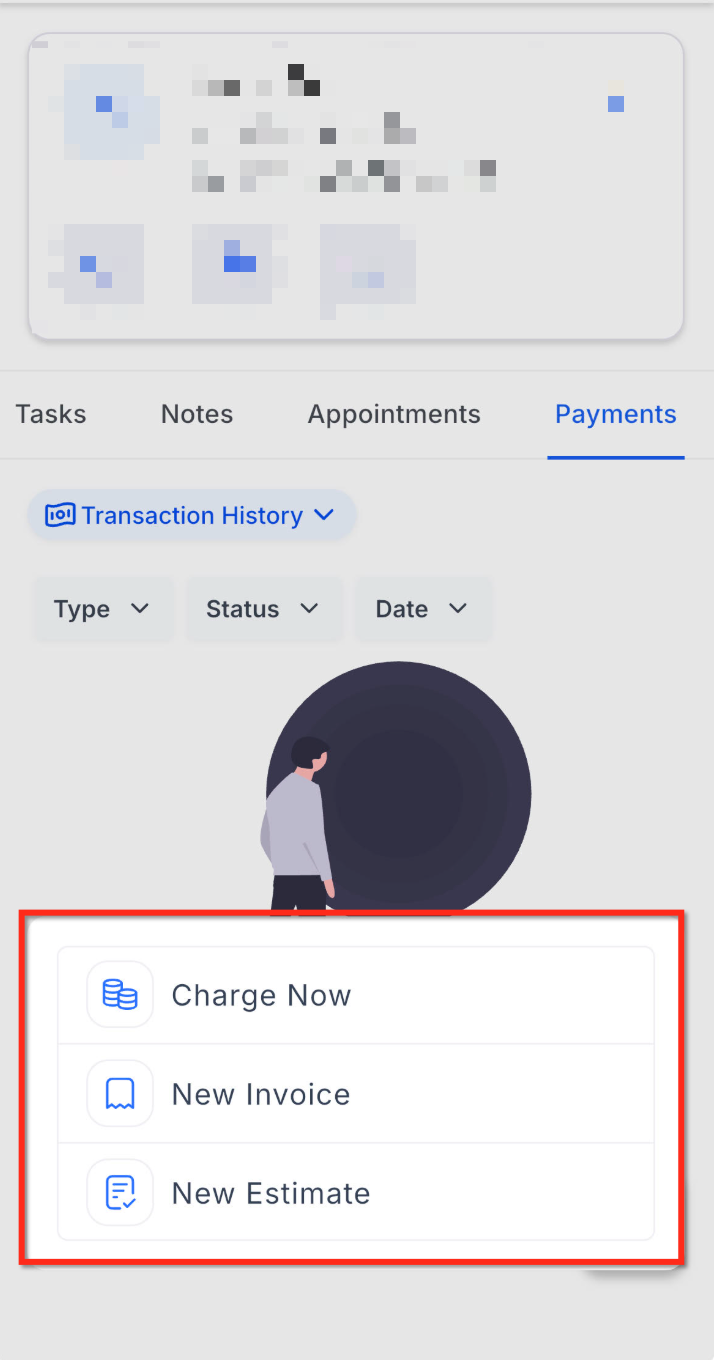
- Complete the invoice or estimate details. Click on the filter to choose the fields.
- Review linked payment activity and statuses from the Opportunity Payments tab.
Frequently Asked Questions
Q: Do I need Payments configured before using these actions?
A: Available actions may depend on your payment setup, connected provider, enabled payment methods, app version, and user permissions.
Q: Can I manage cards on file from an Opportunity?
A: The release information lists Manage Cards on File as a Contact action. Use the Contact Payments tab to manage saved cards for a customer.
Q: Why do I not see Subscriptions as a filter?
A: Subscriptions appear where applicable. If there is no subscription activity or the option does not apply to the record, the filter may not appear.
Q: Are invoices and estimates created from Opportunities automatically linked?
A: Yes. Invoices and estimates created from the Opportunity Payments tab are linked to that opportunity.
Q: Why are some actions missing from my Payments tab?
A: Some actions may depend on your payment configuration, connected payment provider, app version, or user permissions.
Related Articles
Was this article helpful?
That’s Great!
Thank you for your feedback
Sorry! We couldn't be helpful
Thank you for your feedback
Feedback sent
We appreciate your effort and will try to fix the article