This article explains how payment providers work across different channels, what is supported today, what is planned, and how Default and Preferred provider settings affect checkout behavior.
TABLE OF CONTENTS
- Overview of Configuring Payment Providers by Channel
- Key Benefits of Configuring Payment Providers by Channel
- Supported Channels
- How Provider Selection Works
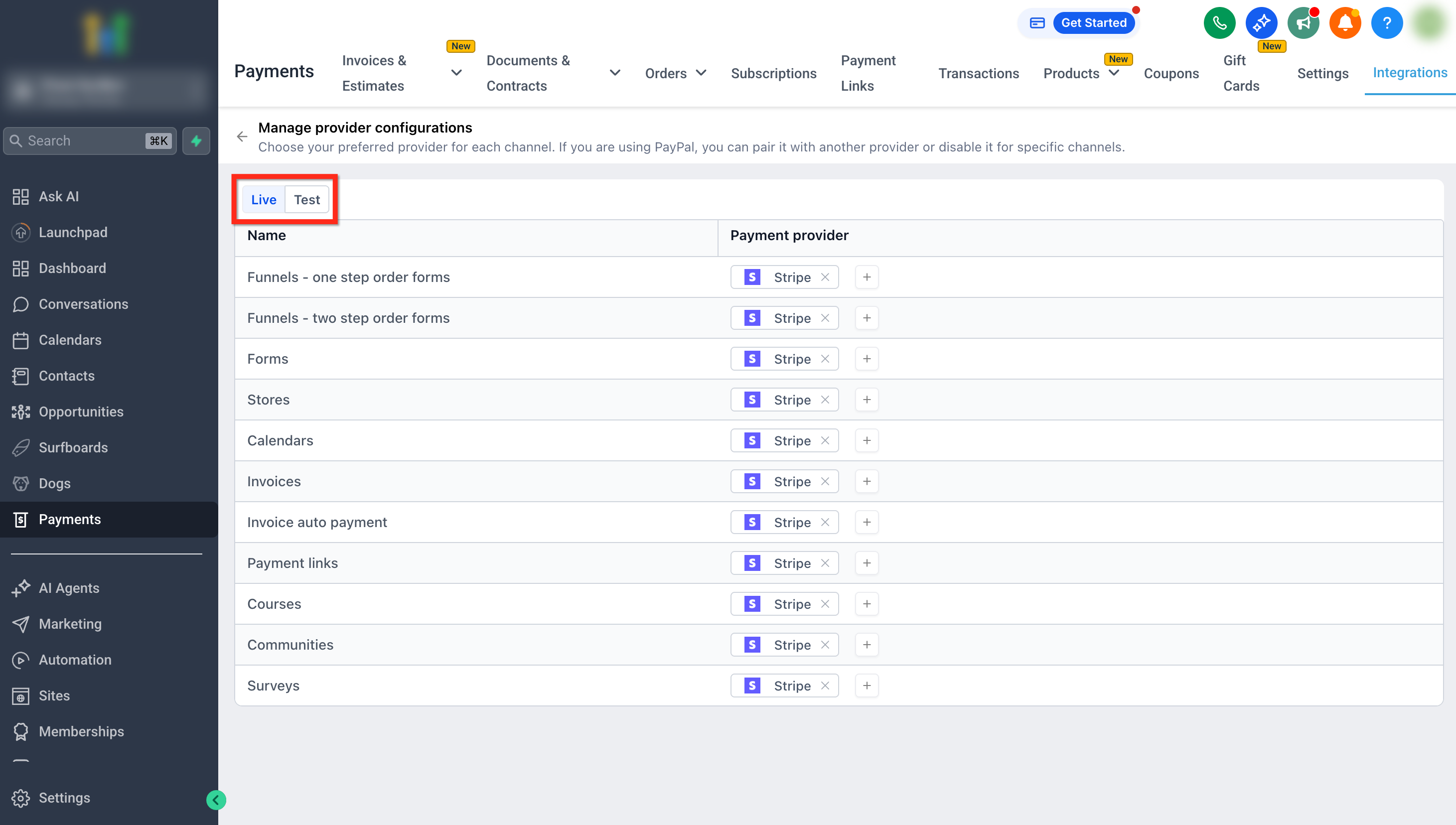
- Live Mode vs Test Mode
- How to Configure Payment Providers by Channel
- Frequently Asked Questions
- Related Articles
Overview of Configuring Payment Providers by Channel
Configuring payment providers by channel allows you to assign specific payment providers to different parts of your business, such as funnels, forms, stores, and invoices. Instead of relying on a single global default provider, HighLevel enables channel-level control so payments are routed based on where the transaction originates. This provides flexibility to optimize payment experiences, reduce fees, and tailor provider usage to specific use cases.
Key Benefits of Configuring Payment Providers by Channel
- More Flexibility: Use different payment providers for different sales experiences
- Better Optimization: Route payments based on fees, regions, or provider strengths
- Safer Testing: Experiment with new providers in Test mode without affecting live transactions
- Cleaner Setup: No need to constantly switch your account’s default provider
Supported Channels
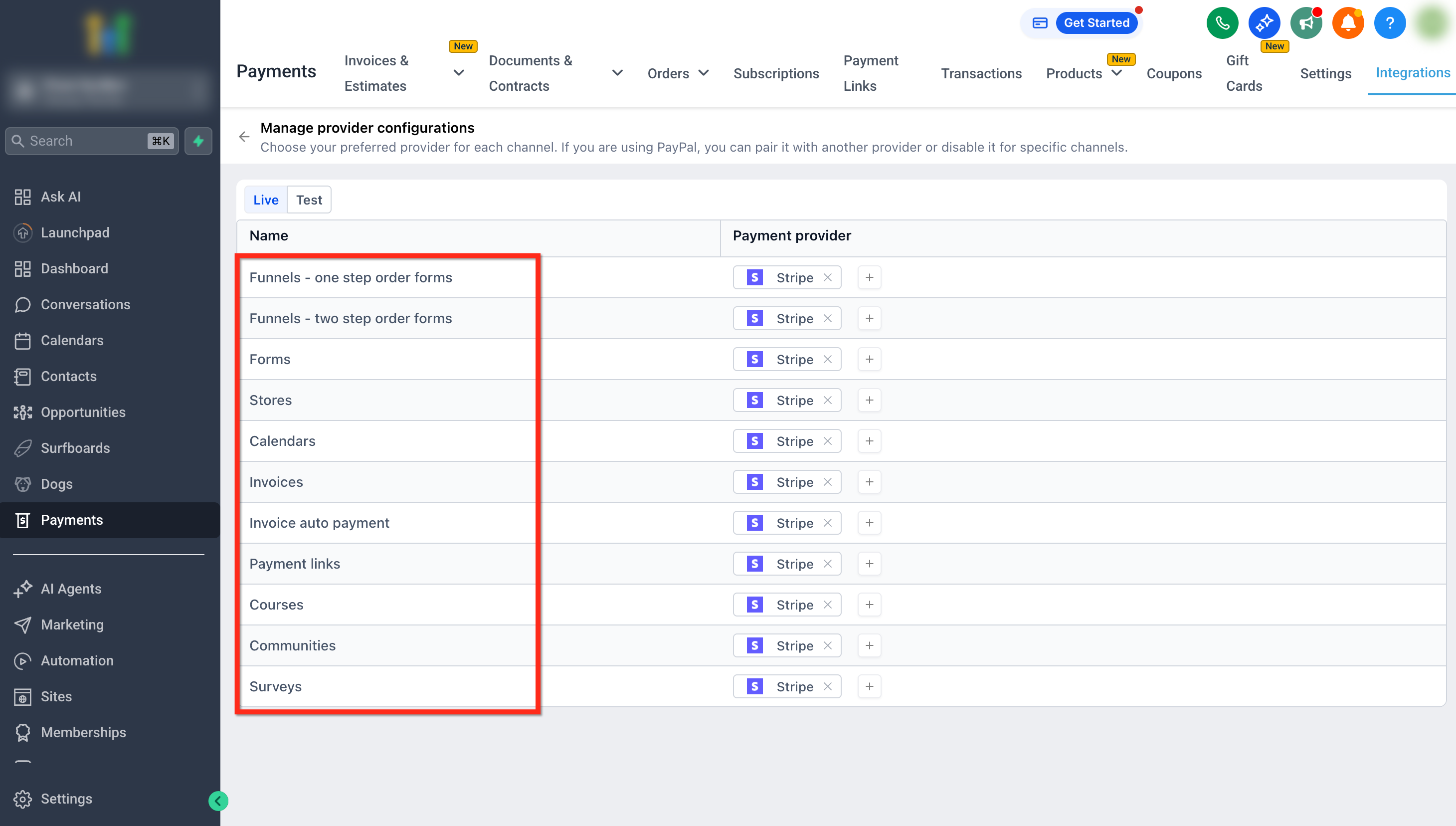
Supported channels are Funnels - One Step Order Forms, Funnels - Two Step Order Forms, Forms, Stores, Calendars
Invoices, Invoice Auto Payment, Payment Links, Courses, Communities and Surveys.
How Provider Selection Works
Payment provider selection in HighLevel follows a simple set of rules that determine which provider is used at checkout.
- Provider Priority: Channel-level settings override the global default provider. If no provider is set for a channel, the global default is used. Only connected providers are available to select when selecting a provider.
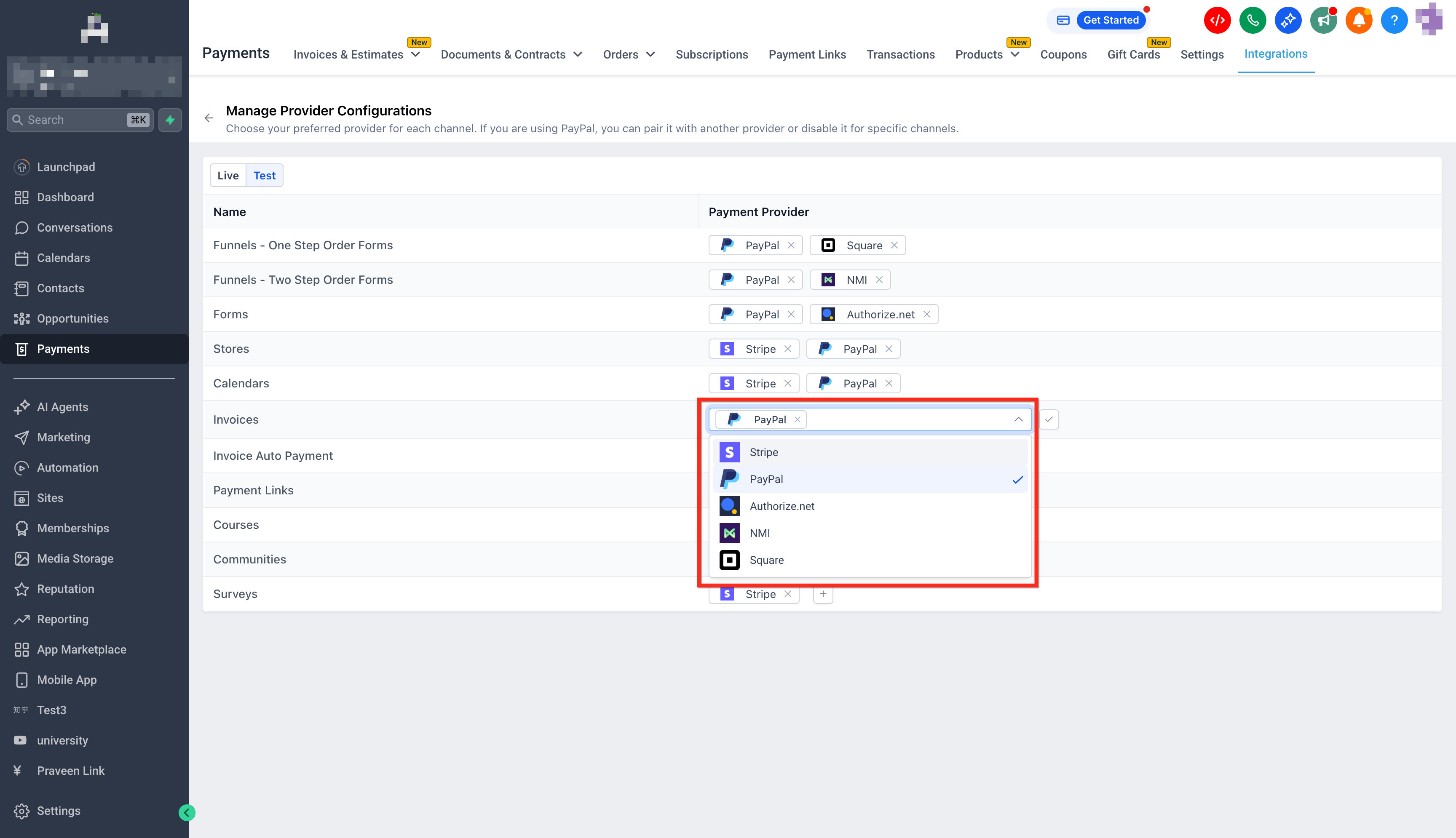
- Supported Provider Combinations: You can use PayPal + one other provider (e.g., Stripe or NMI). Multiple non-PayPal providers together are not supported (e.g., Stripe + NMI).
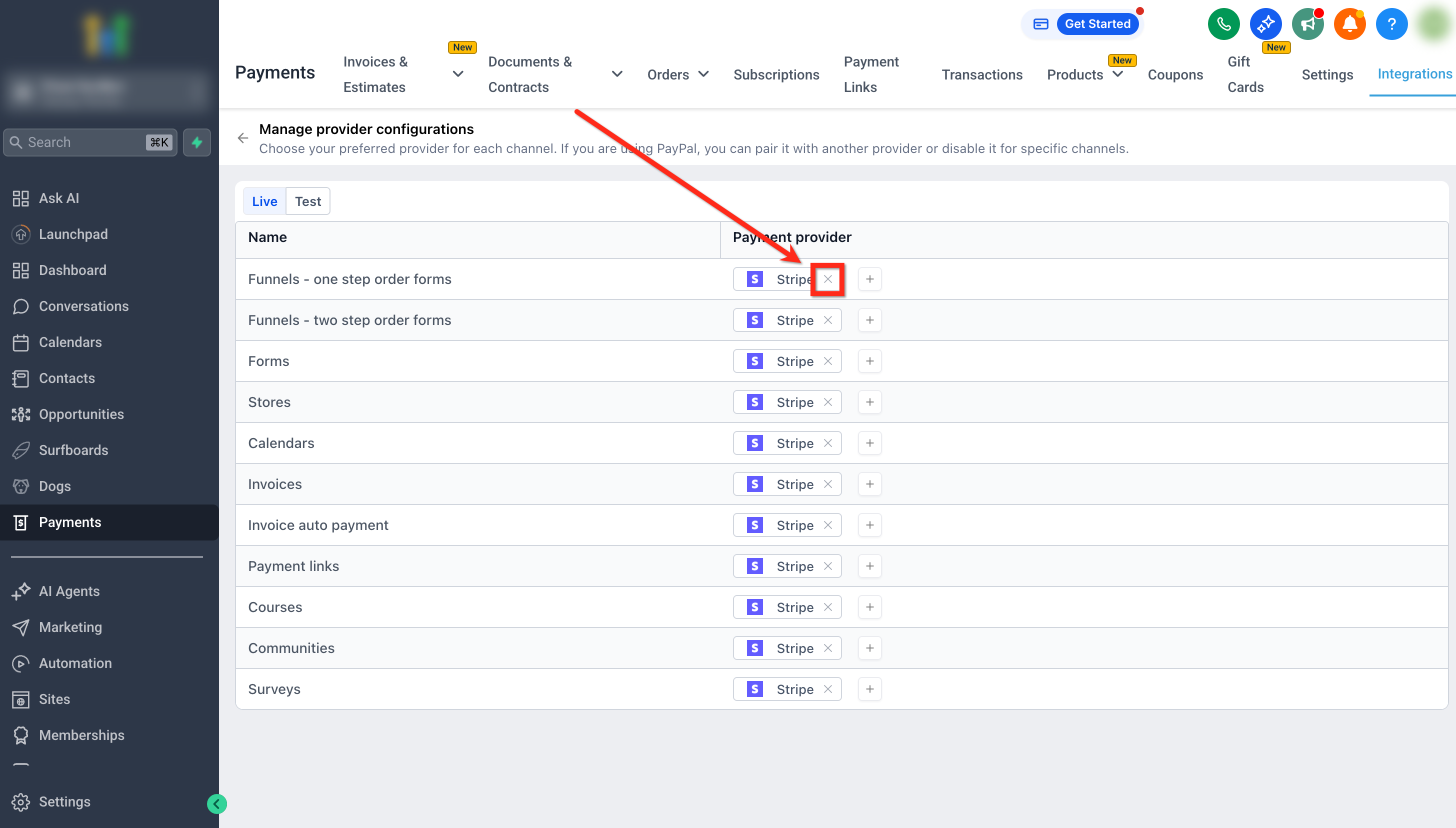
- Editing Providers: You can remove any selected provider. PayPal can be added or removed alongside another provider. PayPal cannot be directly replaced by another provider (must be removed first).
Live Mode vs Test Mode
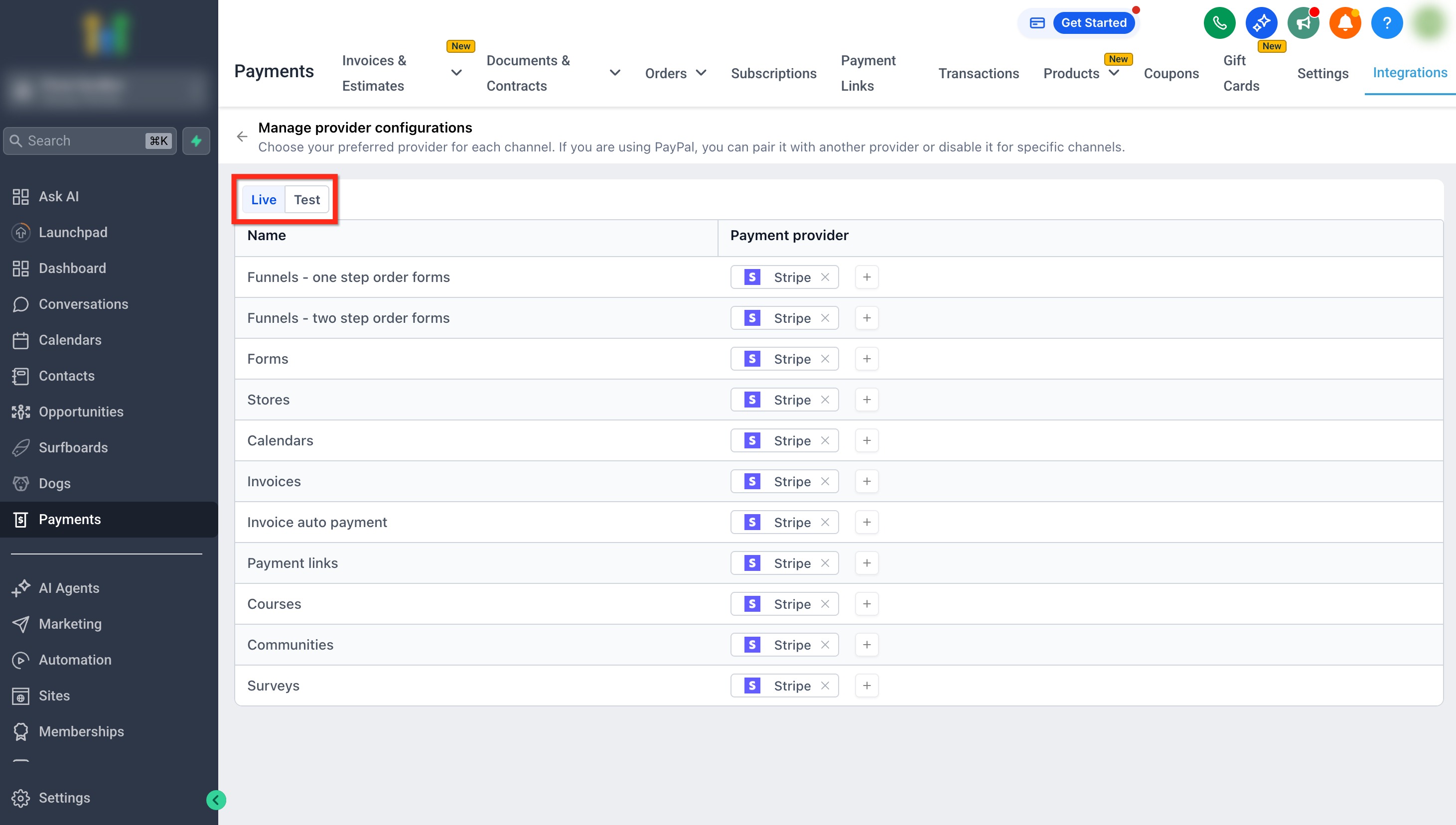
Separating Live and Test configurations allows you to experiment with providers without affecting real transactions. This is essential for validating integrations and testing checkout experiences safely.
Live Mode: Used for real customer transactions
Test Mode: Used for testing payment flows without processing real payments
Each mode can have different providers assigned per channel
How to Configure Payment Providers by Channel
Proper setup ensures payments are routed correctly and prevents failed transactions. Follow these steps to configure providers effectively.
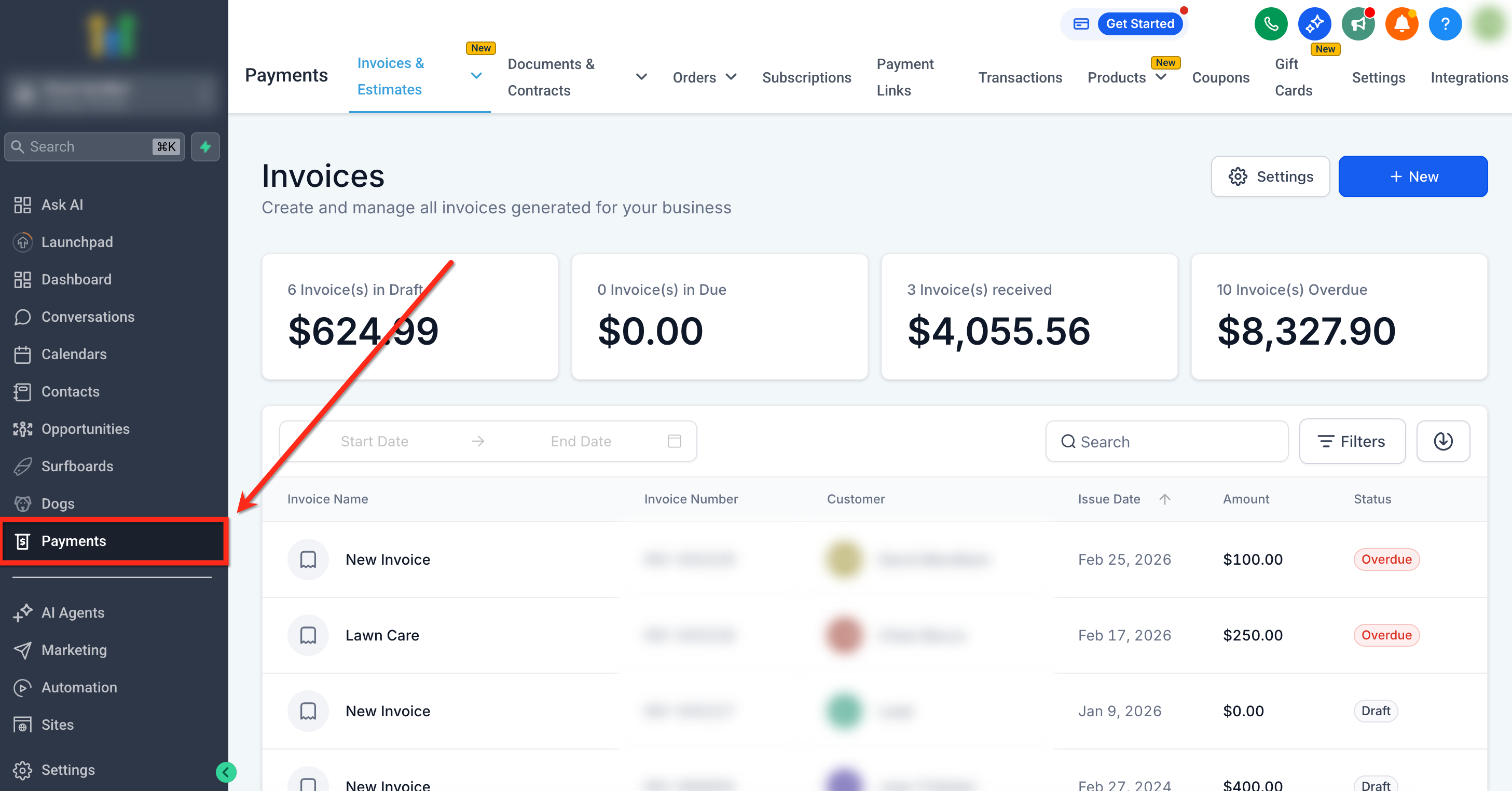
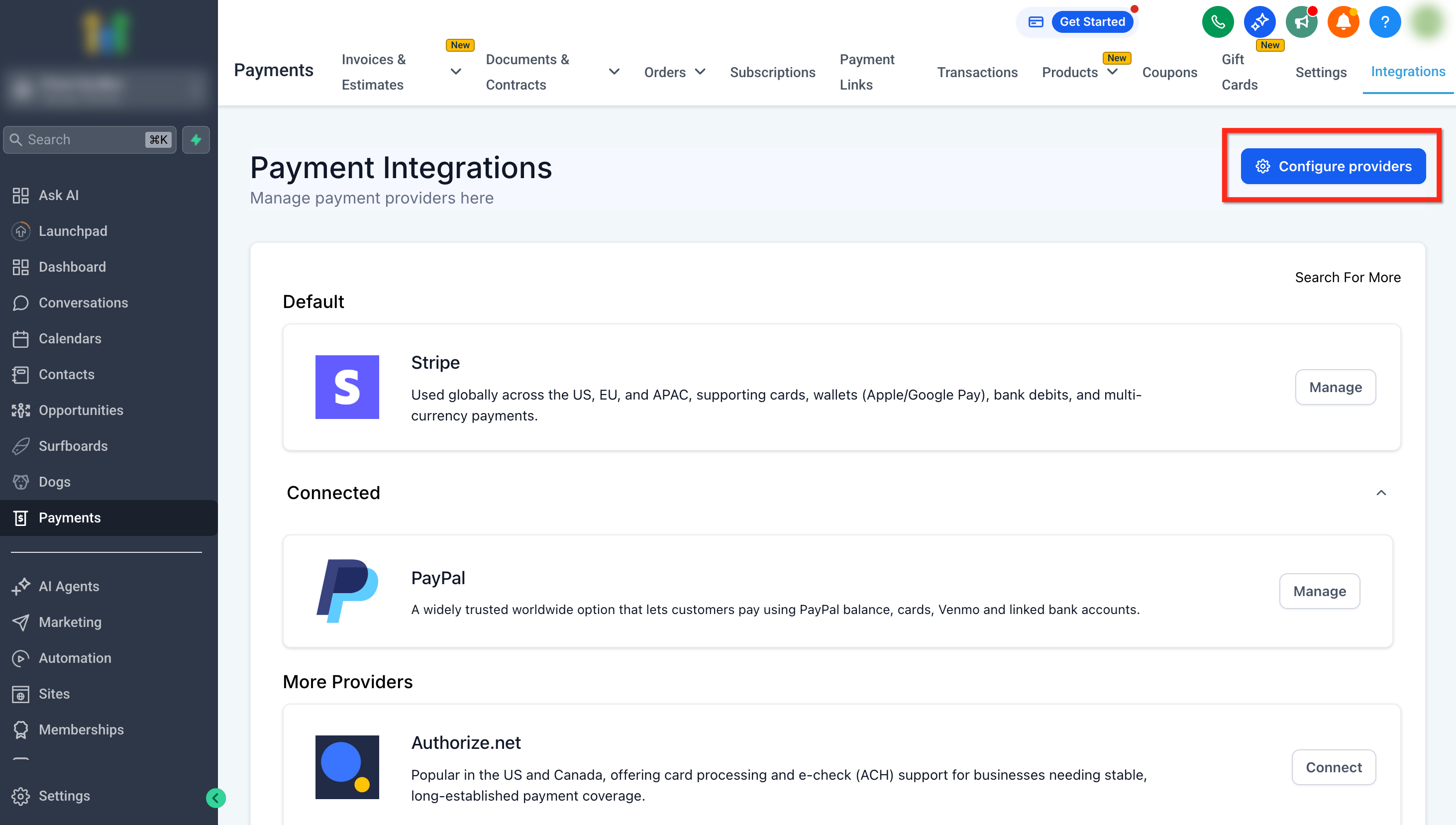
Navigate to Payments.
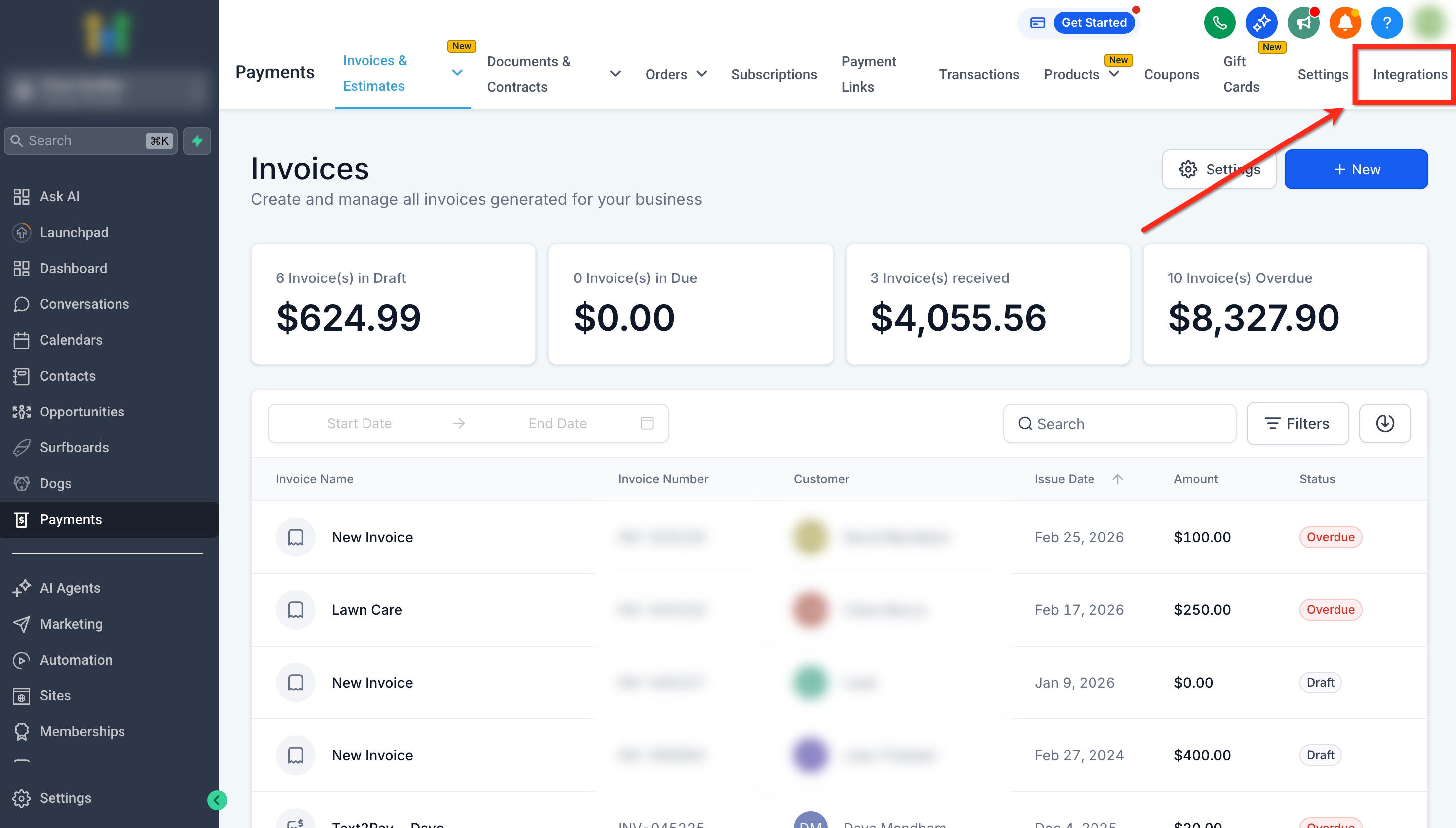
Click on Integrations.
Click Configure Providers.
Toggle between Live or Test mode as needed.
- Select your preferred payment provider(s) for each channel
- Adding a Provider: Click the '+' next to a channel and select from connected providers in the dropdown(Stripe, PayPal, Square, etc.). You can add PayPal and one additional provider (e.g., Stripe or NMI).” The dropdown only shows providers that are already connected in the account.
- Removing a Provider: Click the 'X' next to the provider. Confirm removal when prompted.
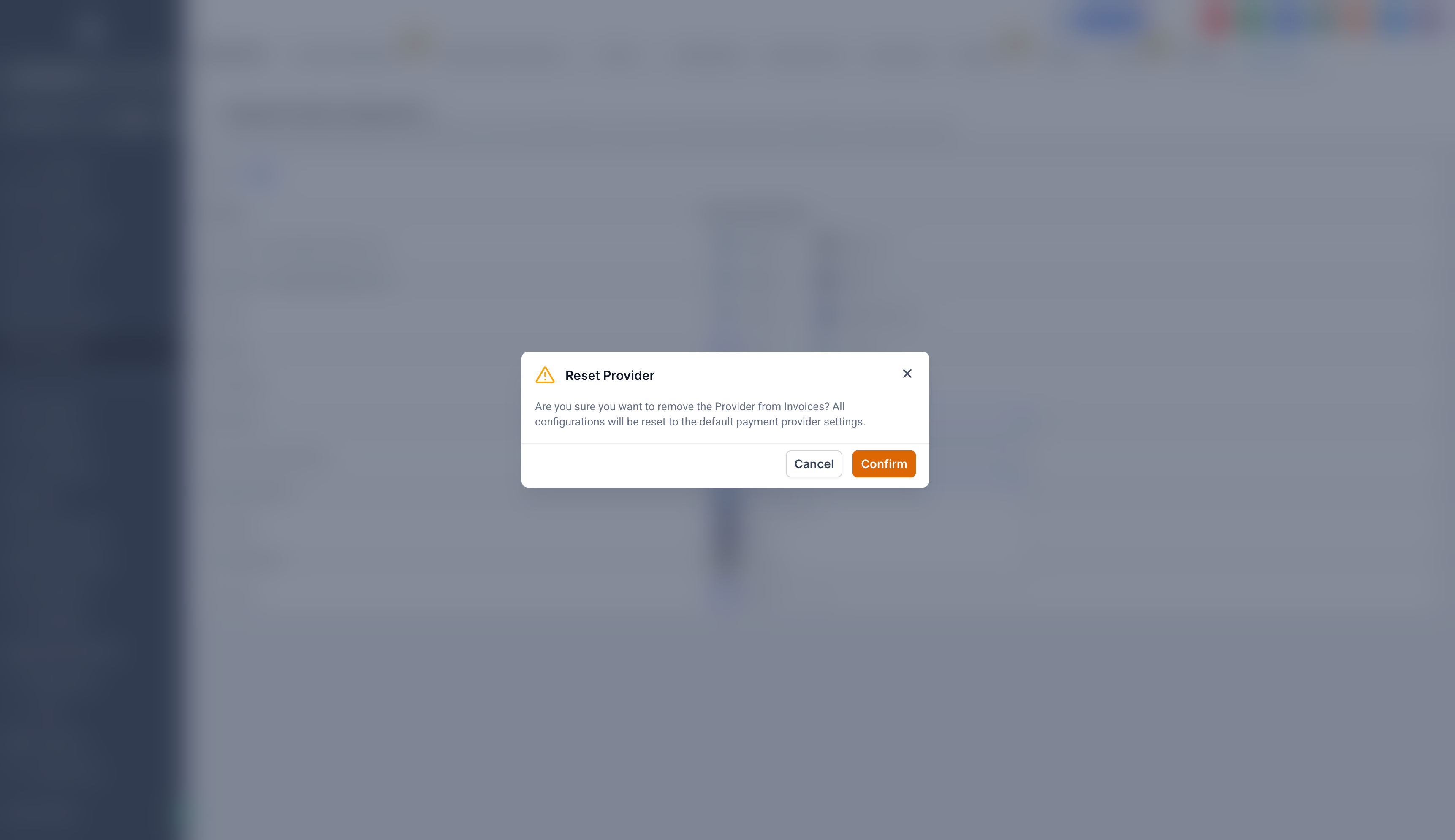
Resetting a Provider: Resetting removes custom configuration. Channel will revert to the global default provider.
- Adding a Provider: Click the '+' next to a channel and select from connected providers in the dropdown(Stripe, PayPal, Square, etc.). You can add PayPal and one additional provider (e.g., Stripe or NMI).” The dropdown only shows providers that are already connected in the account.
Frequently Asked Questions
Q: What happens if a Preferred Provider is disconnected?
If a provider used at the channel level is disconnected from the integrations page, the system automatically falls back to the default provider. If you reconnect it later, you’ll need to select it again as the preferred provider for the channel.
Q: Can I configure providers at a more granular level (e.g., per store or funnel)?
Not yet. Today, configuration is at the channel level. More granular control (per store, funnel, or asset) is planned for future updates
Q: Can I remove all providers from a channel to disable payments?
No. If all providers are removed, HighLevel will revert the channel to the global default provider to prevent accidental loss of payment functionality. This is designed to prevent accidental removal of payment options for active services. Payments are only hidden if no providers are connected at all.
Q: How many payment providers can I use on a checkout?
You can use PayPal plus one additional provider (e.g., Stripe or NMI). Using multiple non-PayPal providers together is not supported.
Q: How does the default provider affect channel configuration?
The default provider acts as a fallback. If you set a provider at the channel level, it overrides the default. If no channel-level provider is set, the default is used.
Q: What payment options will customers see at checkout?
If both a default provider and PayPal are configured, customers will see both options. If PayPal is not configured, only the default provider will be displayed.
Related Articles
Was this article helpful?
That’s Great!
Thank you for your feedback
Sorry! We couldn't be helpful
Thank you for your feedback
Feedback sent
We appreciate your effort and will try to fix the article