At the moment, Contacts and Companies are imported separately. However, you can still successfully create and associate them using the workflows below.
This guide covers all possible scenarios:
Contacts exist + Companies exist (but not associated)
Contacts exist + Companies do not
Neither Contacts nor Companies exist
Companies exist + Contacts do not
TABLE OF CONTENTS
- What Is Contact Business Name Automation
- Key Benefits of Contact Business Name Automation
- How to Configure Contact Business Name Automation
- Enable Contact Business Name Automation
- Prepare Your Contacts CSV File
- Start a Contact Import
- Upload the Contact CSV File
- Choose How Contacts Should Be Imported
- Map Contact Fields Correctly
- Verify Company Creation and Association
- Frequently Asked Questions
What Is Contact Business Name Automation
The Contact Business Name automation enables the system to automatically create and associate company records based on the Business Name field on contact records. When this automation is enabled at the Company object level, the platform uses the Business Name value to determine whether a company should be created or updated. This removes the need to manually create company records or link contacts to companies. The automation helps keep company data consistent when managing contacts at scale.
This automation is applied whenever contacts are created or updated, including during bulk contact imports. For imported contacts, the Business Name field in the CSV file acts as the trigger for creating and associating company records. The automation also works retroactively for existing contacts that already have a Business Name value. By relying on a single contact field, this approach ensures company associations are created automatically without additional configuration or manual intervention.
Key Benefits of Contact Business Name Automation
- Automatic company creation: Company records are created automatically using the Business Name field on contact records, removing the need for manual company setup.
- Built-in contact–company association: Contacts are automatically linked to the appropriate company at the time of creation or update, eliminating manual association steps.
- Supports bulk and ongoing updates: The automation works during contact imports as well as when existing contacts are updated, making it suitable for both initial setup and ongoing data management.
- Consistent company data: Using a single source field for company creation helps maintain consistency across company records and reduces duplicate or mismatched data.
- Reduced manual effort: By handling company creation and association automatically, the automation streamlines workflows and minimizes repetitive administrative tasks.
How to Configure Contact Business Name Automation
This section walks through how to enable and configure the Contact Business Name automation at the Company object level.
Enable Contact Business Name Automation
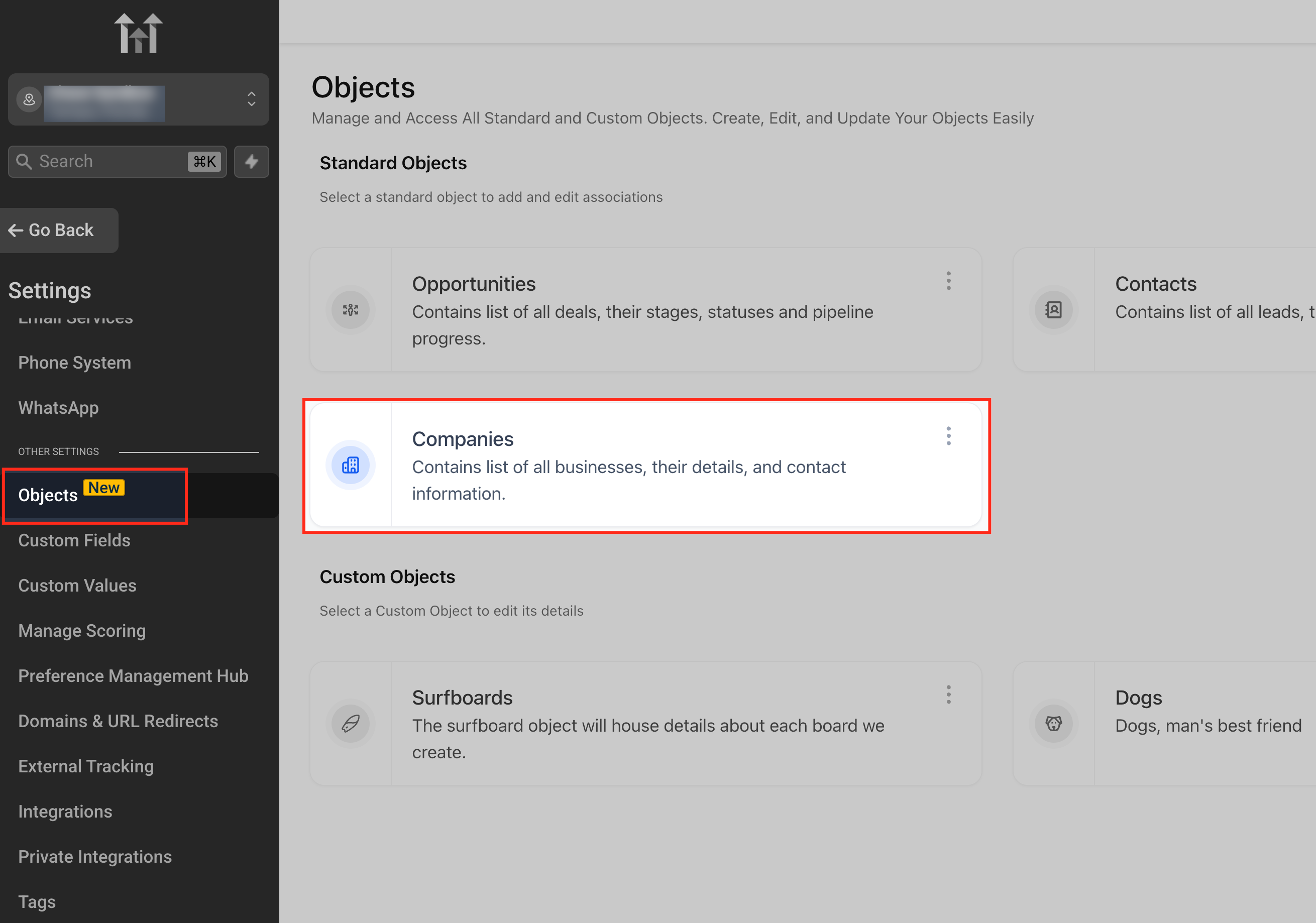
To use this feature, enable the automation from Settings → Objects → Companies within the sub-account. Select the option to automatically create and associate companies from contact business names and save the changes. This setting must be enabled per sub-account, and saving is required for the automation to take effect.
Open the Companies Object
Navigate to Settings and select Objects to access all standard and custom objects available in the sub-account. From the list of standard objects, open Companies to manage company-related settings. This is where the Contact Business Name automation is configured and enabled.
Enable Contact Business Name Automation
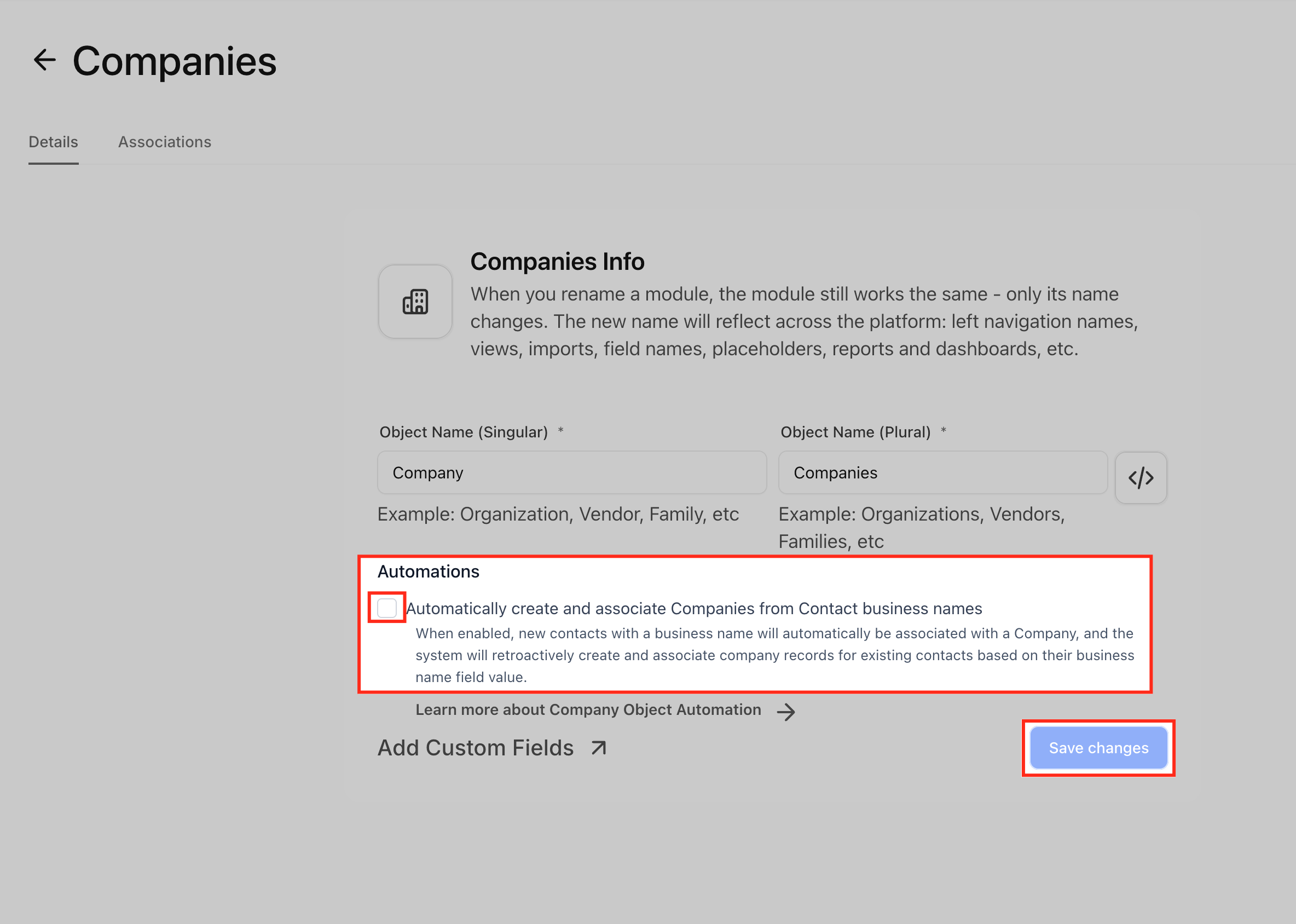
In the Companies object settings, locate the automation that allows companies to be created and associated from contact business names. Enable this option by selecting the checkbox, then save your changes to activate the automation. This step is required for the system to automatically create and link company records during contact creation or updates.
Prepare Your Contacts CSV File
Your CSV file must include a column named Business Name, as this field triggers automatic company creation and association. The column name must match exactly, while other contact-related fields can be included as needed. No company-specific fields are required in the CSV file.
Start a Contact Import
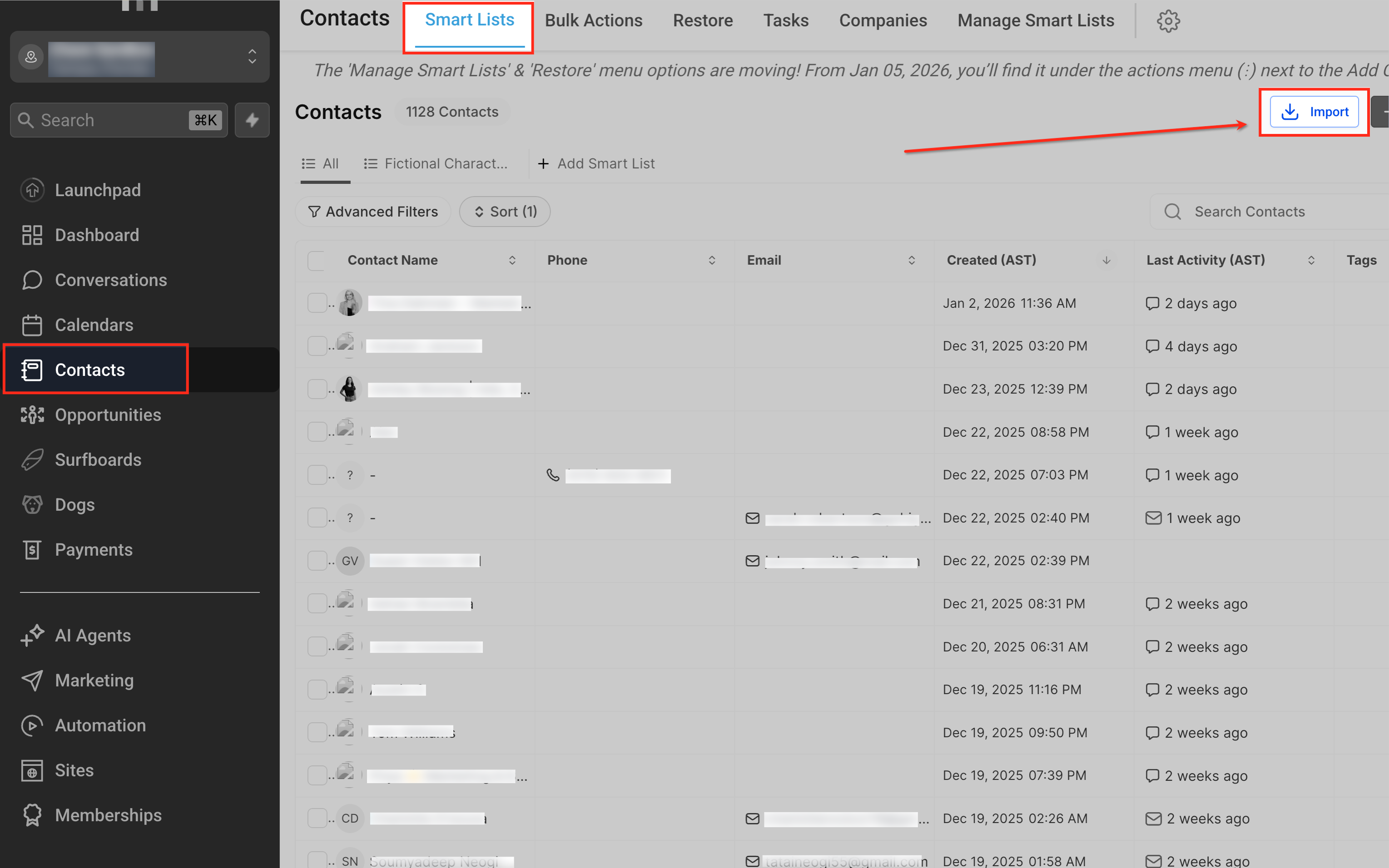
After enabling the automation and preparing the CSV file, import contacts from the Contacts section using the standard import flow. During the import, the system reads the Business Name value on each contact and automatically creates or updates company records while associating them with the imported contacts.
Go to the Contacts section and select Import to begin uploading contact data.
Select Contacts as the Import Object
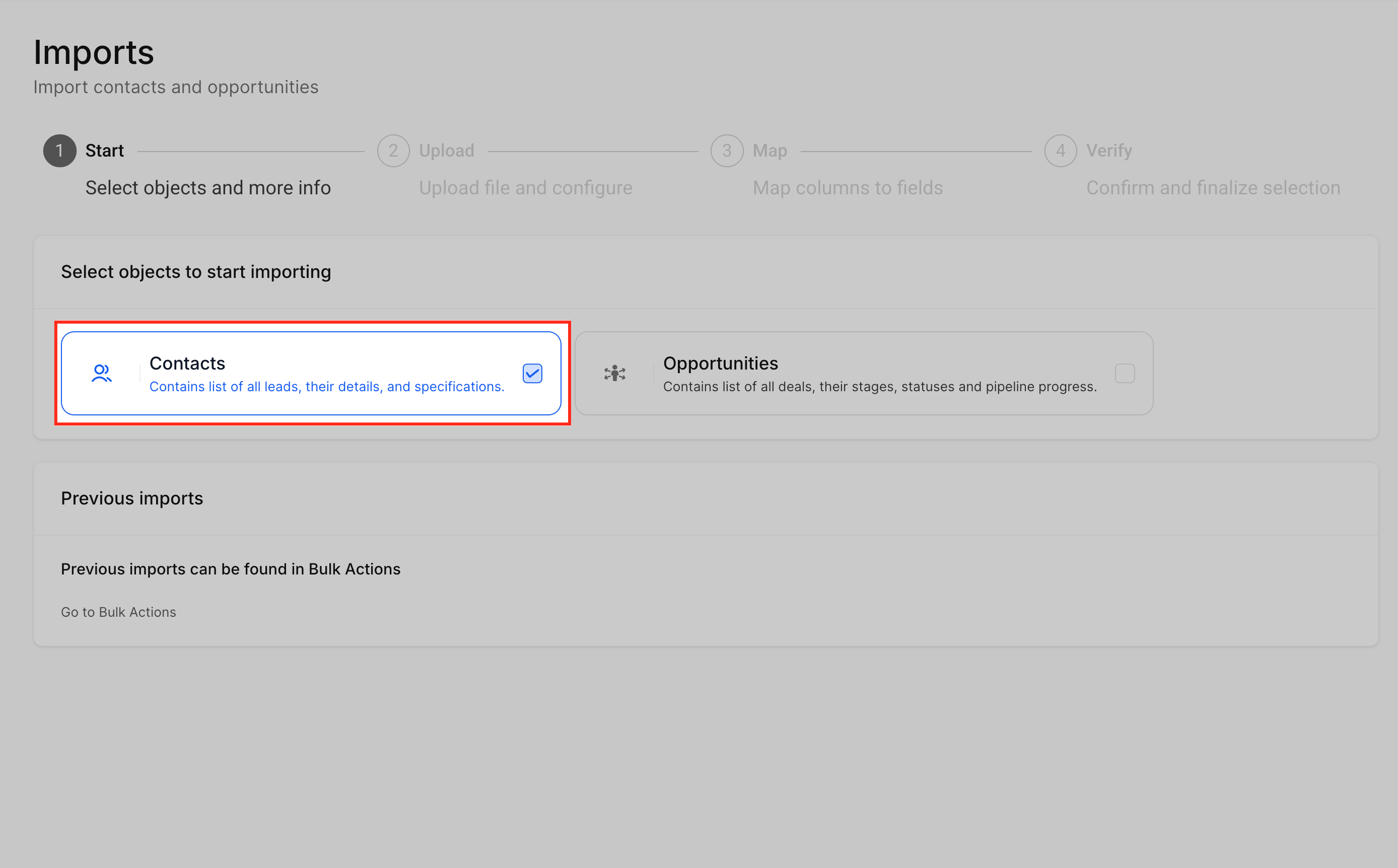
On the import start screen, select Contacts as the object to import. This step is important because the Contact Business Name automation runs only when contacts are created or updated. Choosing Contacts ensures the Business Name data is processed correctly to trigger automatic company creation and association.
Upload the Contact CSV File
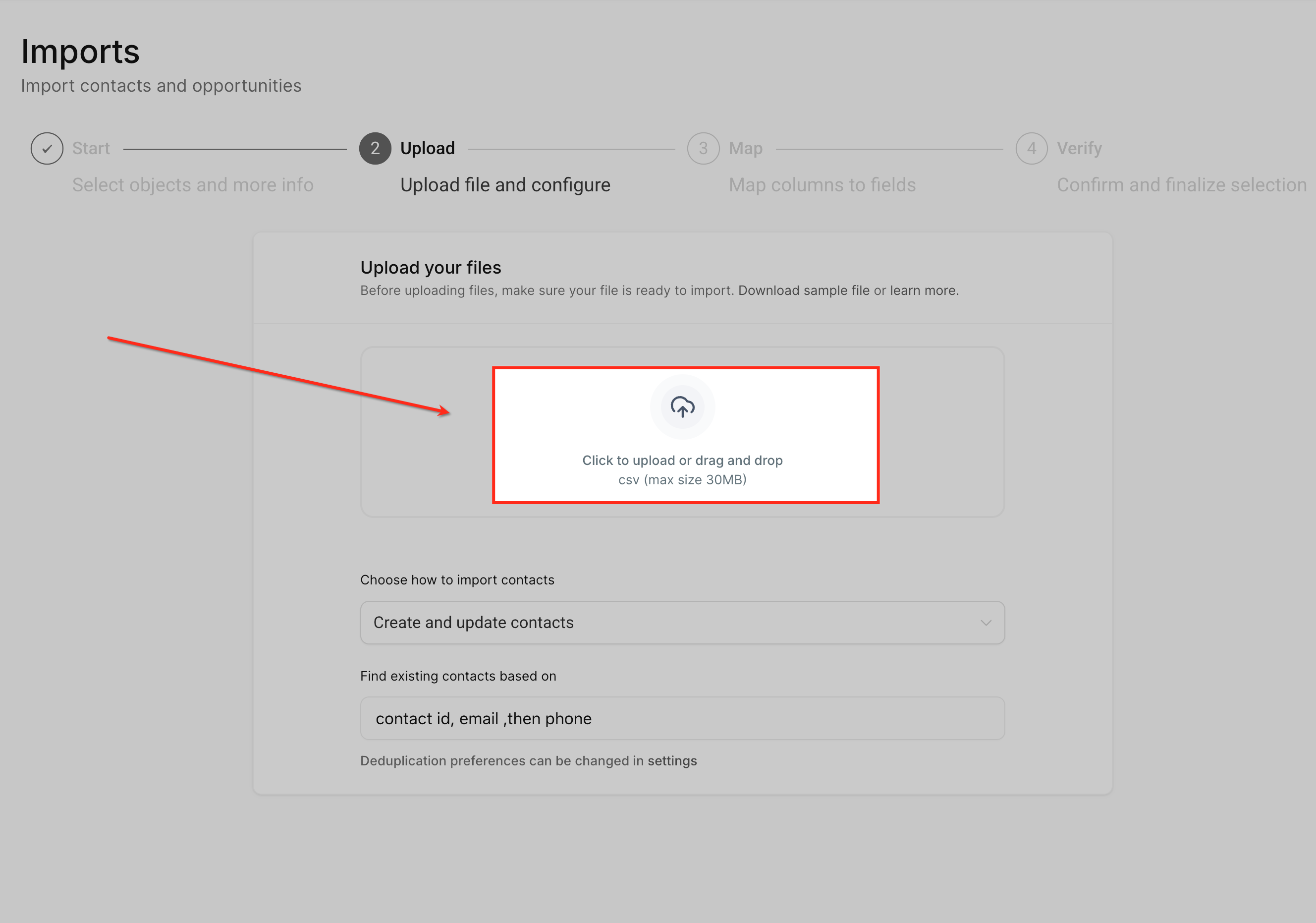
On the upload screen, select your CSV file or drag and drop it into the upload area. This file should include the Business Name column, as it provides the data required to trigger automatic company creation and association. Uploading the correct file ensures the automation can be applied during the import process.
Adding Business Name Column to Your CSV File

Ensure your contact CSV file includes a column named Business Name, which is required for the automation to work. This column defines the company name that will be created and associated with each contact during import. The column name must match exactly to be recognized by the system.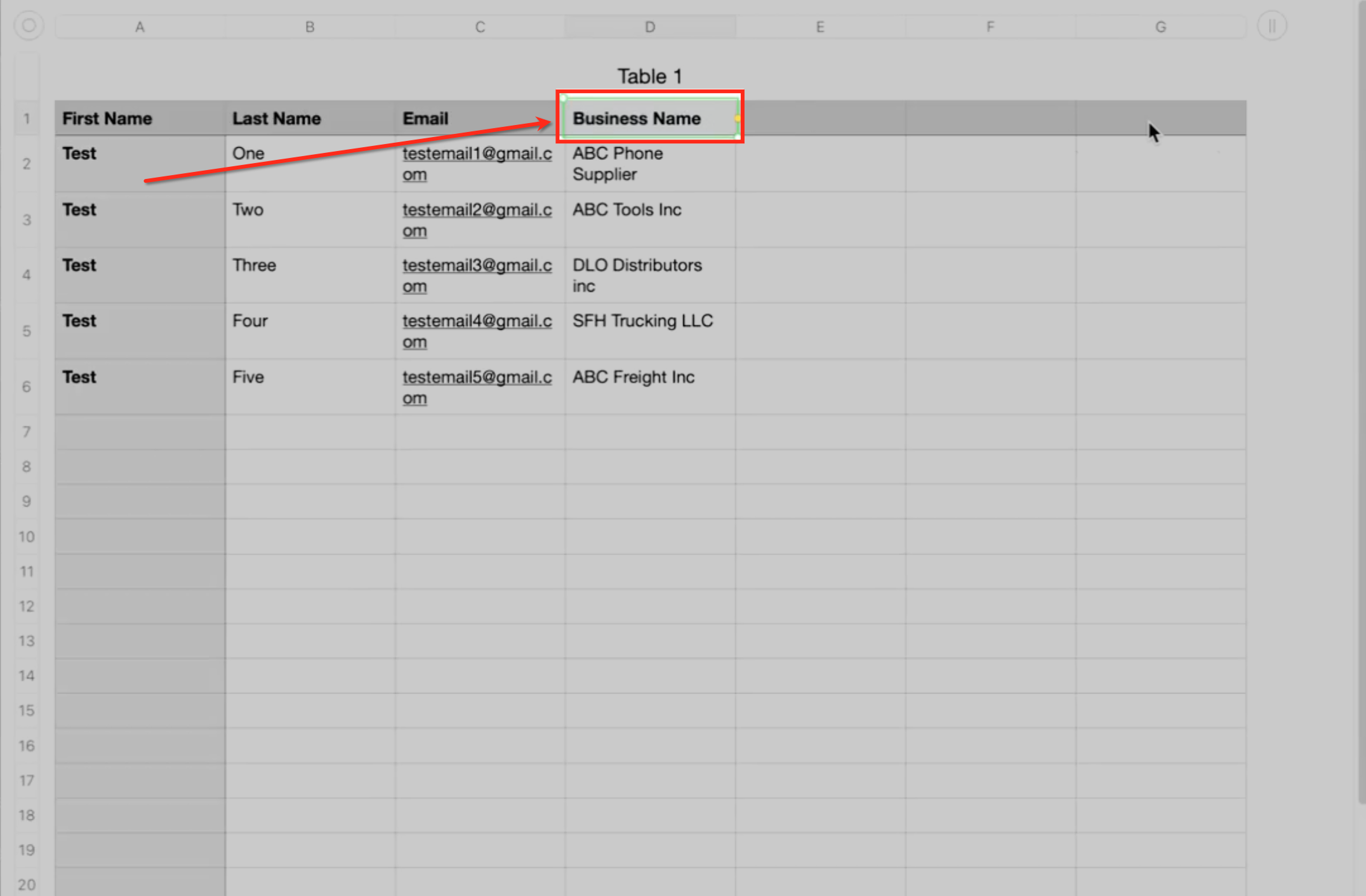
Choose How Contacts Should Be Imported
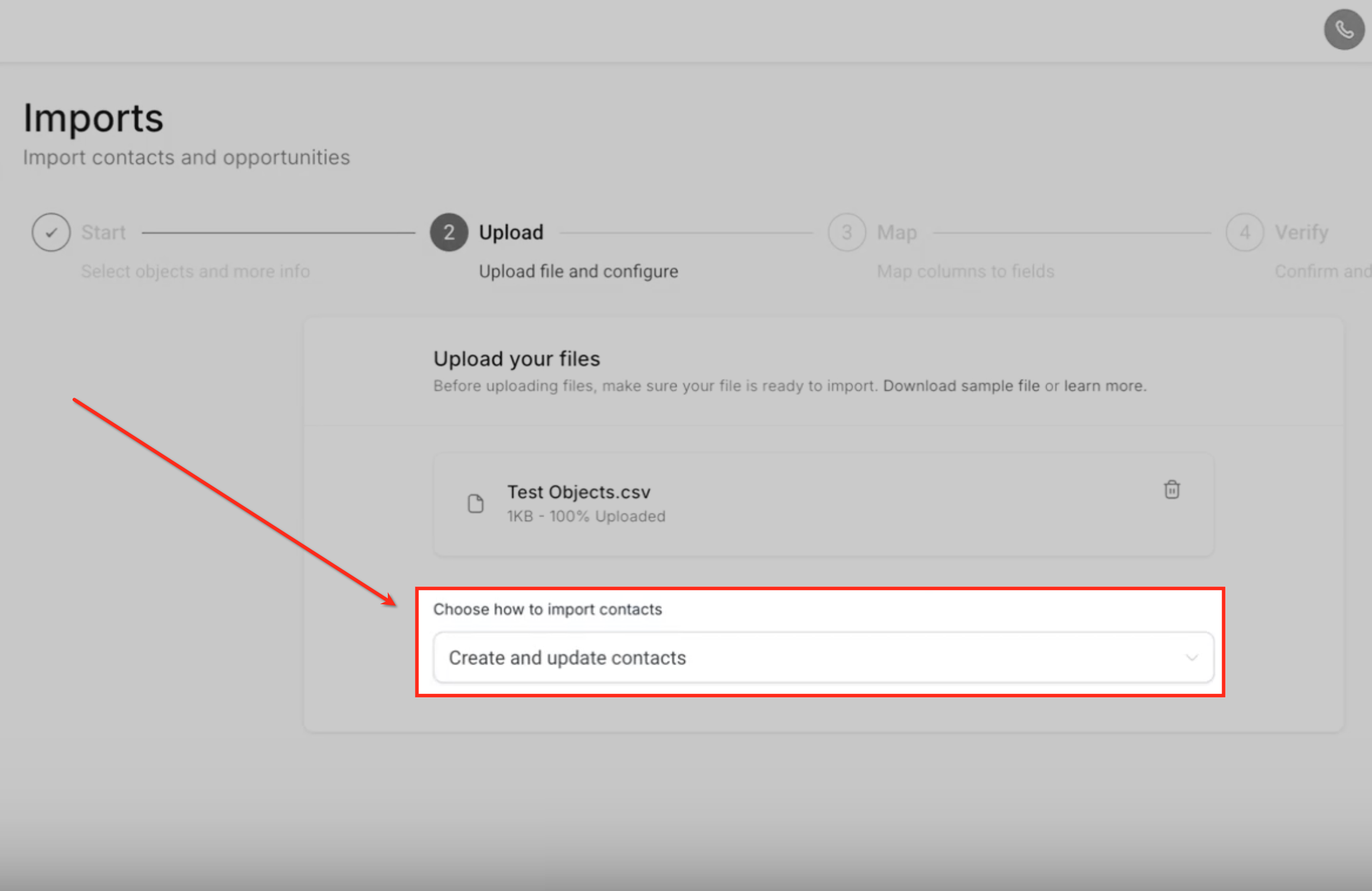
Select Create and update contacts to allow the import to add new contacts and update existing ones. This option ensures the Contact Business Name automation is applied to both newly created contacts and existing contacts with a Business Name value. Choosing the correct import behavior helps apply the automation consistently across your contact data.
Map Contact Fields Correctly
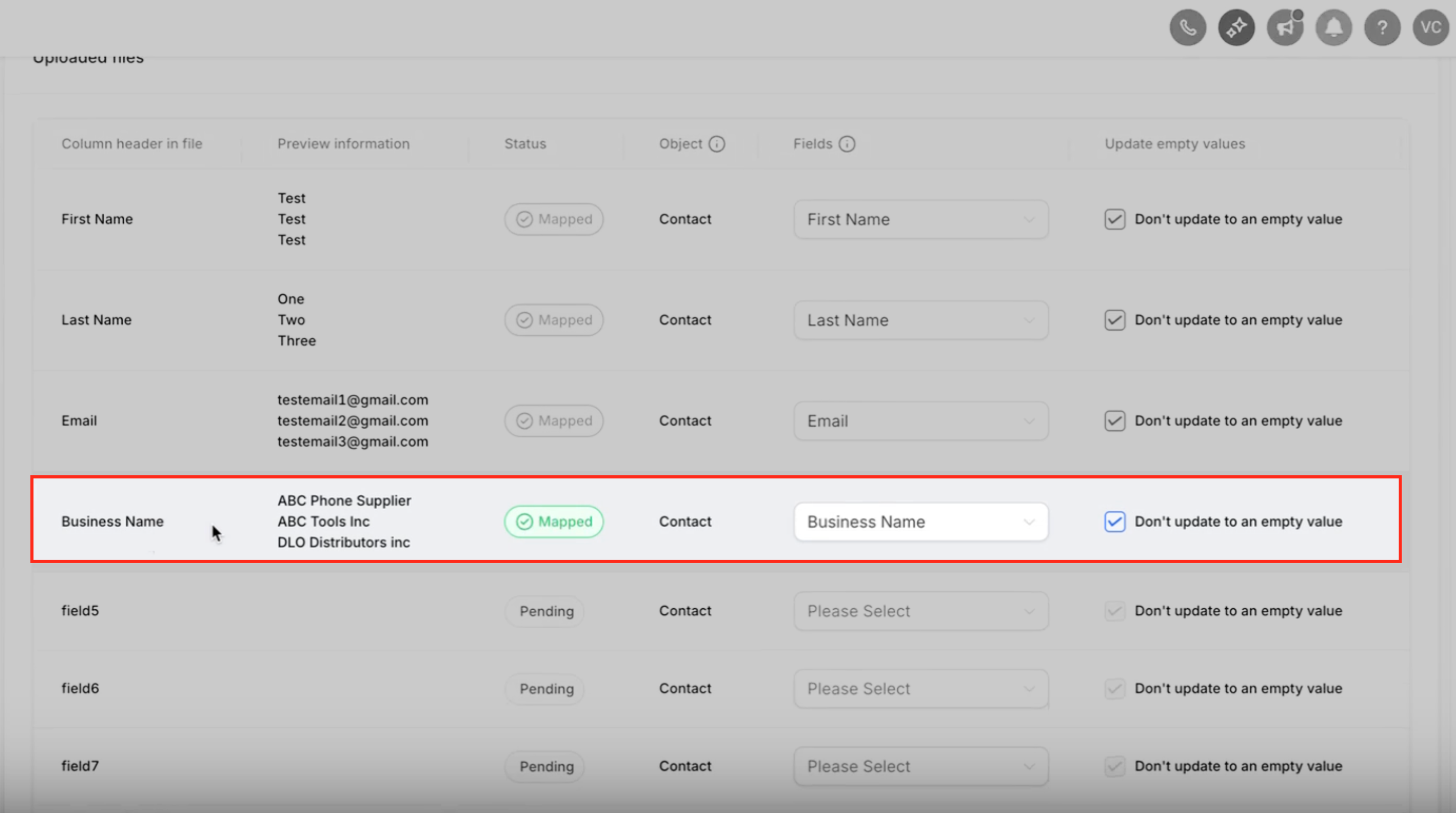
During the import process, confirm that the Business Name column from the CSV file is mapped to the Business Name field on the Contact object.
This mapping is critical, as the automation relies on the contact-level Business Name value to create and associate company records. Incorrect mapping can prevent the automation from working as expected.
Verify Company Creation and Association
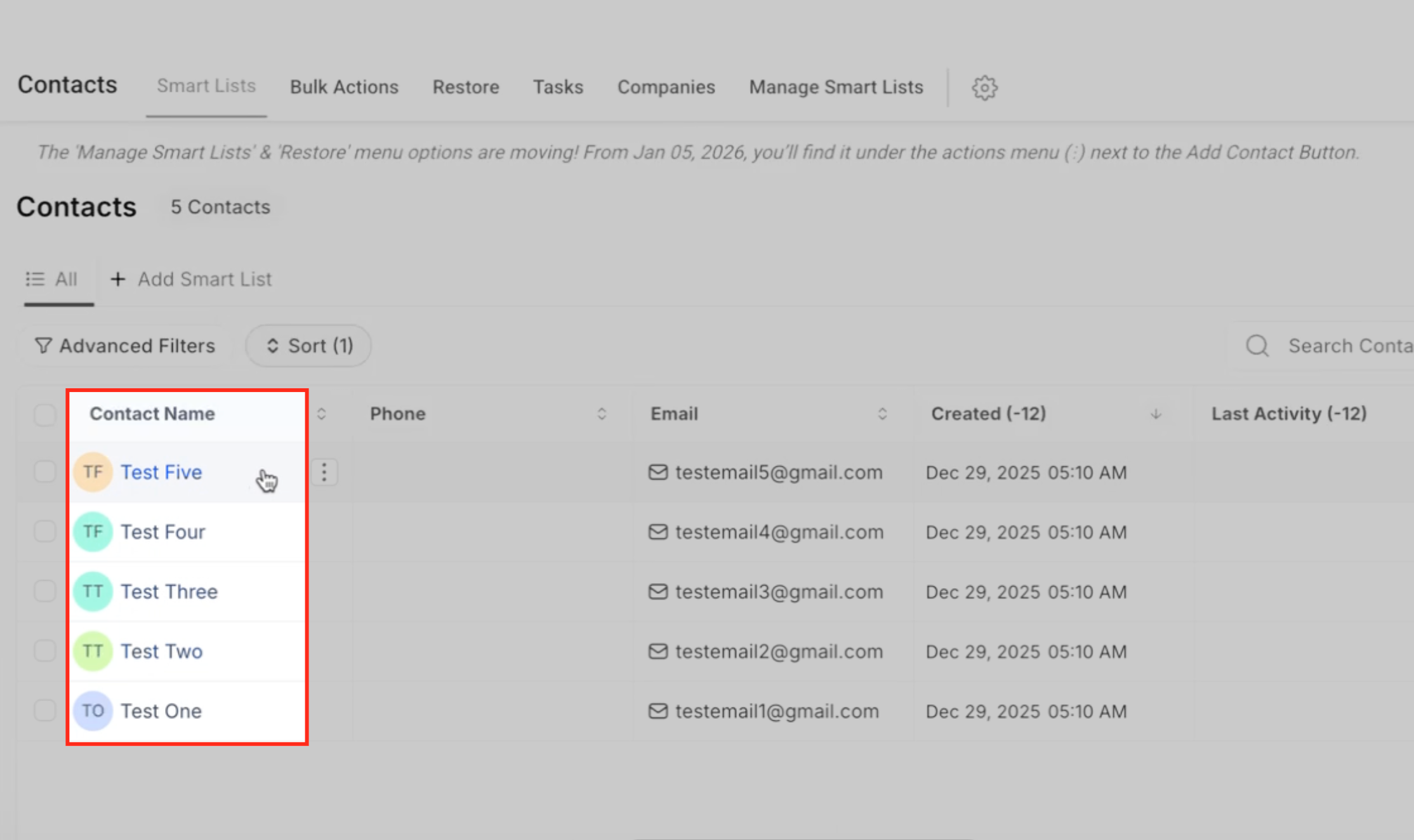
Once the import is complete, verify the results by opening a contact record to confirm the Business Name is populated and associated with a company. You can also review the Companies section to see the automatically created company records based on the imported contact data.
On Contact Records
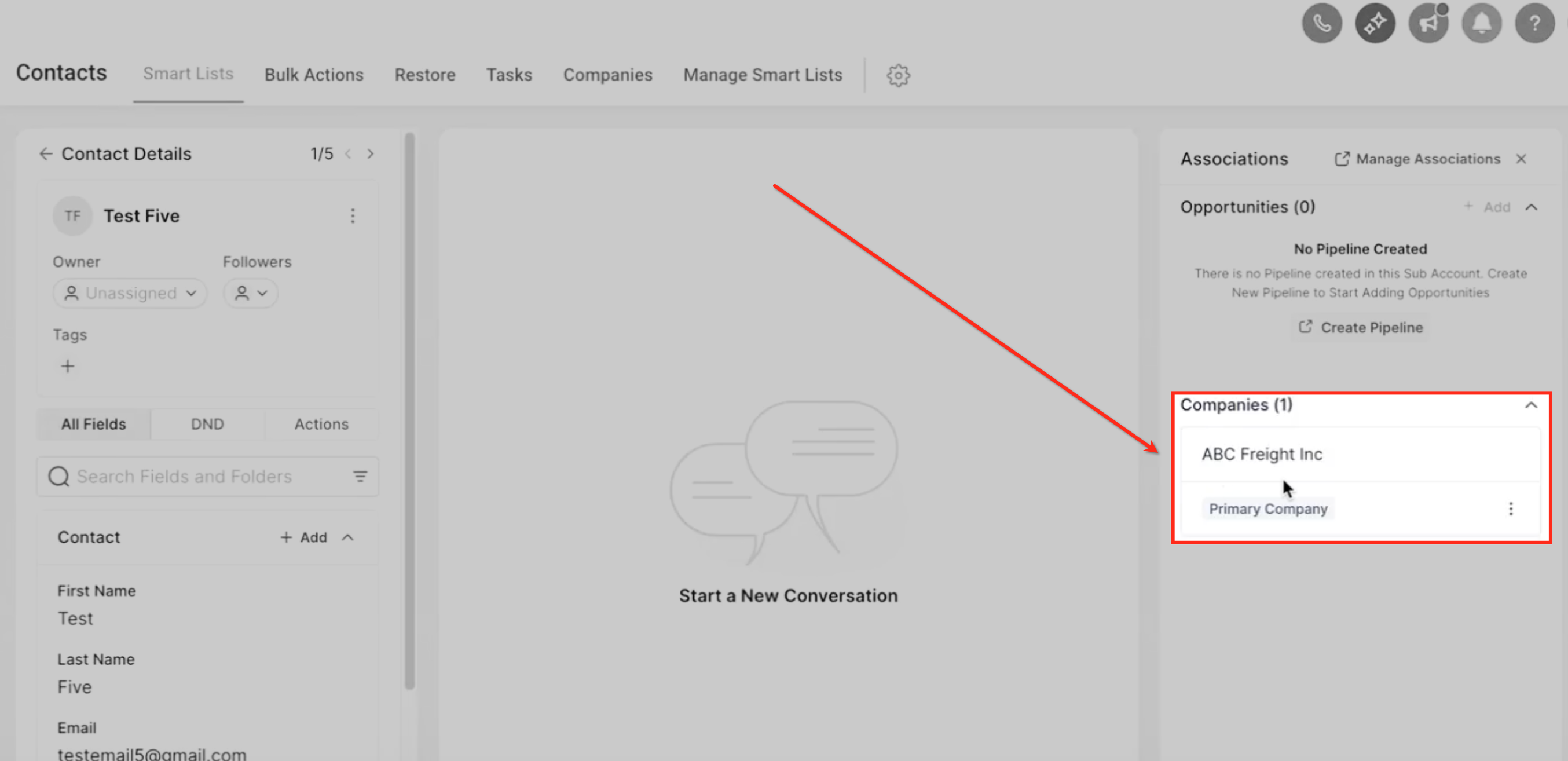
Open a contact record and review the Companies section under Associations to confirm the linked company. The presence of a company marked as the primary company indicates that the Contact Business Name automation successfully created and associated the company record.
Verify On Company Records
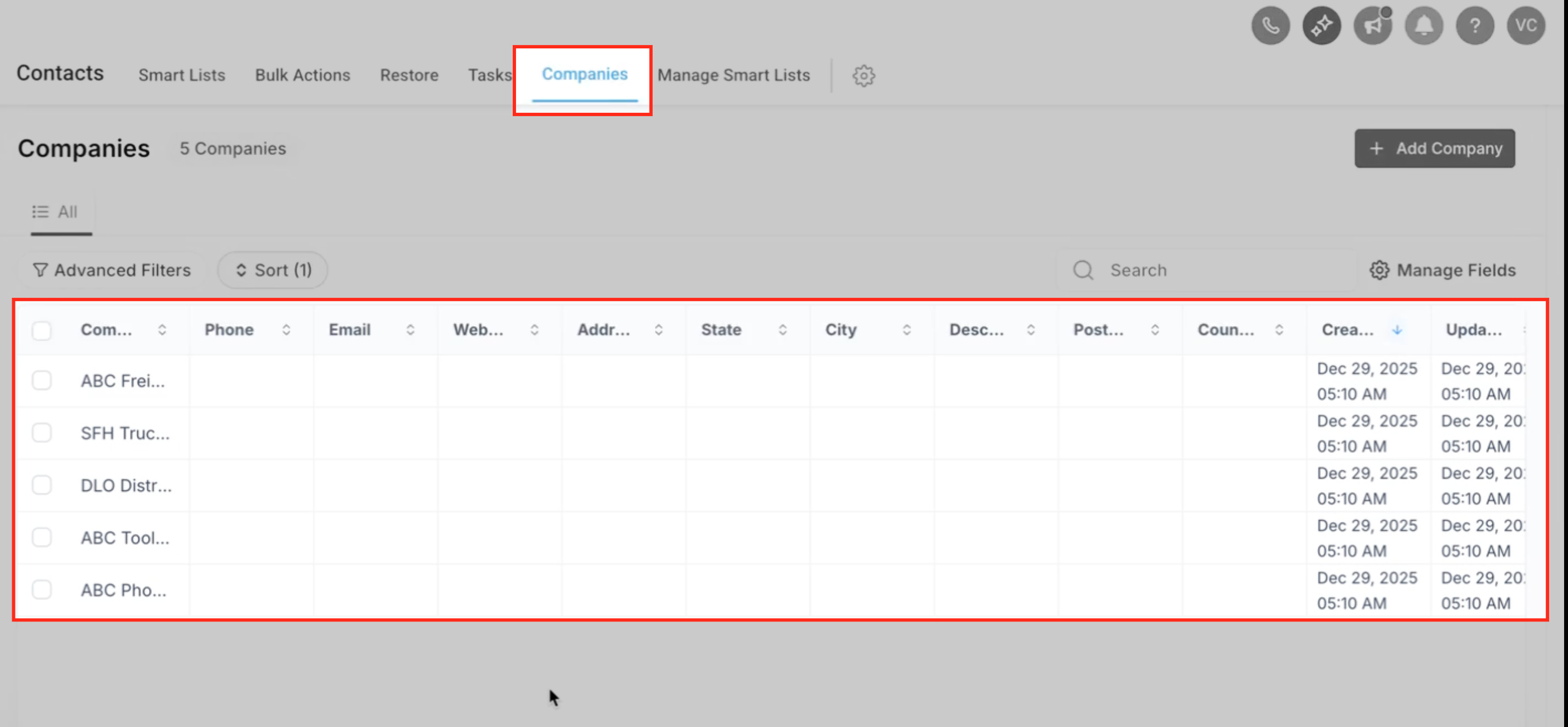
Open the Companies tab to review the company records created or updated as part of the contact import. The presence of company names from the CSV file confirms that the Contact Business Name automation ran successfully. This step helps validate that company records were created automatically without manual setup.
After this step - if you also want to update the companies and add custom field values to the same - you can do so by exporting these companies and then adding the remaining values and importing it back to the table - this allows you to have the updated company values in the companies table too.
You can learn more about importing companies here.
Frequently Asked Questions
Q: Does this feature allow me to import companies directly?
No, this feature does not support importing companies as a standalone object. Company records are created and updated automatically only when contacts are created or updated with a Business Name value. Contact imports are used to apply the automation, but companies themselves are not imported directly.
Q: Which field is required to trigger company creation and association?
The Business Name field on the contact record is required for this automation to work. The column name in the CSV file must match Business Name exactly, as this value is used to create or update company records and associate them with contacts. Other field names or variations will not trigger the automation.
Q: Will this automation work for existing contacts?
Yes, the automation works for both newly created contacts and existing contacts. When enabled, the system retroactively creates and associates company records for existing contacts that already have a Business Name value. This allows company records to be created without re-importing all contacts.
Q: How can I confirm that companies were created and associated successfully?
You can verify the results in two ways. First, open a contact record and check the Companies section under Associations to confirm the linked company. Second, navigate to the Companies tab to review the company records created or updated during the import. Seeing company names from the CSV file confirms the automation ran successfully.
Was this article helpful?
That’s Great!
Thank you for your feedback
Sorry! We couldn't be helpful
Thank you for your feedback
Feedback sent
We appreciate your effort and will try to fix the article