This article explains how to add a one-click Order Upsell to your HighLevel form checkout flow using V2 Funnels. Order Upsells help increase average order value by letting customers purchase an additional product immediately after their initial form submission—without re-entering payment details or navigating through additional checkout pages.
TABLE OF CONTENTS
- What Is Order Upsell in Forms?
- Key Benefits of Order Upsell
- Sell Product Element in Forms
- Upsell Button Configuration
- Order Summary Element
- Funnel Integration Best Practices
- How to Set Up Order Upsell in Forms
- Frequently Asked Questions
What Is Order Upsell in Forms?
Order Upsell is a feature that lets you present an additional product offer right after a customer completes a form purchase. The upsell uses the original payment token, allowing customers to accept the offer with a single click. This creates a seamless buying experience and allows businesses to increase revenue without complicating their funnel flow.
Understanding Order Upsell helps you optimize your sales funnels by offering relevant add-ons at the exact moment buyers are most engaged. This feature enhances conversion rates and reduces friction because customers don’t need to re-enter payment or personal information to complete the second purchase.
Key Benefits of Order Upsell
Order Upsell provides several advantages that help streamline your checkout process and maximize revenue.
These benefits highlight why Order Upsell is an effective strategy for monetizing your funnels. By using captured payment tokens and eliminating extra steps, businesses can create powerful upgrade paths that convert efficiently.
- Higher average order value: Offer relevant add-ons at the moment customers complete their purchase.
- Frictionless checkout experience: Customers never re-enter payment or personal details.
- Works with multiple product types: Compatible with Normal Sell and Bump products.
- Supports major payment providers: Works with Stripe, Authorize.net, NMI, PayPal, Square, and approved marketplace providers on V2 Funnels.
- Reusable forms: Native Form elements allow you to use the same form across multiple funnels.
- Automation-friendly: Each purchase—primary and upsell—triggers the Order Submitted automation, enabling precise workflow targeting.
Sell Product Element in Forms
The Sell Product element is what connects your form to the product being purchased. It allows buyers to complete a transaction directly from the form.
- Add a product with price, image, variants, taxes, and inventory settings.
- The payment token captured on this step is reused for the upsell purchase.
- This element must be configured correctly for the Order Upsell flow to function.
Upsell Button Configuration
The Upsell Button is the core trigger that processes the one-click upsell purchase.
- Place a Button element on the upsell funnel step.
- Set Action = Upsell Product.
- Select the product you want to offer as the upsell.
- When clicked, the system immediately processes the charge using the payment token from the initial purchase.
Order Summary Element
The Order Summary element helps customers see a clear breakdown of what they purchased including primary and upsell items.
- Add the Order Summary element on the upsell confirmation page, or on your final thank-you page.
- The summary includes the main product and any upsell(s) accepted during the process.
Funnel Integration Best Practices
For Order Upsell to work correctly, it must be configured using V2 Funnels and Native Form elements.
- Use V2 Funnels only Order Upsell does not work in V1 Funnels or Websites.
- Use Native Form elements so payment tokens pass to the next step.
- Keep upsell steps on the same domain to prevent third-party cookie issues.
- Avoid long Wait steps in Order Submitted workflows if you rely on upsells.
- Ensure inventory-enabled products have sufficient stock to avoid failed upsell attempts.
How to Set Up Order Upsell in Forms
This section walks you through configuring an Order Upsell from start to finish.
Step 1: Build or Edit a Form
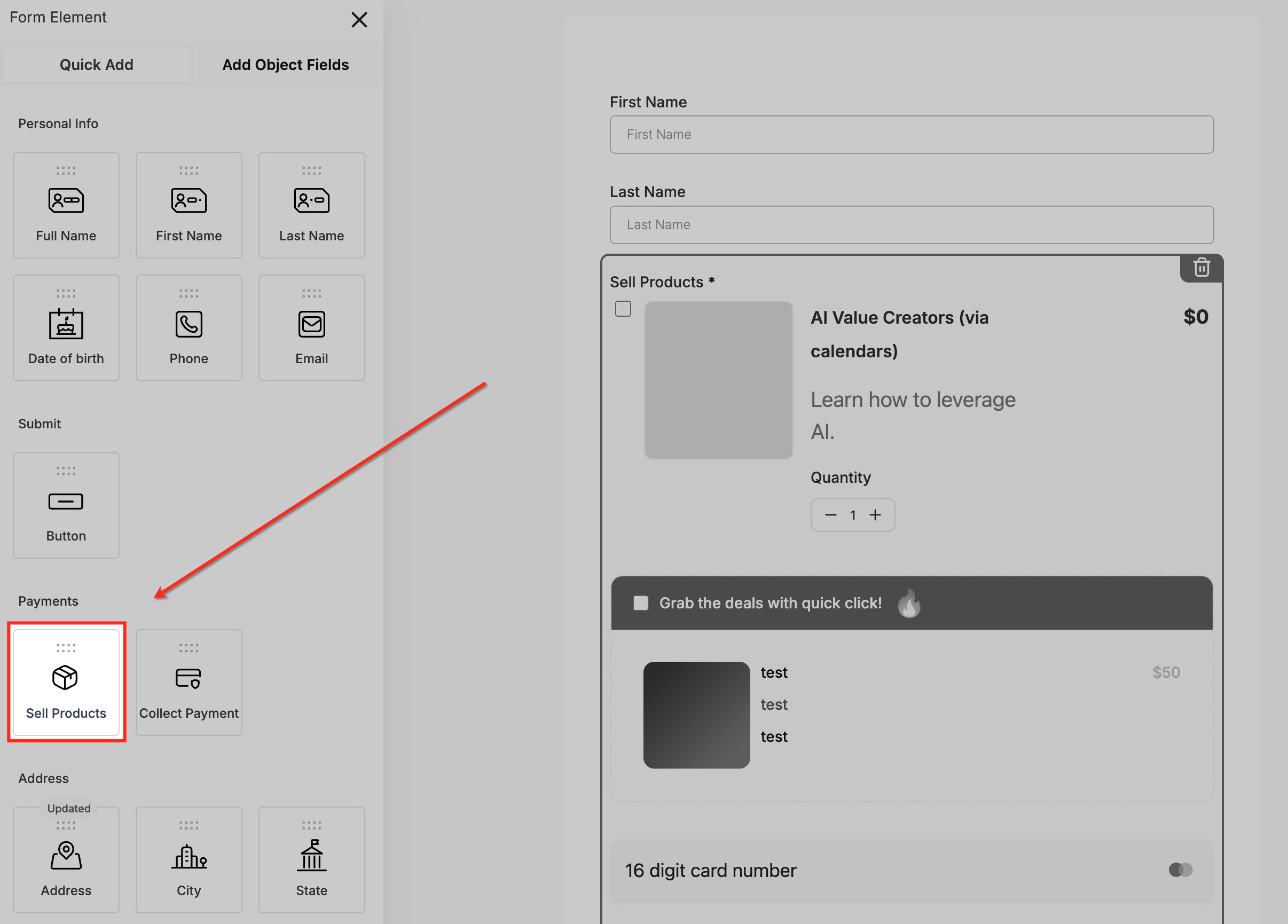
Add Sell Products
The Payments section includes the Sell Products element, which you can drag into your form to enable product-based checkout. Adding this element ensures the form can collect payment details and generate the token needed for one-click upsells.
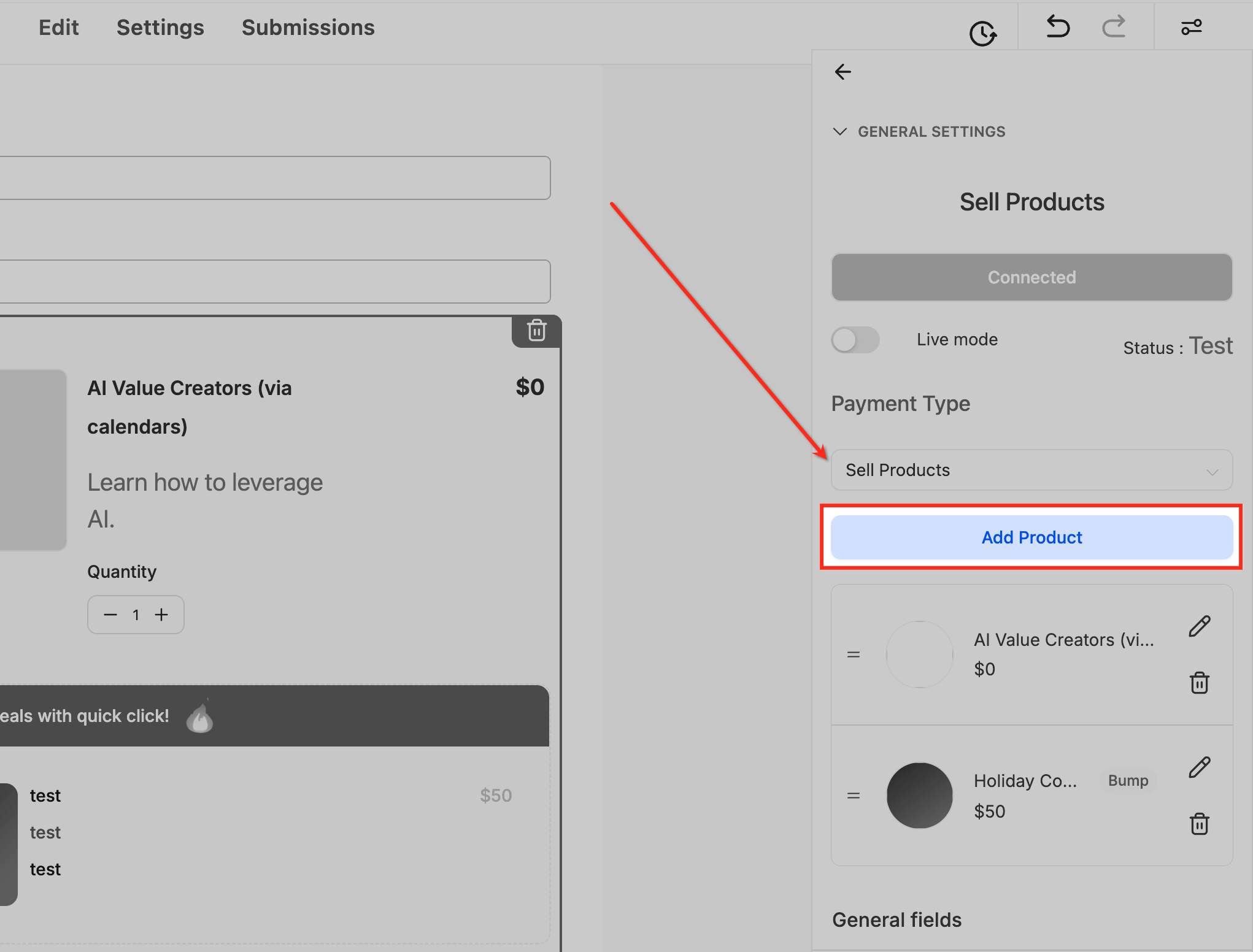
Add Product
The Sell Products settings panel lets you attach products by selecting Add Product. Using this option allows you to define which item will be purchased on the primary form submission.
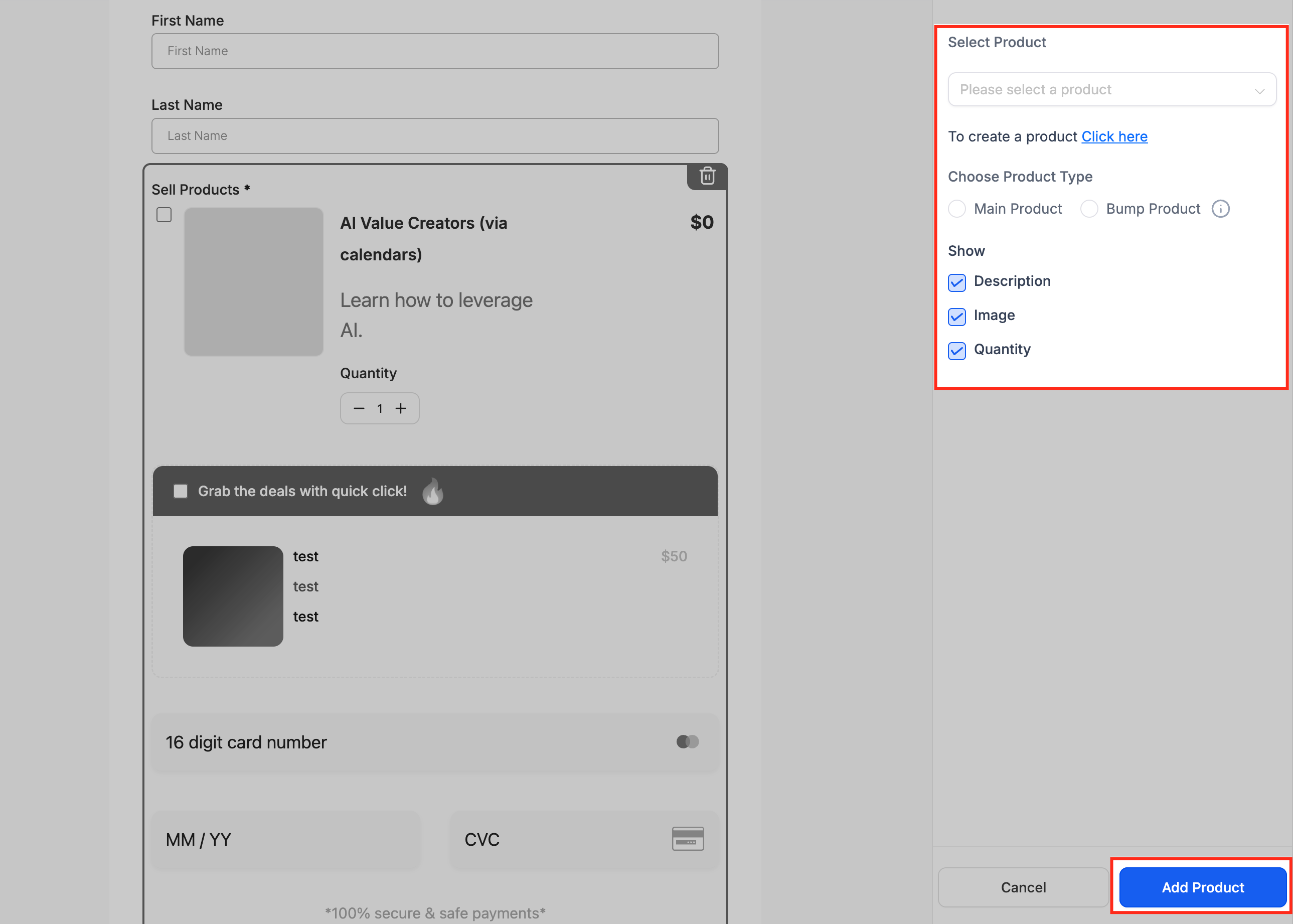
Select Product
The product selection sidebar allows you to choose an existing product or create a new one. You can also specify whether the item is a main product or bump offer and decide which display elements—such as description, image, or quantity should appear on the form.
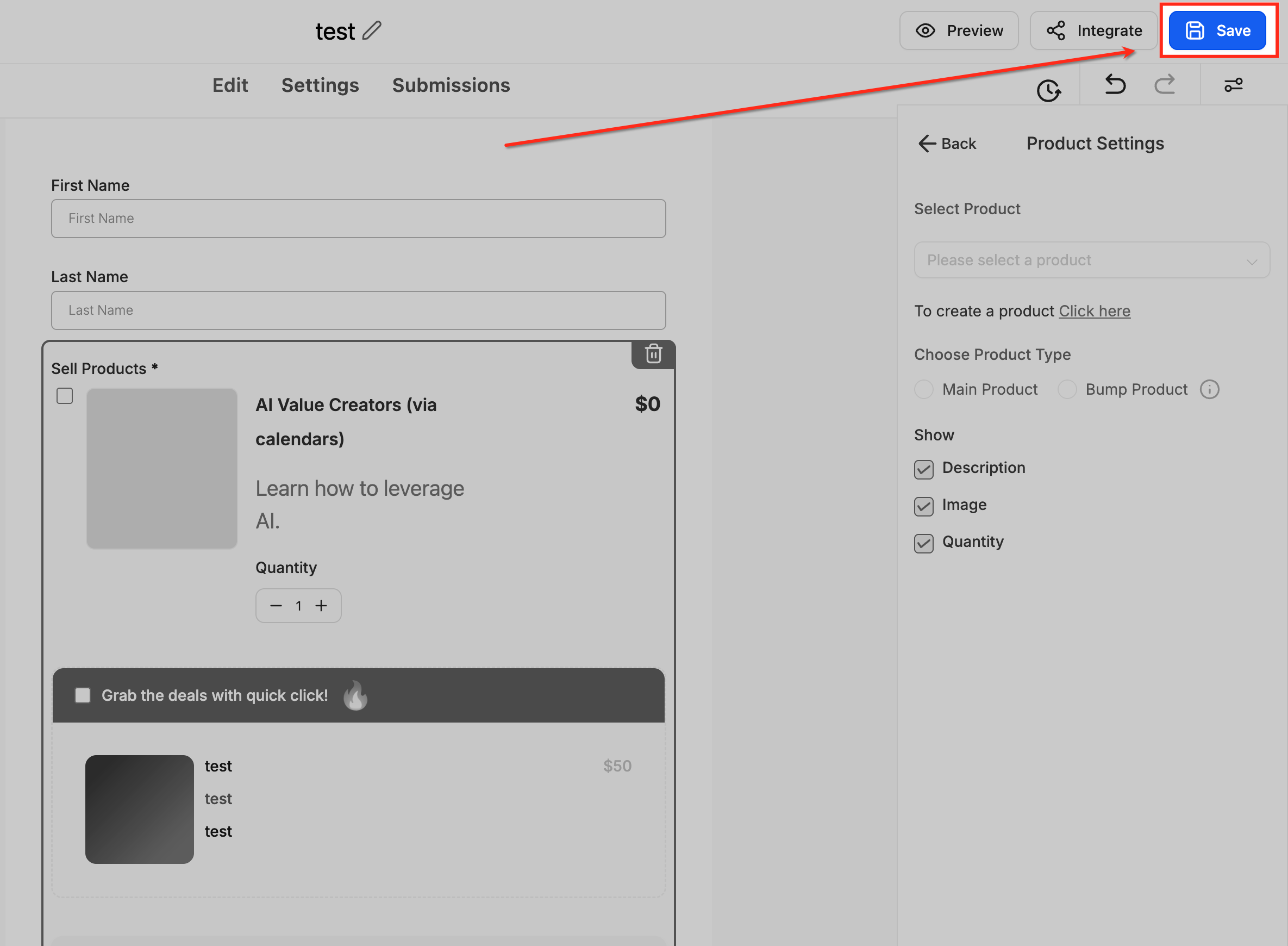
Save Product
After configuring product details, clicking Save finalizes the setup and applies the product to your form. This ensures the checkout can process the initial transaction correctly before moving into the upsell flow.
Step 2: Add the Form to a V2 Funnel
Insert Native Form
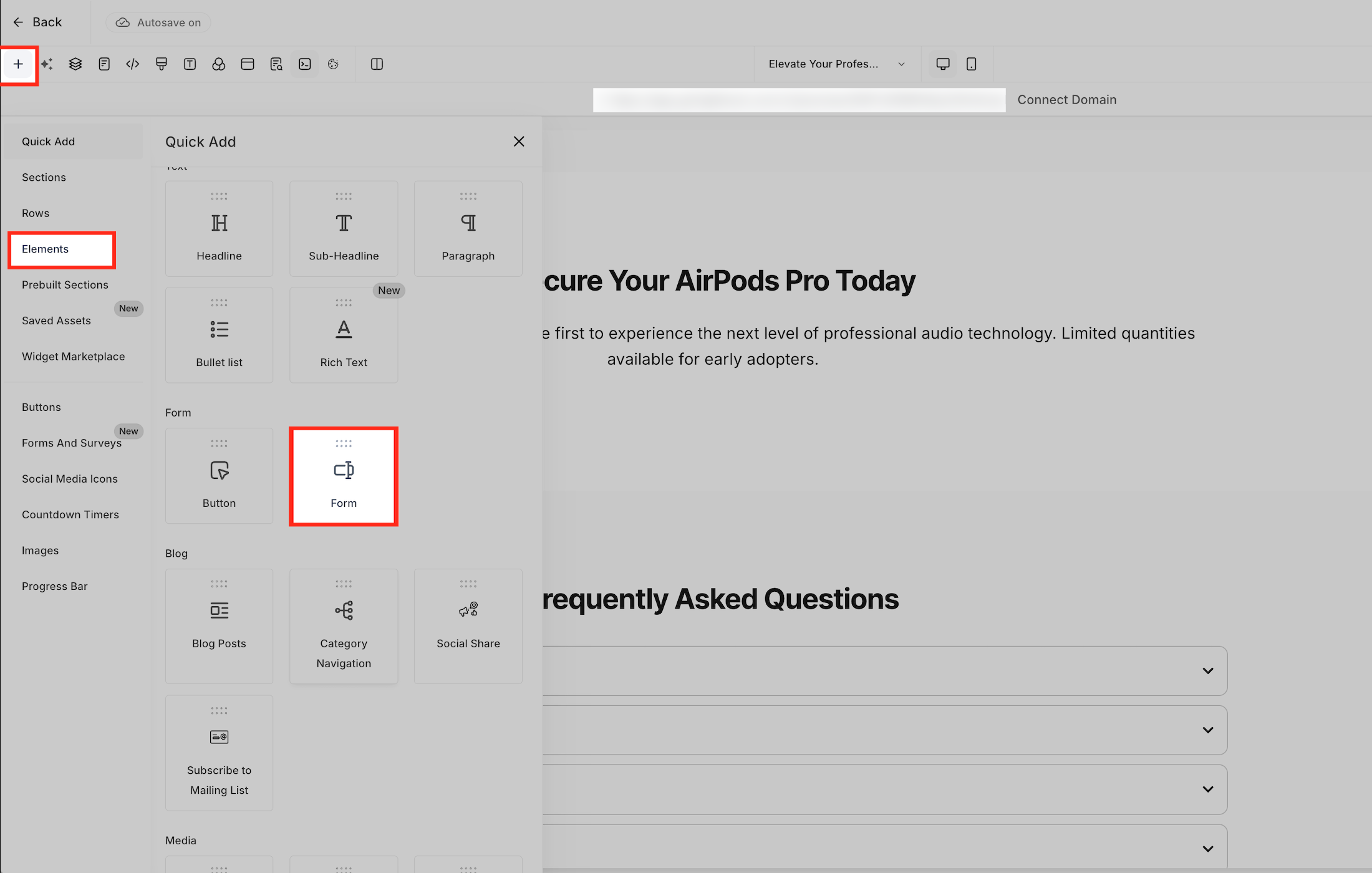
The funnel builder’s Elements panel provides access to the Form element, which can be added directly to your V2 funnel layout. Inserting your configured form here connects the primary purchase step to the next stage of the upsell sequence.
Step 3: Create the Upsell Step
Next Step Redirect
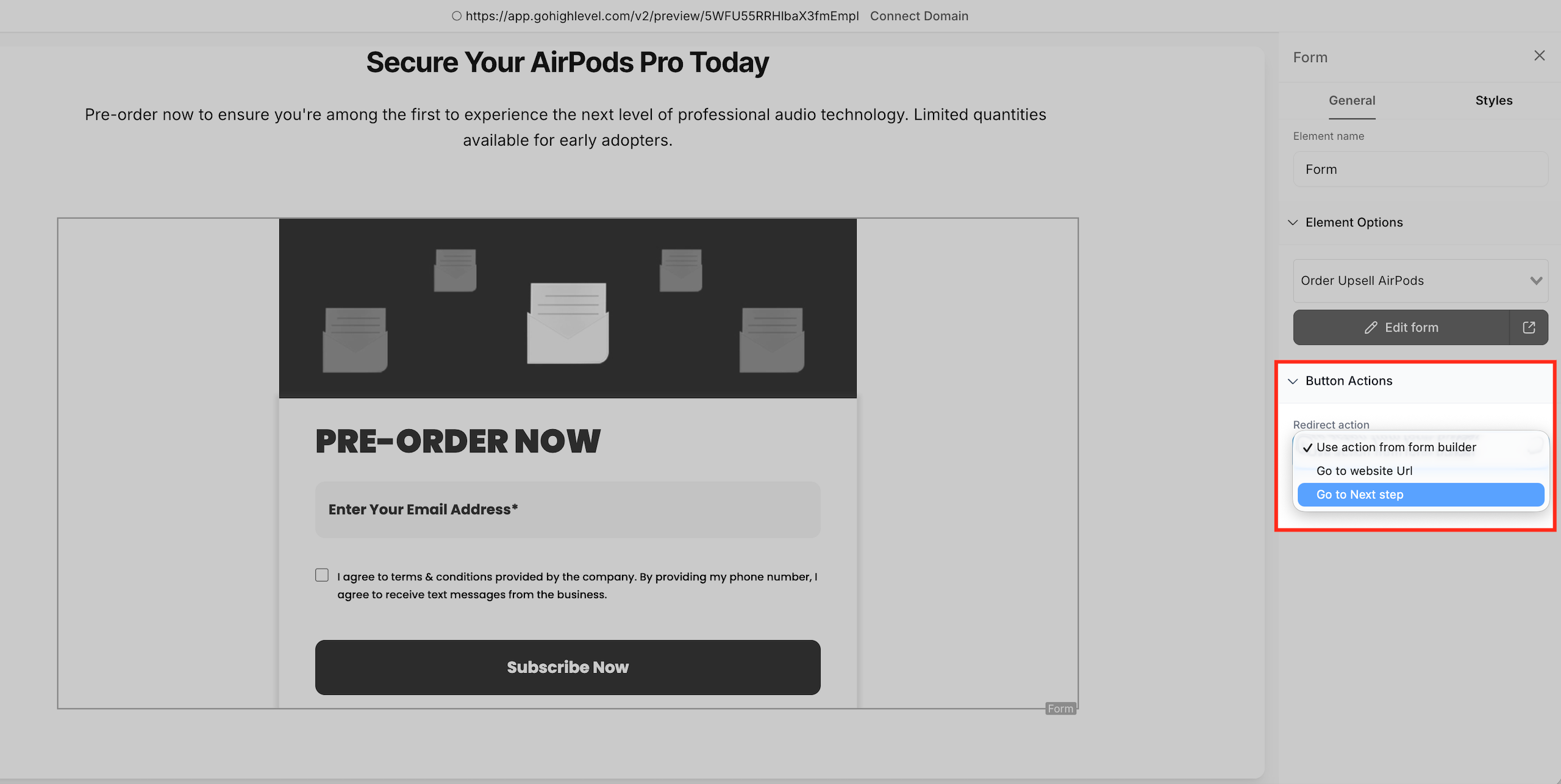
The Form element’s Button Actions settings allow you to select Go to Next Step as the redirect behavior after submission. Choosing this option ensures customers are immediately advanced to the upsell page once their initial purchase is complete.
Assign Funnel Products
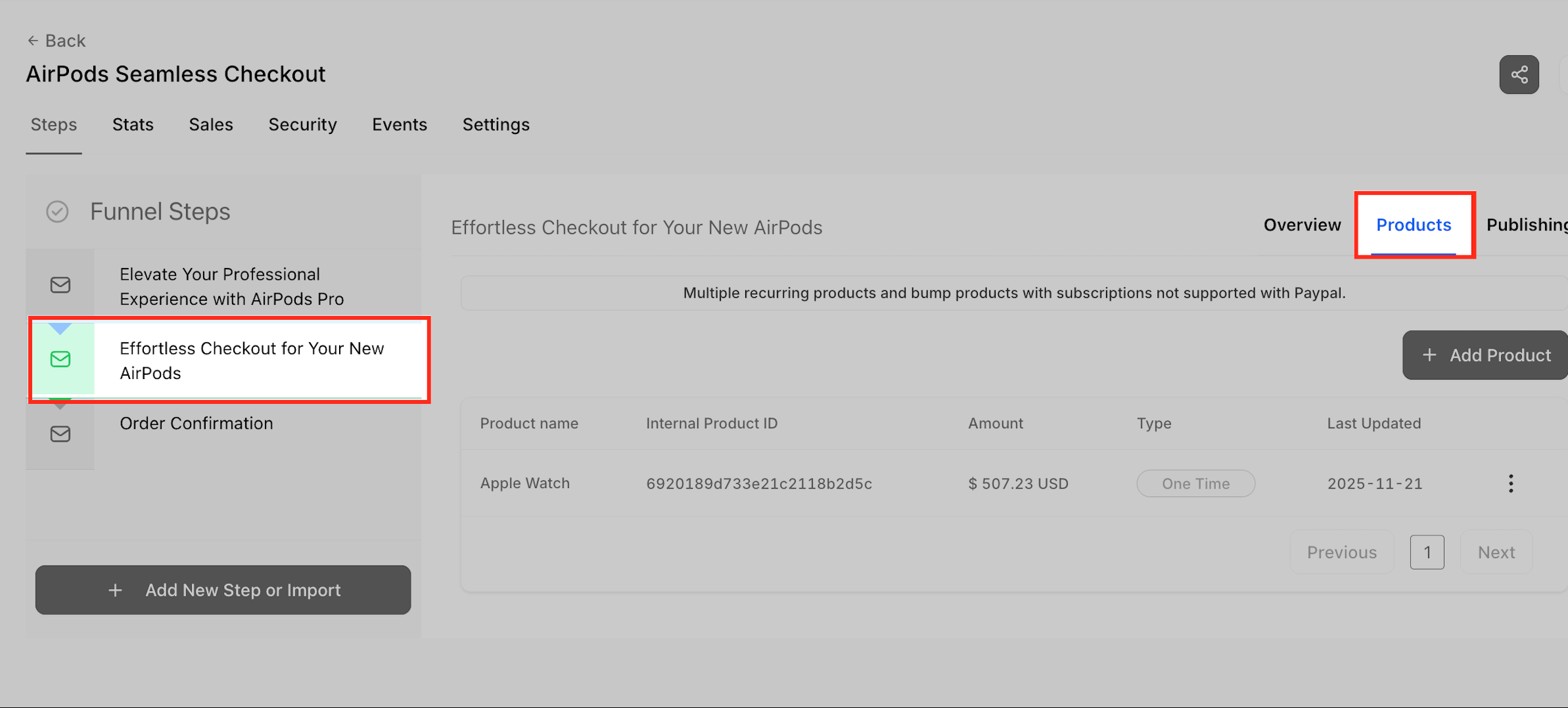
The Products tab within the funnel step shows the items linked to the primary checkout. Verifying the correct product here ensures that the upsell logic aligns with the initial order and processes correctly.
Configure Upsell Button
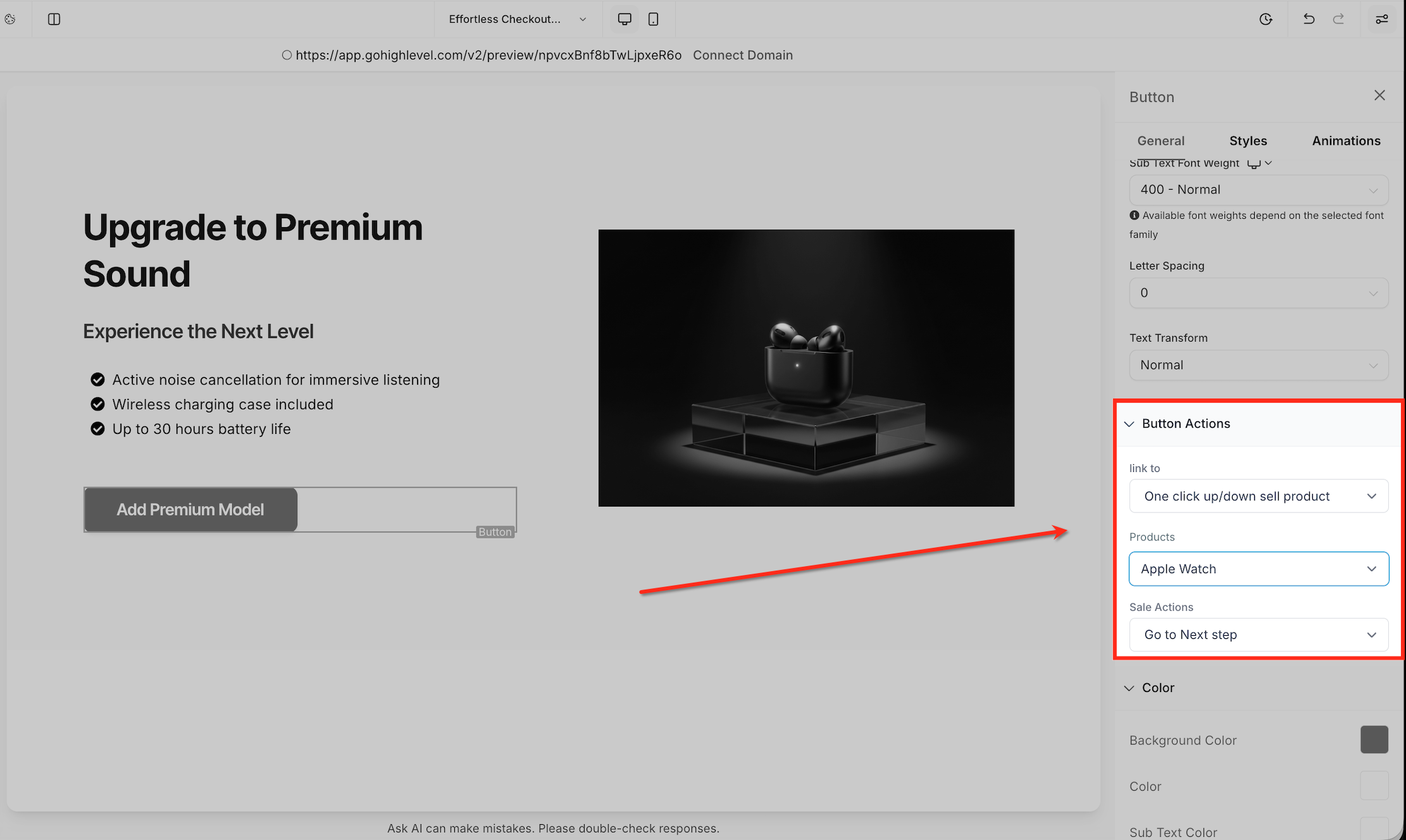
The button settings panel provides an option to link the button to a One click up/down sell product action. Choosing the upsell product here allows the system to process the upgrade instantly using the payment token captured from the initial purchase.
Step 4: Add an Order Summary
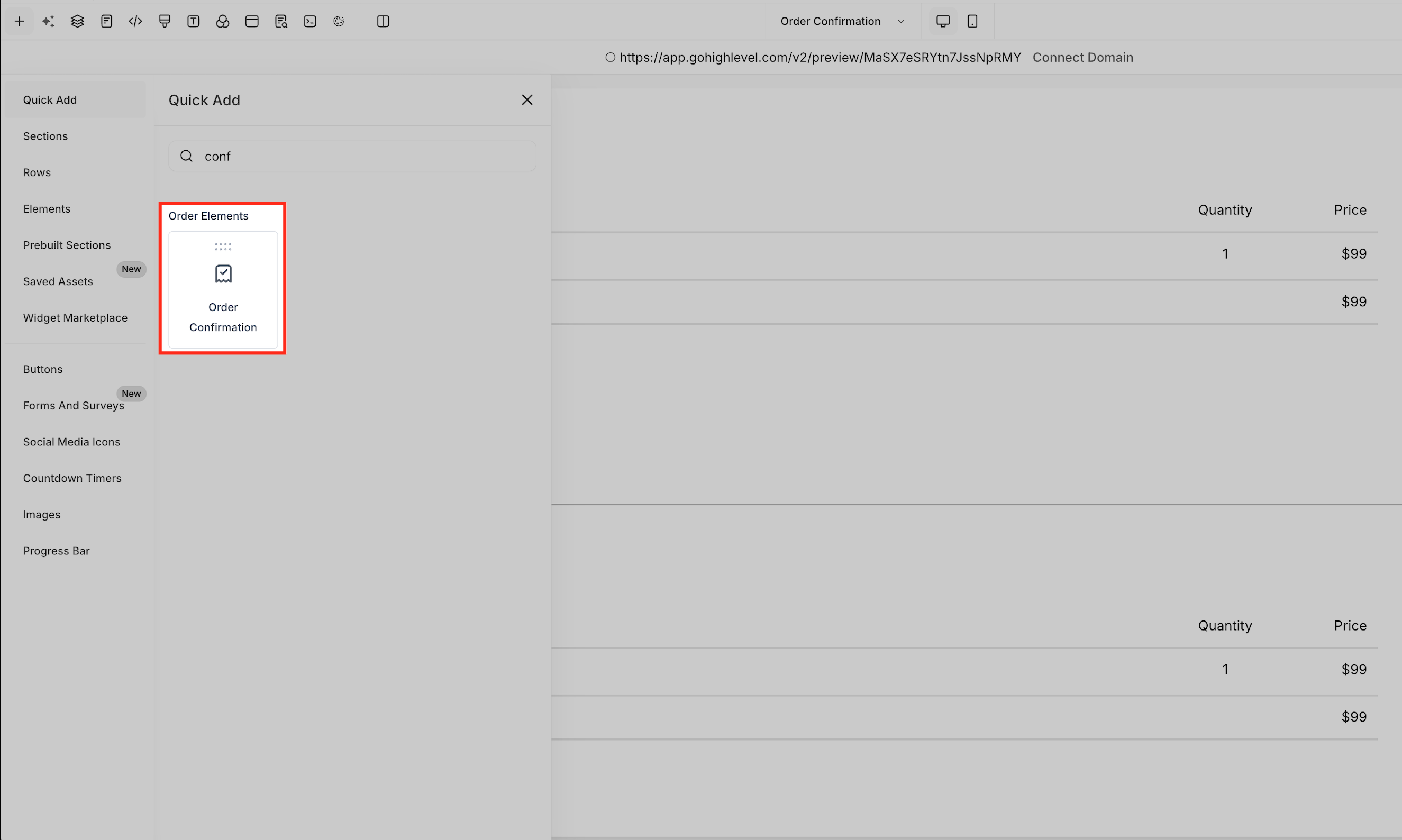
Add Order Confirmation
The Order Elements menu includes the Order Confirmation component, which can be placed on the final page of the funnel. This element displays a clear summary of the customer’s completed purchase, including any accepted upsells.
Frequently Asked Questions
Q: Can I add more than one upsell offer?
Yes. Each step supports one upsell product, but you can chain multiple funnel steps to create multi-step upsell sequences.
Q: Does Order Upsell work in V1 Funnels or Websites?
No. It only works in V2 Funnels using Native Form elements.
Q: How is an upsell different from an order bump?
Order bumps appear on the original form checkout, while upsells appear after the initial purchase on the next funnel step.
Q: Will customers see two separate charges?
They will see two charges, but both appear in the same order record and unified receipt.
Q: Can automations fire only when the upsell is purchased?
Yes. Use the Order Submitted trigger with a Product Filter to target specific SKUs.
Q: What payment gateways are supported?
Any gateway supported by V2 Funnels: Stripe, PayPal, Square, Authorize.net, NMI, and approved marketplace providers.
Q: Does inventory affect upsells?
Yes. If inventory is enabled and out of stock, the upsell cannot be purchased.
Q: Can customers change the upsell product quantity?
No. The Upsell Button always sells exactly one unit.
Related Articles
Was this article helpful?
That’s Great!
Thank you for your feedback
Sorry! We couldn't be helpful
Thank you for your feedback
Feedback sent
We appreciate your effort and will try to fix the article