Webinars help businesses generate leads, educate audiences, and drive conversions through live or on-demand presentations.
HighLevel supports:
- Live Webinars for scheduled real-time events
- On-Demand Webinars for evergreen automated viewing experiences
This guide covers webinar setup, scheduling, templates, cloning, automations, reminders, and webinar management best practices.
TABLE OF CONTENTS
- Webinar Types in HighLevel
- On-Demand Webinars
- Key Features and Benefits
- Create a Live Webinar
- Webinar Setup Improvements
- Webinar Templates and Funnel Pages
- Create an On-Demand Webinar
- Webinar Automations and Reminders
- Improved Webinar Tooltips
- Best Practices
- On-Demand Webinars
- Webinar Automations
- Troubleshooting
- On-Demand Webinar Issues
- General Webinar Issues
- Frequently Asked Questions
- Related Articles
Webinar Types in HighLevel
Live Webinars
Live webinars are scheduled events that attendees join at a specific date and time.
Use live webinars for:
- Product launches
- Live training
- Q&A sessions
- Workshops
- Coaching sessions
On-Demand Webinars
On-demand webinars use pre-recorded video content that attendees can watch anytime after registration.
Use on-demand webinars for:
- Evergreen lead generation
- Automated sales funnels
- Training libraries
- Self-paced education
Key Features and Benefits
HighLevel webinars include:
- Live and on-demand webinar support
- Pre-built webinar funnel templates
- Registration and confirmation pages
- CRM lead capture integration
- Automated reminders and follow-ups
- Webinar cloning and reusable templates
- Workflow automation support
Create a Live Webinar
Navigate to:
Sites → Webinars → New Webinar Funnel
Select:
Live Webinar
Step 1: Webinar Details
Required fields:
- Webinar Name
- Timezone
- Date
- Time
Validation prevents webinars from being created with incomplete information.
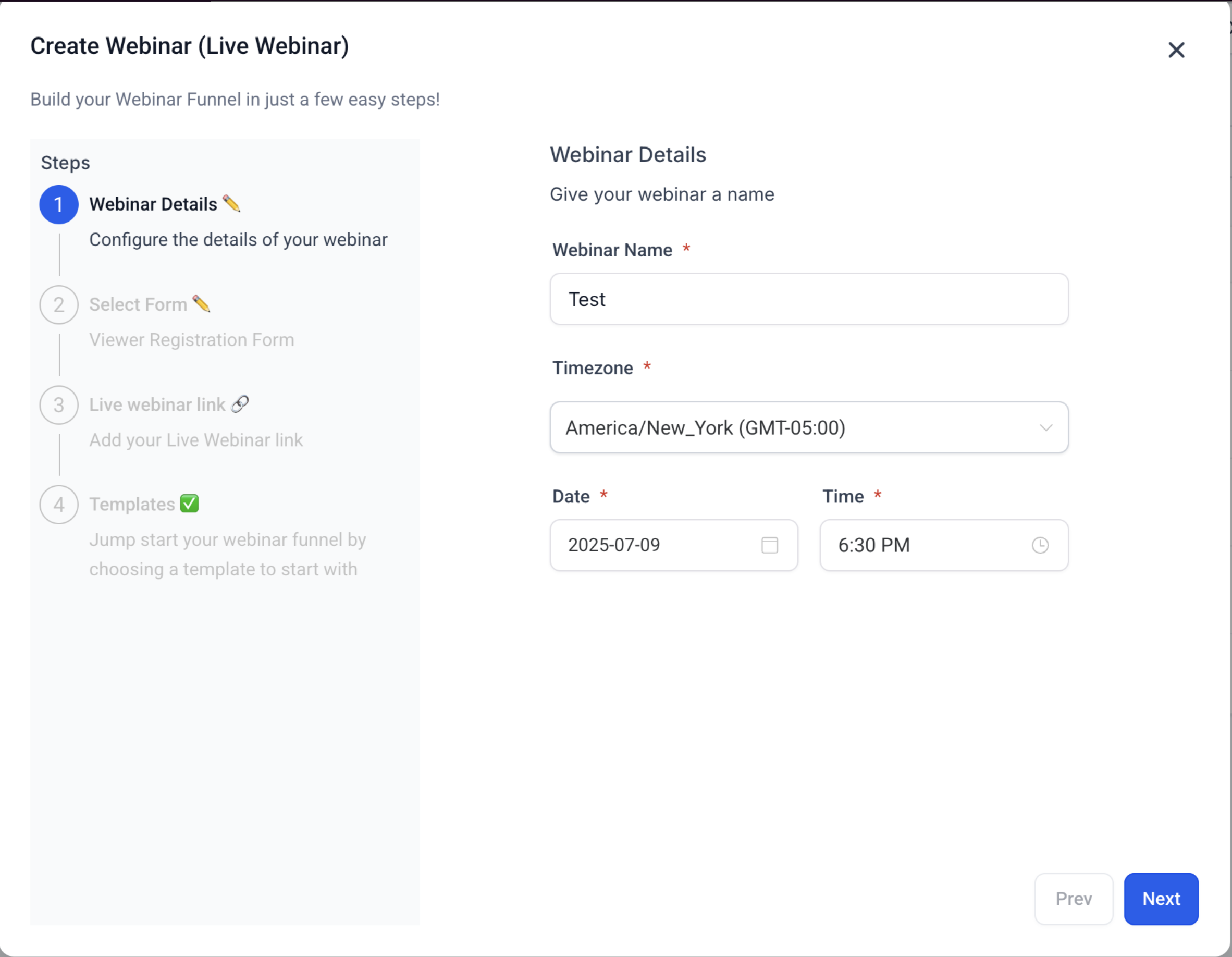
Place the live webinar setup screenshot directly below this section.
This screenshot demonstrates:
- Required webinar fields
- Improved date/time/timezone pickers
- Webinar setup validation
Webinar Setup Improvements
The webinar setup flow now includes:
- Improved date and time pickers
- Better timezone selection
- Required field validation
- Auto-saving webinar entries
These improvements help reduce scheduling errors during webinar creation.
Step 2: Select Registration Form
Choose a form from:
Sites → Forms
Registration forms can:
- Capture attendee information
- Trigger workflows
- Start reminder automations
- Sync leads into the CRM
Step 3: Add Webinar Link
Add your webinar streaming URL.
Supported platforms include:
- Zoom
- YouTube Live
- WebinarJam
- Custom webinar links
Step 4: Select Webinar Template
Choose from pre-built webinar funnel templates or build your own.
Templates typically include:
- Registration page
- Confirmation page
- Broadcast page
Webinar Templates and Funnel Pages
Webinar funnels automatically generate webinar pages for attendee registration and viewing.
Pages may include:
- Webinar Registration
- Webinar Confirmation
- Webinar Broadcast
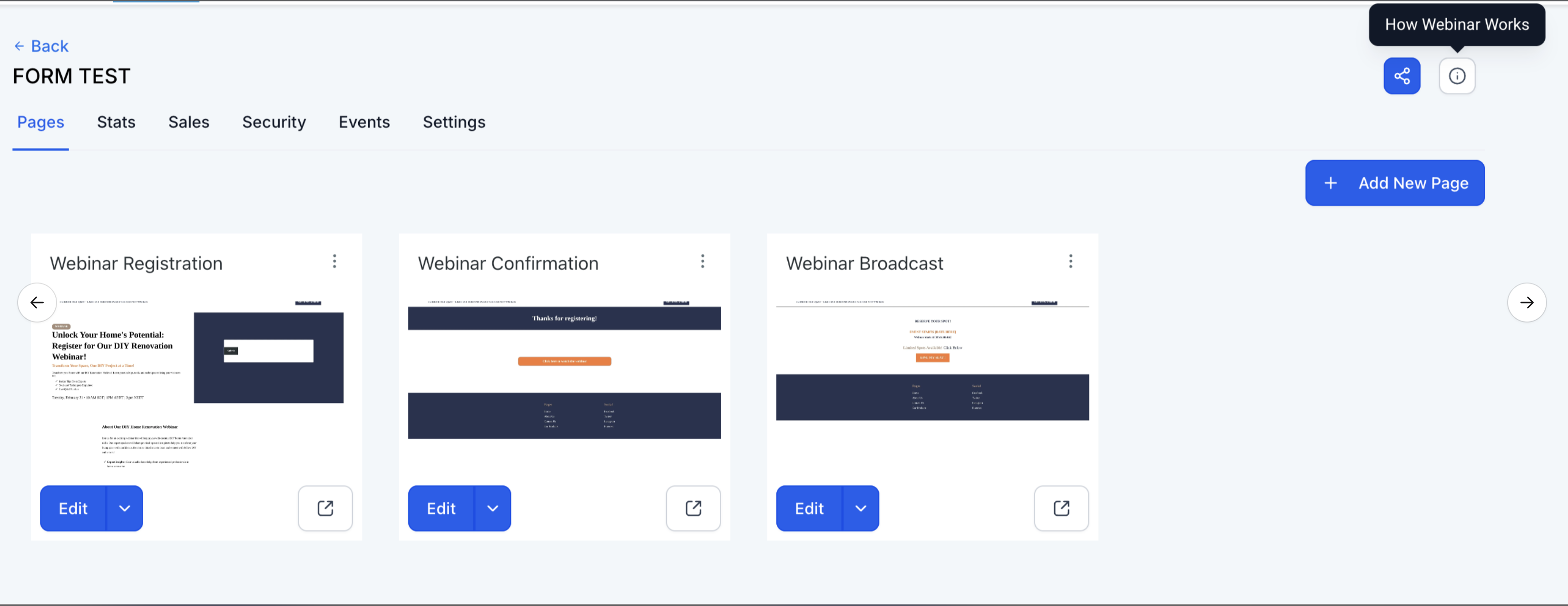
Place the webinar funnel pages screenshot directly below this section.
This screenshot demonstrates:
- Webinar funnel pages
- Registration page
- Confirmation page
- Broadcast page
Create an On-Demand Webinar
Select:
On-Demand Webinar
Required Fields
On-demand webinars require:
- Webinar Name
- Webinar Video or Link
Date, time, and timezone are not required for on-demand webinars.
Upload Webinar Video
Upload a pre-recorded webinar video or select media from your library.
Supported formats include:
- MP4
- MOV
- AVI
Webinar Cloning
HighLevel allows users to clone existing webinars for faster setup and reuse.
When cloning a webinar, users can now:
- Edit webinar date
- Edit webinar time
- Reuse webinar templates and settings
This helps simplify recurring webinar scheduling.
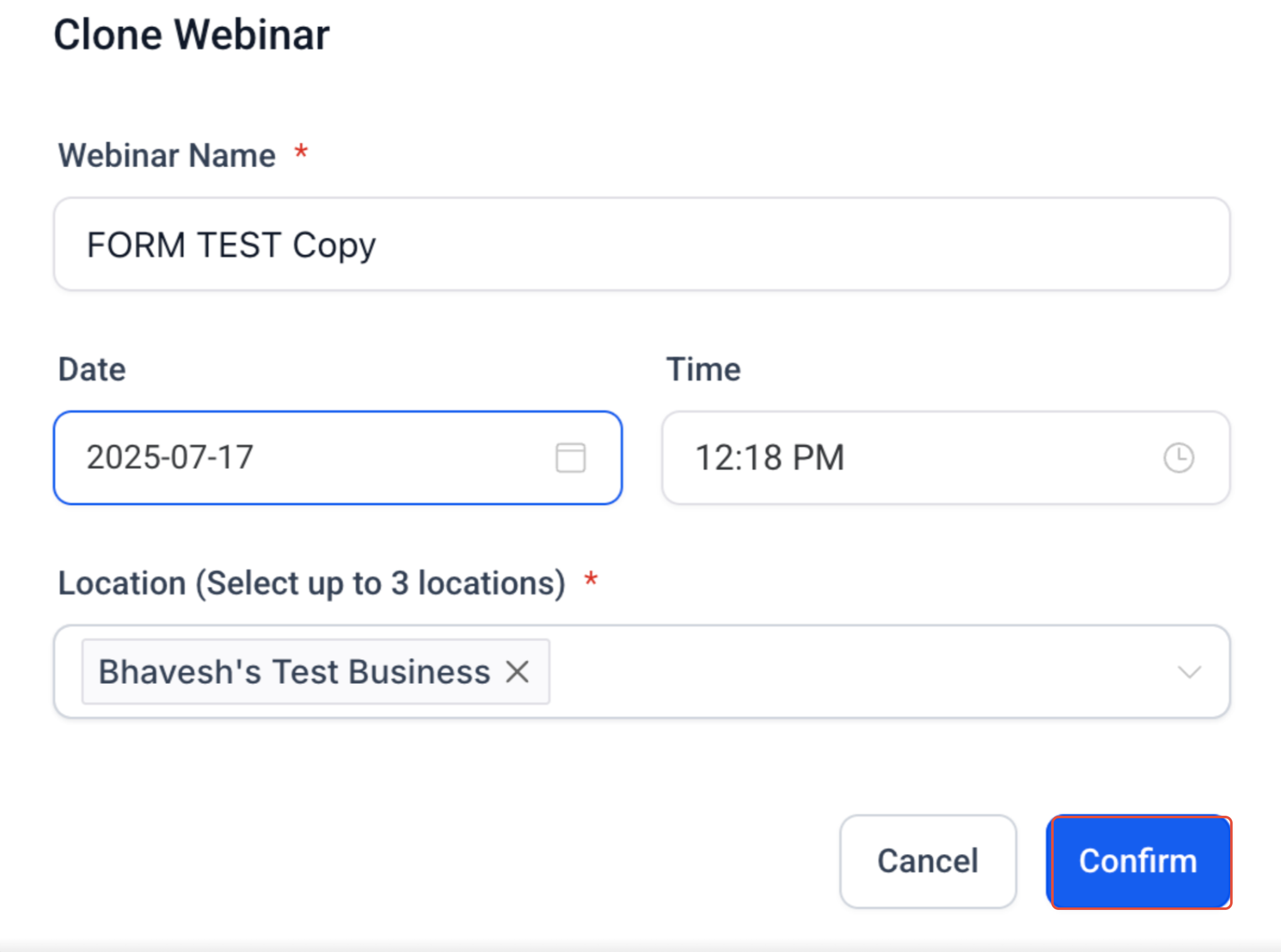
Place the webinar cloning screenshot directly below this section.
This screenshot demonstrates:
- Clone Webinar modal
- Editable date and time fields
- Webinar duplication workflow
Webinar Automations and Reminders
Webinar funnels support built-in workflow automation.
Common automations include:
- Registration confirmations
- Reminder emails and SMS
- Webinar follow-ups
- Replay delivery
- Post-webinar nurture campaigns
Typical reminder timing:
- 24 hours before
- 1 hour before
- 10 minutes before
Improved Webinar Tooltips
Webinar setup tooltips now provide clearer guidance during webinar creation.
If tooltip content fails to load, fallback guidance is displayed automatically to help reduce setup confusion.
Best Practices
Live Webinars
- Test webinar links before launch
- Schedule with timezone awareness
- Promote early
- Prepare backup streaming options
- Encourage attendee interaction
On-Demand Webinars
- Use high-quality recordings
- Keep webinars concise
- Refresh content regularly
- Organize media library assets
Webinar Automations
- Enable reminder workflows
- Personalize messages using merge fields
- Add replay and follow-up sequences
- Test automations before publishing
Troubleshooting
Live Webinar Issues
Webinar link not working
Verify the webinar URL before publishing.
Incorrect timezone
Double-check webinar timezone selection during setup.
On-Demand Webinar Issues
Video upload failed
Verify file format and upload size.
Poor video quality
Upload higher resolution media files.
General Webinar Issues
Webinar not saving
Verify all required fields are completed.
Registration form not working
Confirm form integration and workflow setup.
Frequently Asked Questions
Q: What fields are required for live webinars?
A: Live webinars require a title, date, time, timezone, and webinar link or video.
Q: What fields are required for on-demand webinars?
A: On-demand webinars require a webinar title and video or webinar link.
Q: Can webinar dates and times be edited during cloning?
A: Yes. Webinar date and time can now be updated during the cloning process.
Q: Do webinar entries save automatically?
A: Yes. Webinar entries are auto-saved and appear immediately in the webinar list.
Q: Can webinar registrations trigger workflows?
A: Yes. Webinar forms can trigger workflows for reminders, follow-ups, tagging, and CRM updates.
Related Articles
Was this article helpful?
That’s Great!
Thank you for your feedback
Sorry! We couldn't be helpful
Thank you for your feedback
Feedback sent
We appreciate your effort and will try to fix the article